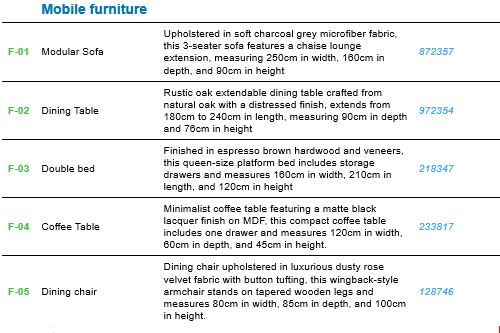
Legend content and format
The Legend is an object-type element, found in your project library.
Use the pages of the Legend Settings panel to set up the content and format the way you like it.
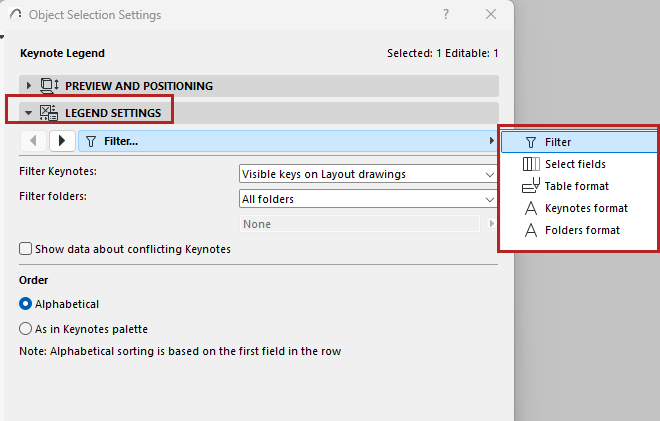
Filter Legend content (by folder and visibility)
Select Keynote fields to display
Select Folder fields to display
Display borders and separators
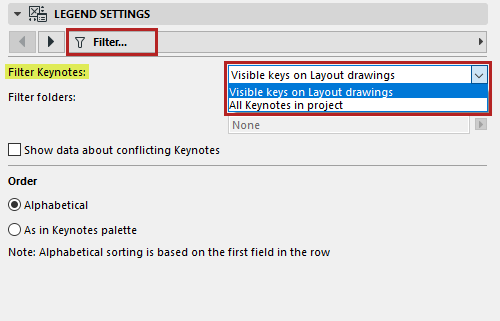
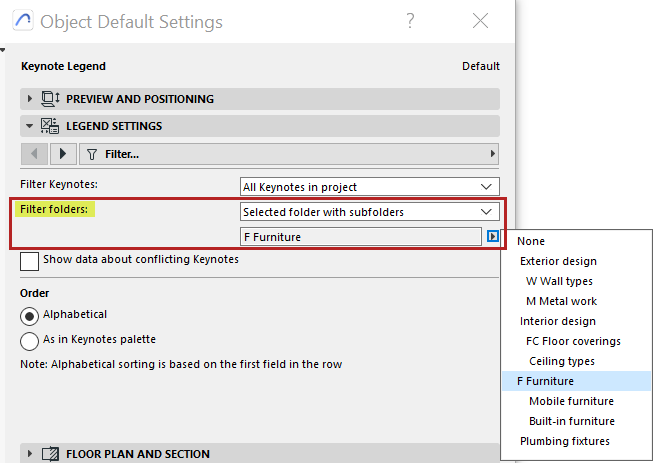
Filter Legend content (by folder and visibility)
On the Filter page:
Show data about conflicting Keynotes
If Legend content includes Keynotes with conflicting data (this may occur with hotlinked elements): Check this box to display info about the conflicting data. Otherwise, the Legend will just display a Key, without any other information.
See also Keynotes in hotlinks .
Order of rows
Choose the order in which to list Keynotes in the Legend:
Number of columns
On the Select fields page:
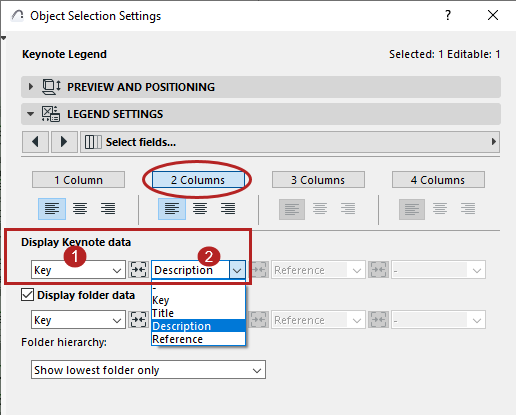
Select Keynote fields to display
On the Select Fields page:
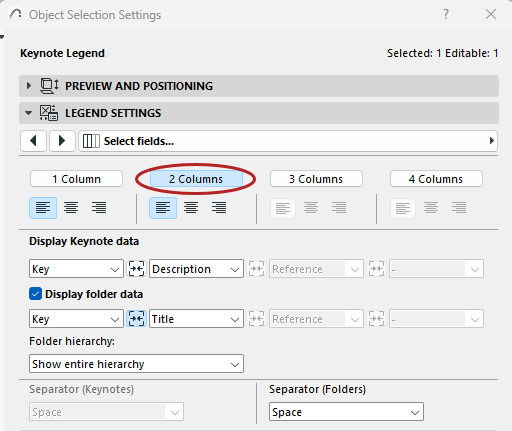
Use the pop-ups to set which Keynote data to show in each column of the Legend. (For example, if you selected “2 Columns”, then you can choose two Keynote data here, e.g. Key in the first column and Description in the second.)
Select Folder fields to display
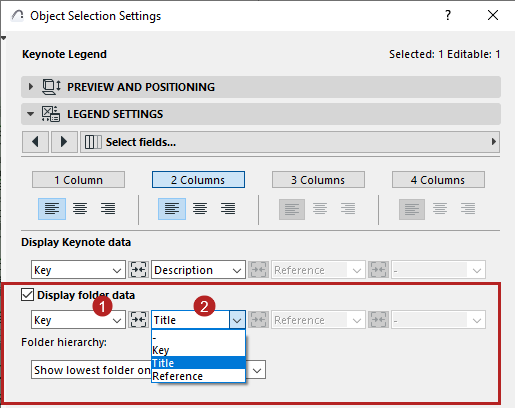
The Legend can display folder data as well as the Keynotes themselves. On the Select Fields page:
Check Display folder data.
Then set which folder data to show in each column of the Legend (e.g. folder Key in the first column and folder title in the second).
Merge data items
You can merge the data and formatting of adjacent fields.
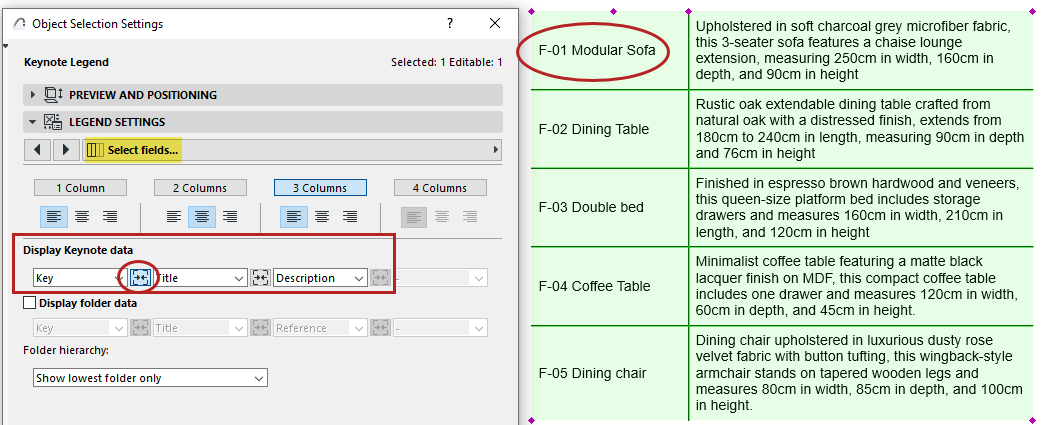
Here it is worth merging the first two keynote fields (Key and Title):
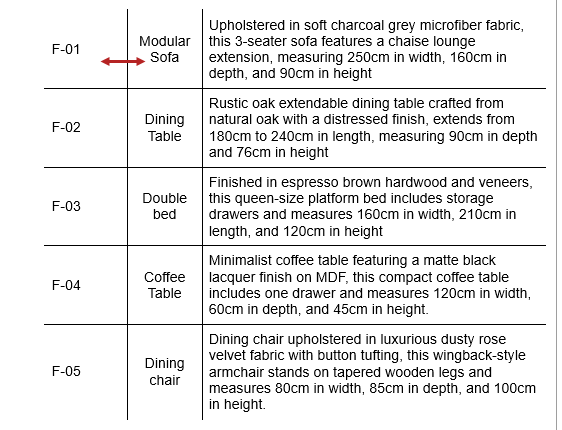
To merge these data: On the Select Fields page of Legend Object Settings, click the Merge button between the two fields.
Separator for merged fields
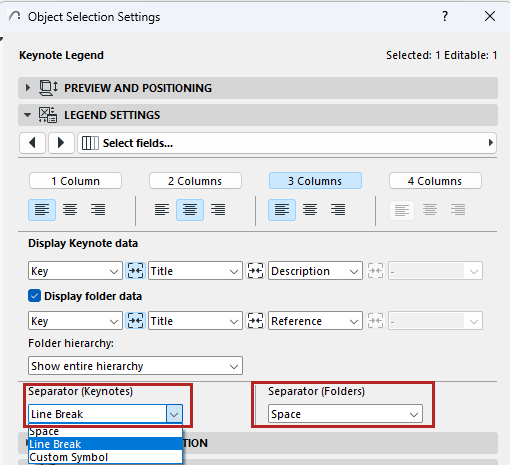
If the Legend has merged fields (such as Key plus Title), you can set any separator between them.
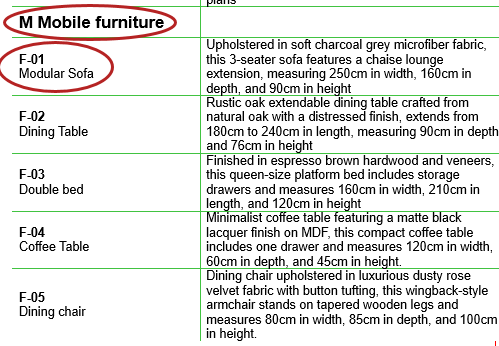
For example, put a line break between merged Keynote data and a space between merged folder data.
Align data in column
Set preferred text alignment for each column of the Legend (left, center, right).
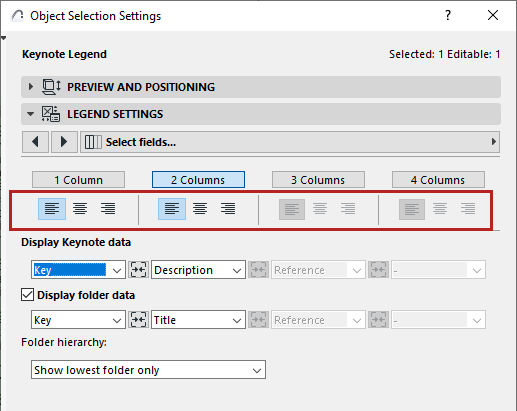
The entire column gets a uniform alignment.
Display borders and separators
On the Table format page:
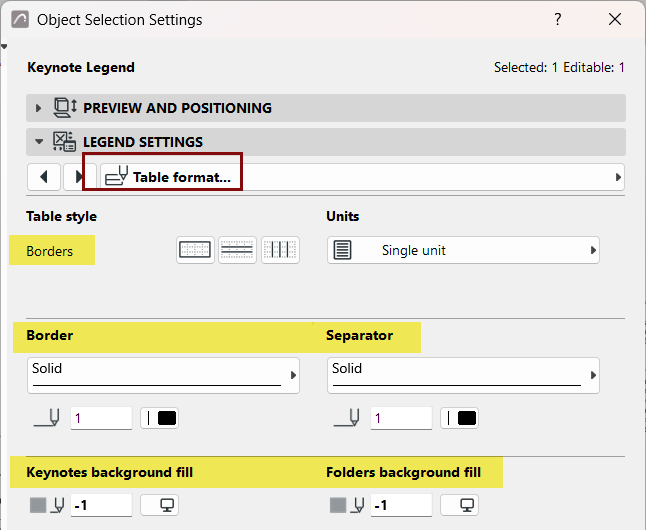
Display background fill
If you like, set off the Keynote and/or Folder data fields with background fills.
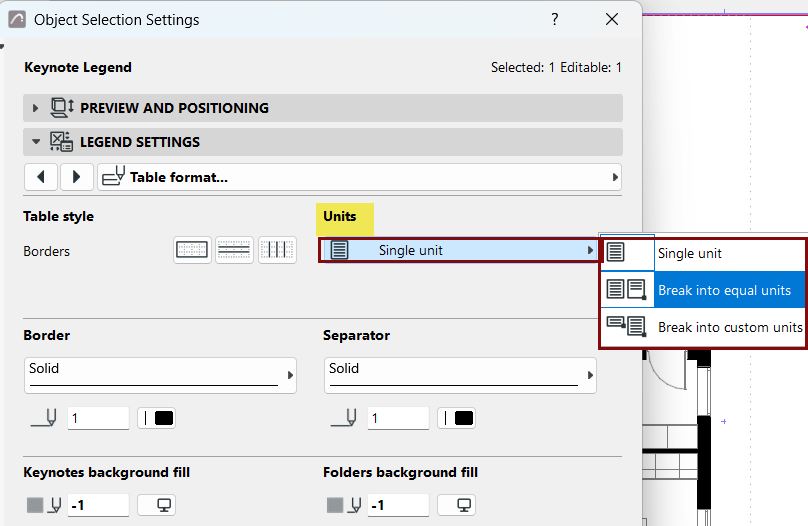
Divide into horizontal units
If the Legend is too long, you can subdivide the table rows into horizontal units.
On the Table format page:
Use the Units pop-up to divide the Keynote legend into equal units, or units of a fixed size.
To further customize the result, edit the Keynote units graphically on the Layout.
Format text
Use the Keynotes format and Folders format pages.
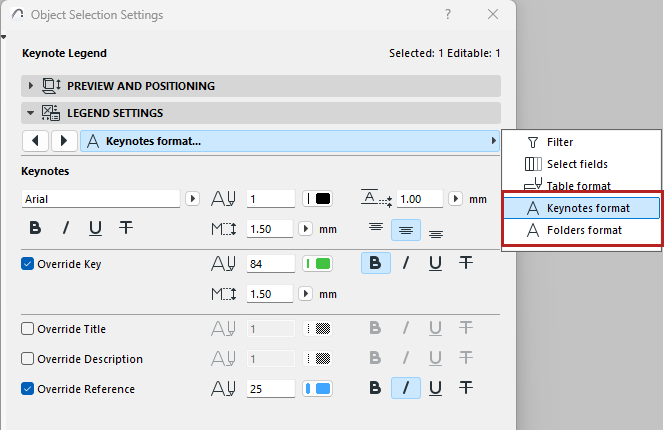
For example: