To create a new Teamwork project, open a solo Archicad
project file (.pln), then use the
Share command to add it to the BIMcloud. All users who have access rights can then
work on this shared project in Teamwork.
Follow these steps to share a Teamwork Project:
Open a solo Project file (.pln).
Use one of these commands to open the Share Project dialog:
Teamwork > Project > Share
File > New > Share
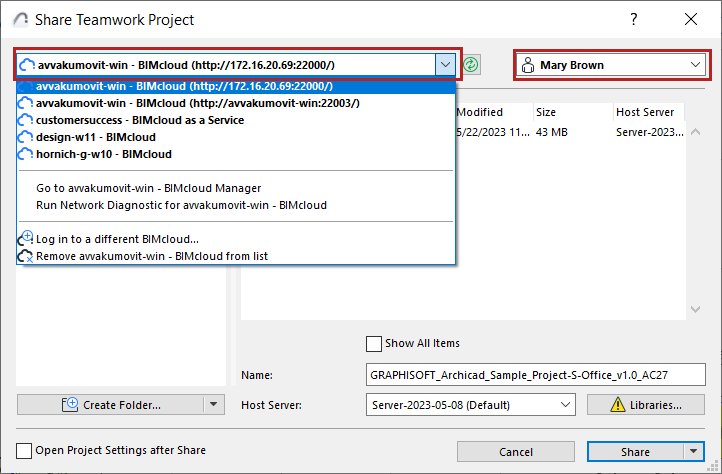
Choose a BIMcloud server from the list, which shows the addresses of all
BIMclouds to which you successfully logged in at least once.
If you don’t see the BIMcloud you need, you can add it with Log in to a different BIMcloud. (see Log in to
BIMcloud)
Choose a user.
If you are not logged in yet, choose Log in from the Select
User field.
If you don’t see the user you need, choose Log in as a different
user.
If you no longer need to see an item, select it and use the
Remove command from the drop-down lists
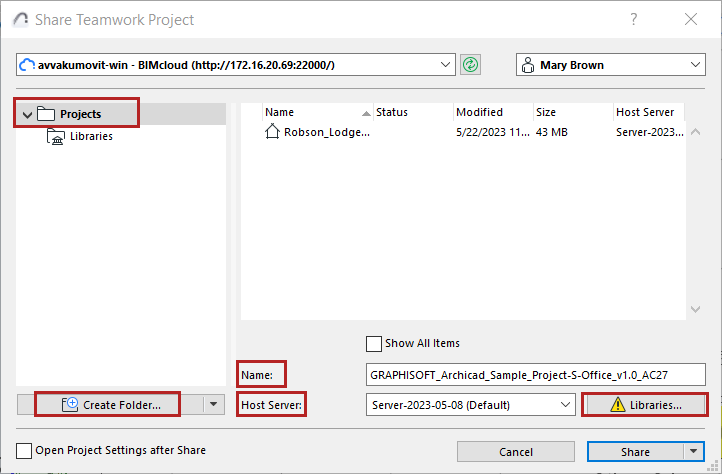
The Share Project
dialog lists the folders and projects/libraries to which you have at least view
permissions on the selected BIMcloud.
If needed, click Refresh to refresh the BIMcloud status and content
Choose a folder and a name for the shared project
Required permission:
Simplified Management: Project or Server
Administrator
Detailed Management: Modify details and
Modify folder content for the destination folder
If needed, use Create Folder to create a new one
Note: To delete or otherwise manage folders, you must use the
browser-based BIMcloud Manager. (Click the Manage Folders command from the
Create Folder button to access the Projects page of the BIMcloud Manager.)
Enter a Name for the shared project.
Important: Use a different name for each project. Do not use the same name as an
existing project, even if the letter cases are different (e.g. ParkingGarage and
PARKINGGARAGE). If you do, users may not be able to Open or Join the project they
need.
Check the displayed Host Server, which is the default Host Server
of the selected project folder. If needed, choose a different Host Server.
Note: Not available in BIMcloud Basic.
Required permission to access the pop-up:
Simplified Management: Server
Administrator
Detailed Management: Modify details for the selected folder
Available BIMcloud Servers in the pop-up:
Simplified Management: All BIMcloud
Servers for a Server Administrator
Detailed Management: Those for which you
have Modify Hosted Data on BIMcloud Server permission.
Click Libraries to open
the dialog and decide how to handle the project libraries.
When you share a solo project, use the Libraries dialog to optionally
upload the solo project’s linked libraries to the BIMcloud.
 Required permission: