Manage Subscriptions
Manage your Subscriptions in the Teamwork > Change Tracking dialog.
Turn Subscription On/Off
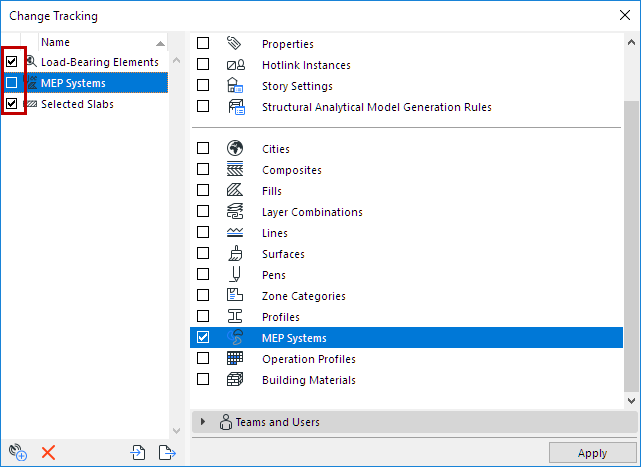
In the Subscription list at left: Turn checkbox on or off to activate or deactivate notifications for any subscription.
- If you deactivate a subscription: You will not receive any notifications or feedback on changes. (Existing notifications listed in your Teamwork Palette will not be deleted.)
- If you reactivate a subscription: You will start receiving notifications, but you will not get any notifications on changes that occurred while the subscription was turned off.
Import/Export Subscription
Use the import/export buttons at the bottom of the dialog to transfer the definitions of one or more selected subscriptions in XML format.
Rename Subscription
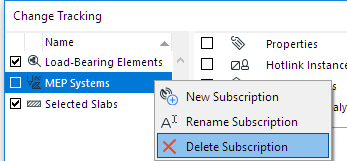
Double-click the subscription name to edit the field, or use the context menu command.
Delete Subscription
Click the red X, or use the context menu command.
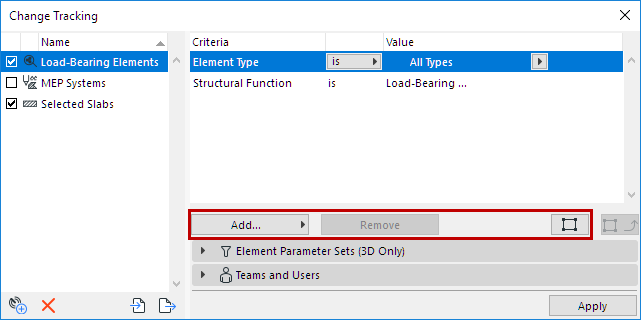
For Element-based Subscriptions (by criteria or selection):
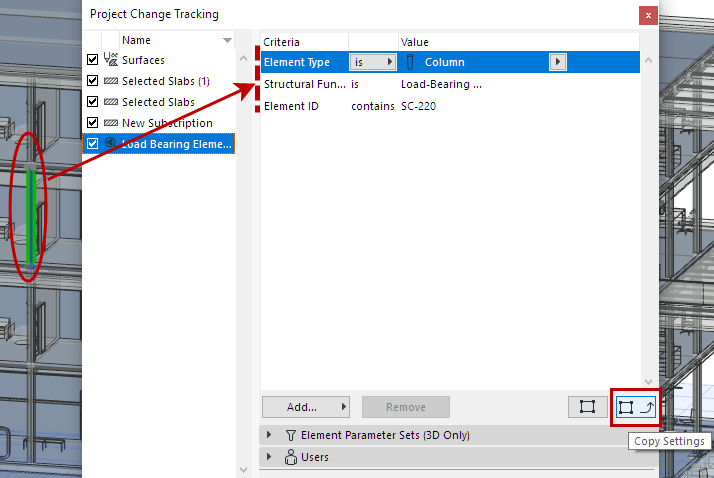
Copy Settings
For criteria-based subscriptions only:
If any model elements are selected in the project, the Copy Settings becomes active. Click to fill in the values of the last selected model element into the criteria.