Edit individual segments and nodes - using Edit mode
Use Edit mode to select any single segment or node of a Route element, and edit its parameters.
Enter Edit Mode
Select a Route element, then do one of the following:
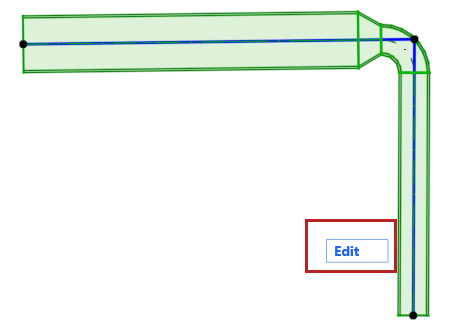
Using Edit Mode
Select any sub-element (node or segment).
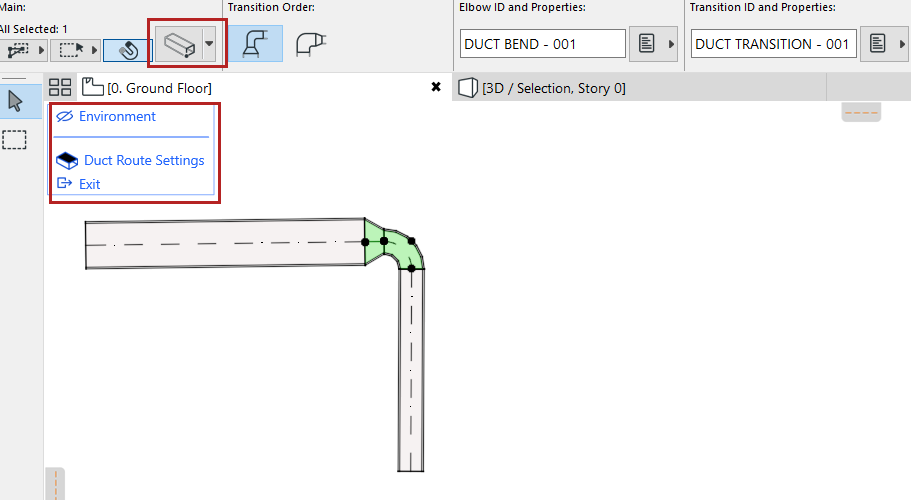
- The regular toolbox is replaced by just selection tools and a display palette.
- From the Info Box, you can open a limited Settings dialog that
applies just to the selected segment or node.
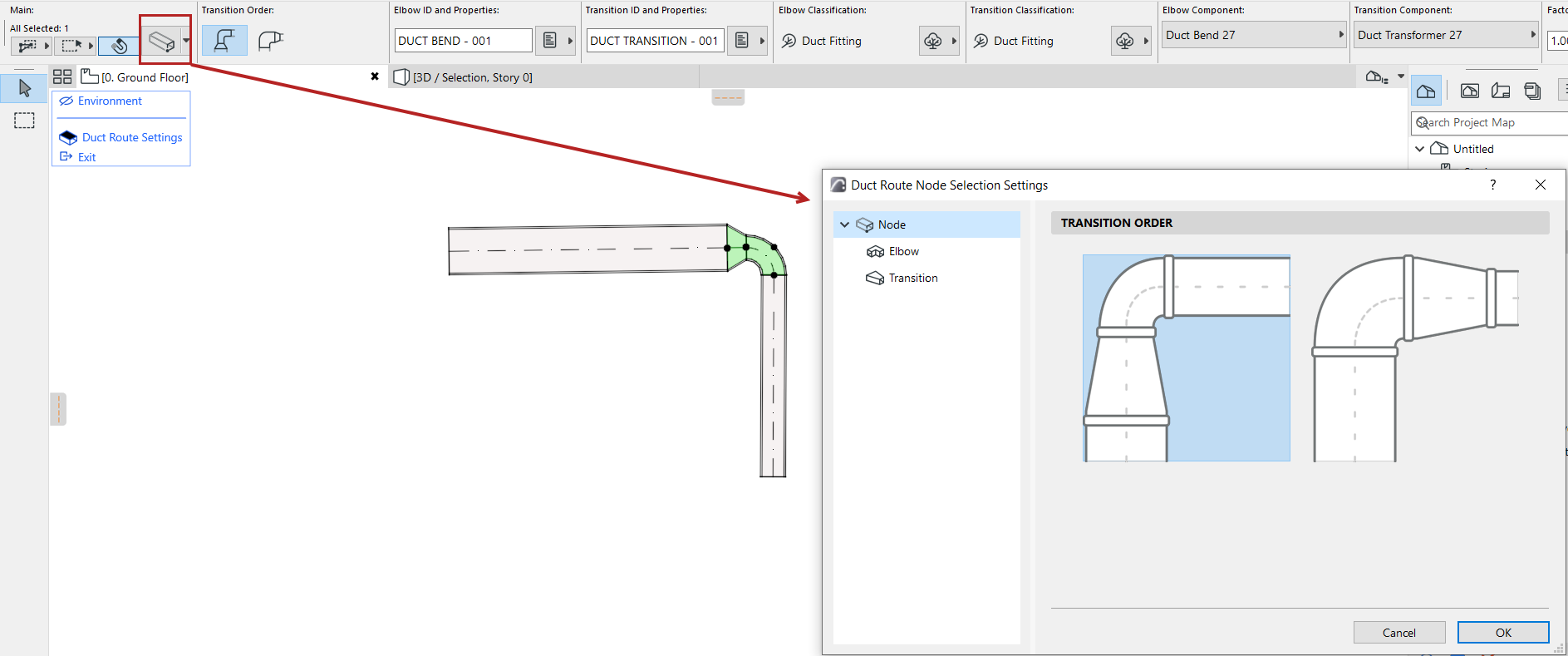
- Use the Environment toggle in the display palette to show/hide the rest of the model (i.e. everything apart from the selected Route). In Edit mode, you cannot edit the rest of the model - only the sub-elements of the selected Route.
- The full Route Settings dialog is available from the display palette.
For example, edit the Transition order of a selected node:
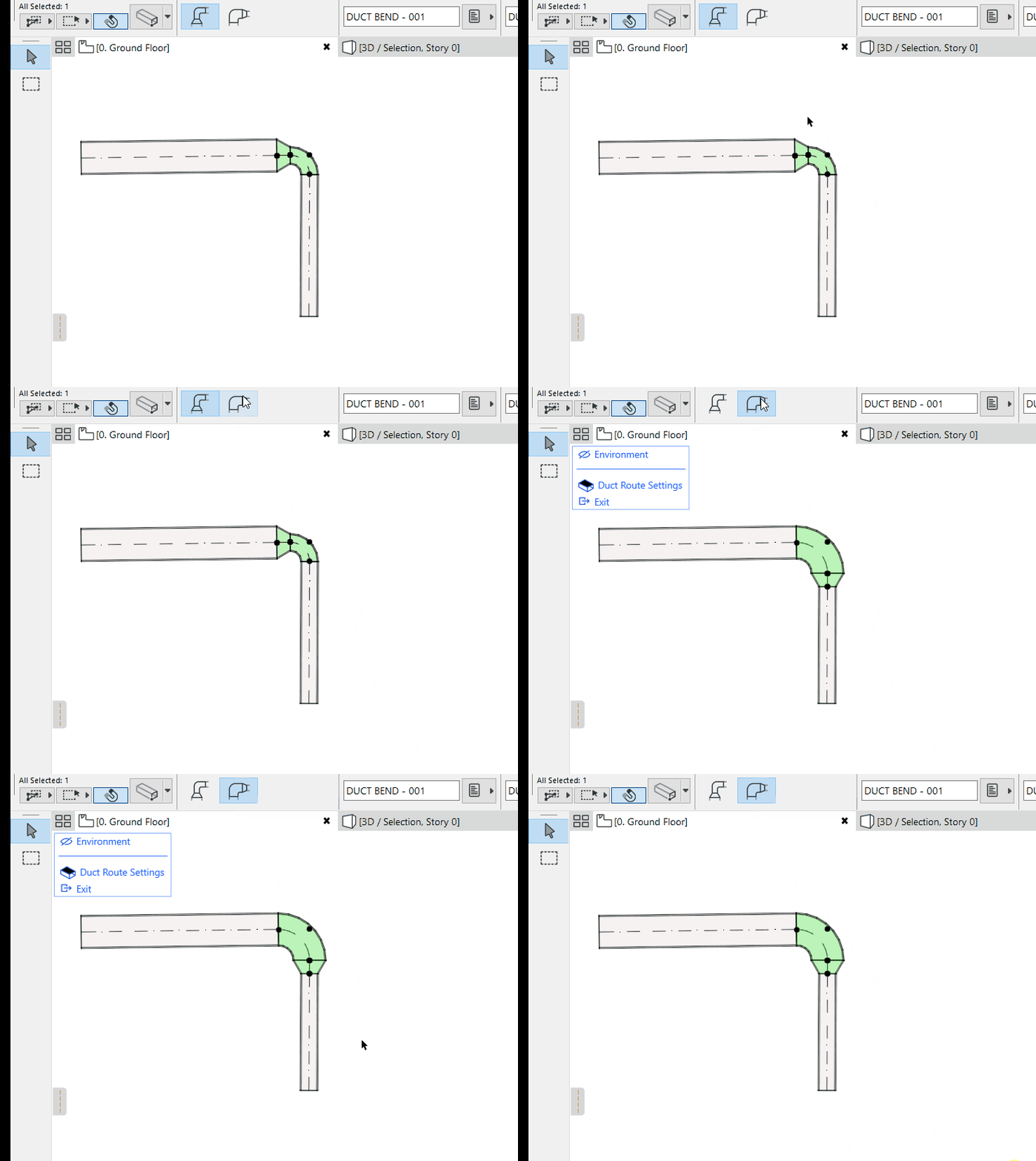
Exit Edit Mode
Do one of the following: