Notice: Available
with Archicad Collaborate or Archicad Max.
The CALHYDRA Connection Add-on enables users to leverage the full power of
CALHYDRA for precise hydraulic calculations and simulations based on European and German
standards. CALHYDRA provides comprehensive analyses for potable water, wastewater, heating,
and cooling systems. Import the calculated results from CALHYDRA to automatically update the
nominal diameters of the pipes in your Archicad
project.
The CALHYDRA software is created by Dendrit, a software company owned by
Kemper. They are well-known in Germany for their precise, standards-based calculations.
CALHYDRA also collaborates with Graphisoft’s DDScad software.
In the Classification Manager, click Import, then browse for
the downloaded file.
Important: Do not delete or rename this
Classification System. Its name is used internally when mapping to CALHYDRA.
MEP Route Specifications
For realistic calculations and correct dimension mapping, use the
manufacturer’s Route Specifications prepared for CALHYDRA.
Download the CALHYDRA – MEP-Route-Specification
Material package from: Graphisoft BIM Data. This file includes MEP pipe and fitting materials from
manufacturers supported in CALHYDRA.
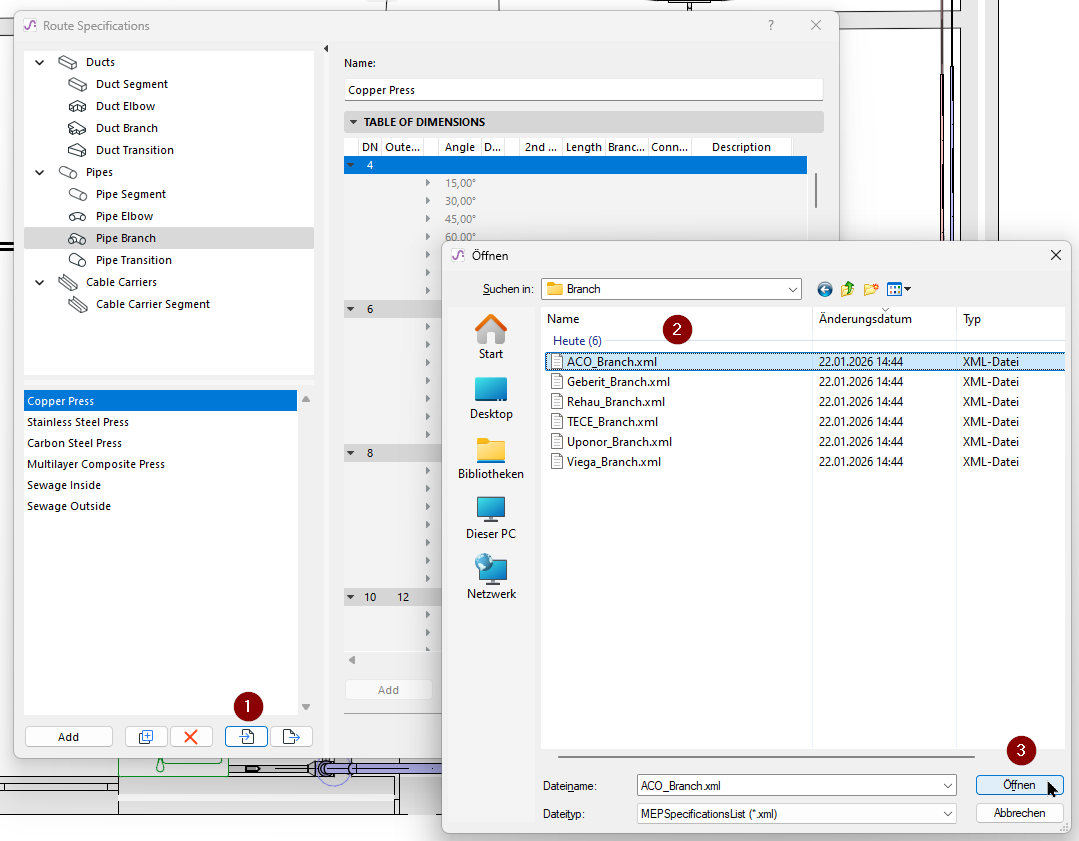
In the Route Specifications dialog, click Import, then browse for the
downloaded package and import the files you need:
Important: The same Route Specification set should be
used in both Archicad
and CALHYDRA.
Typical workflow
Classify elements in Archicad
Configure the CALHYDRA Translator in Archicad
Export the project from Archicad
Open the project in CALHYDRA
Run the calculation in CALHYDRA
Export results from CALHYDRA
Import results and update pipe dimensions
In Teamwork: Make sure to reserve the piping elements to be
updated. Otherwise, no update will occur.
The following sections walk through each step in order.
Step 1 – Classify elements
CALHYDRA relies on Classifications to understand what each element
represents (pipe type, fitting type, discipline, etc.). Therefore, before exporting to
CALHYDRA, you classify your MEP model elements in Archicad
, using the CALHYDRA-specific
Classification System.
Note: Most ordinary fittings (Elbows, Transitions, Branches) do not need
to be classified. Branches should be classified in exceptional situations: for example, a
branch which connects two different MEP Systems, or a ring connection.
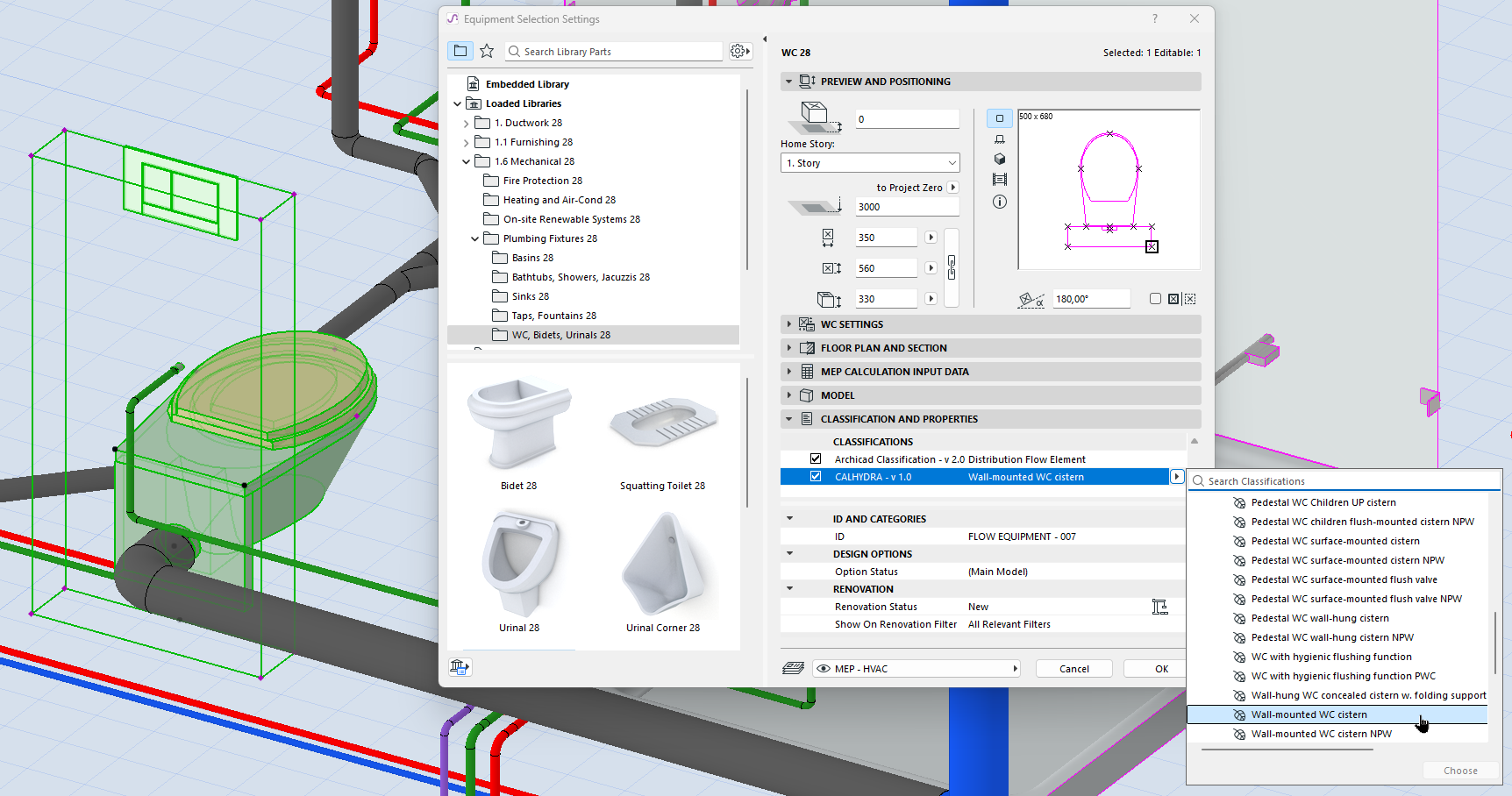
Select MEP elements in your model
In Element Settings, open the Classification and Properties
panel
Assign the appropriate CALHYDRA Classification entry to each MEP element:
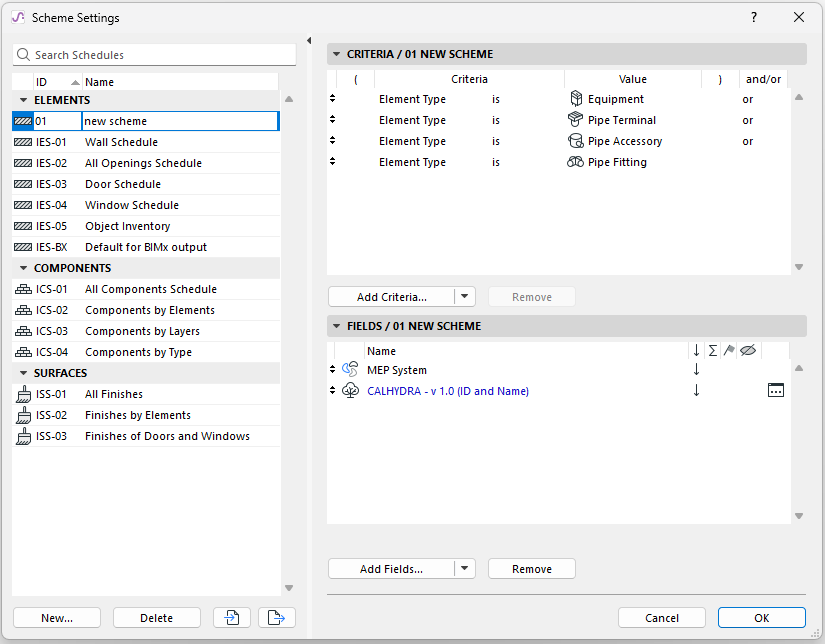
You can speed this up with:
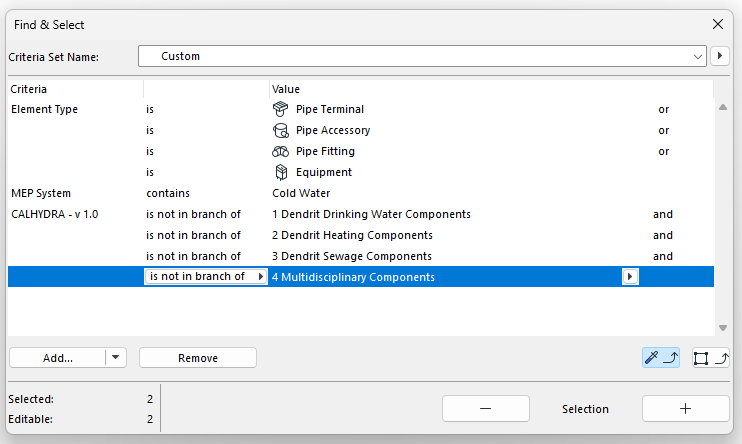
Find & Select – to identify elements without CALHYDRA
Classification
Interactive Schedules – to list and bulk-edit classificationsFigure 1. Find unclassified elements Figure 2. Use Interactive Schedule to find elements by classification
Step 2 – Configure the CALHYDRA System
Translator
The Translator defines which Archicad systems are exported and how
they are interpreted in CALHYDRA.
In Archicad
, go to File
> Interoperability > CALHYDRA Connection > CALHYDRA System Translator
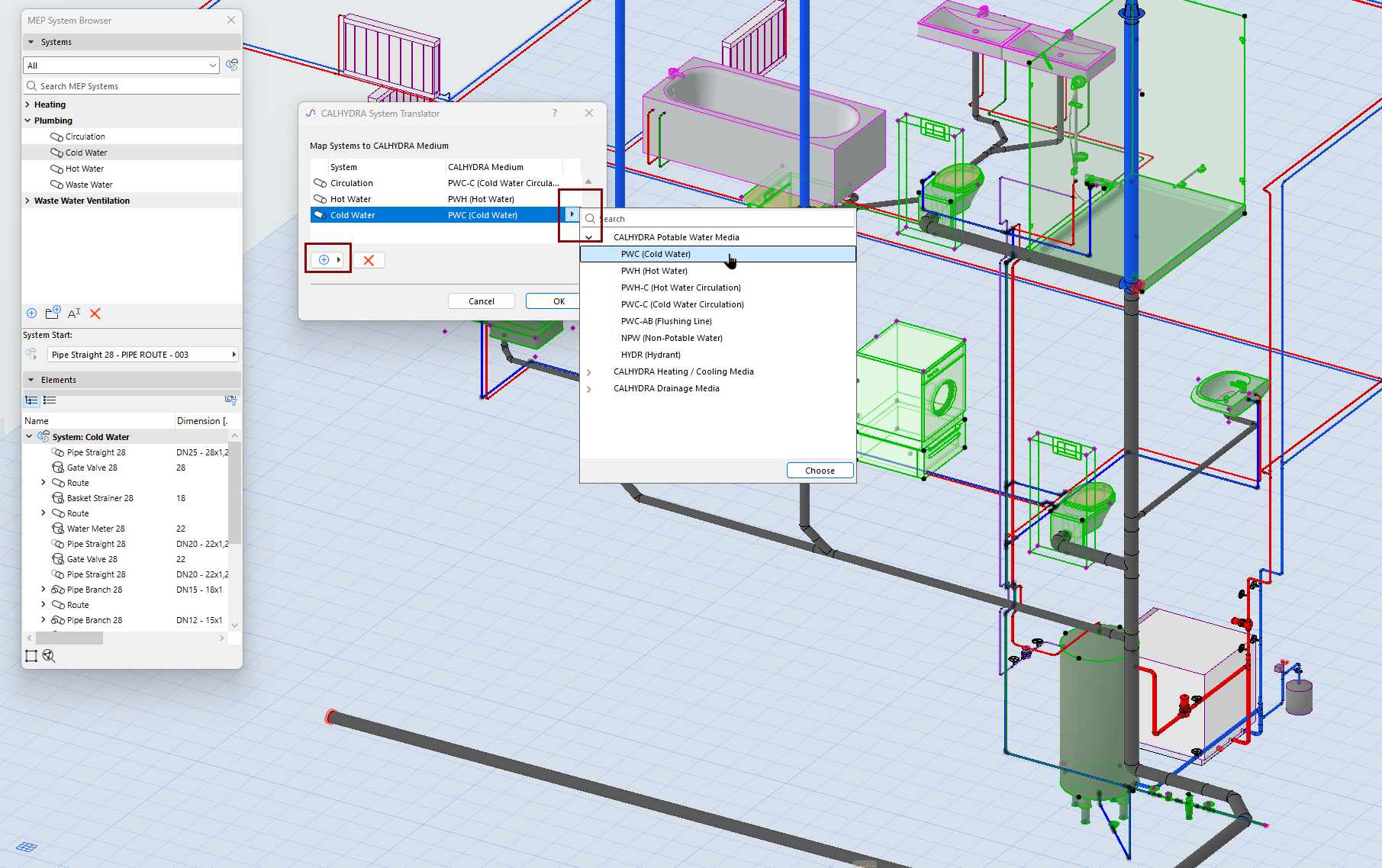
In the CALHYDRA System Translator dialog, choose which systems to export:
Click the Add button
From the appearing list of systems in your project, select the
ones to export
Limitation: For each
export, choose systems from only one discipline at a time (for example, either
Heating or Waste water). Don’t combine disciplines (e.g. Drinking water + Heating +
Waste Water) in one export. If you do, CALHYDRA will show all disciplines together
and refuse to continue the calculation.
For each selected system, assign the correct CALHYDRA Medium
Step 3 – Save a CALHYDRA project file
In Archicad
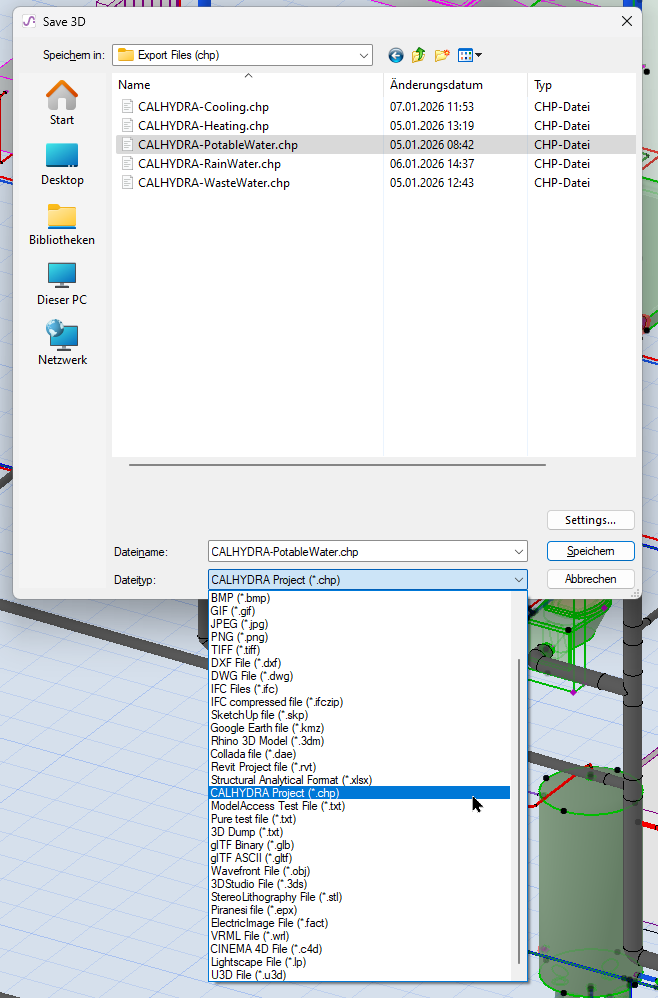
, go to File > Save
As…
In the file type dropdown, choose CALHYDRA Project File
(*.chp)
Specify a location and name, then click Save
All systems that you selected and mapped in the CALHYDRA Translator will
be exported to this .chp file.
Step 4 – Import the project to CALHYDRA
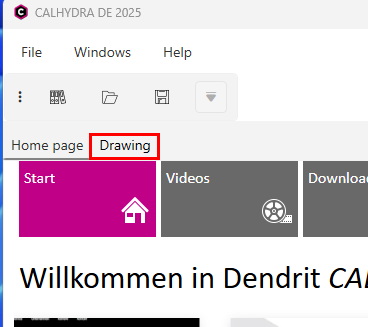
Start CALHYDRA
Switch from Home page to the Drawing tab
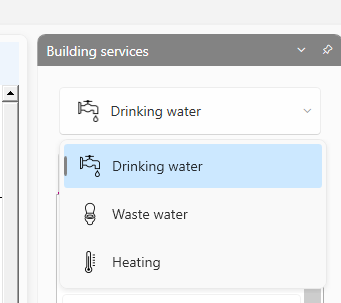
Under Building Services, choose the appropriate service: Drinking
water, Waste water, or Heating
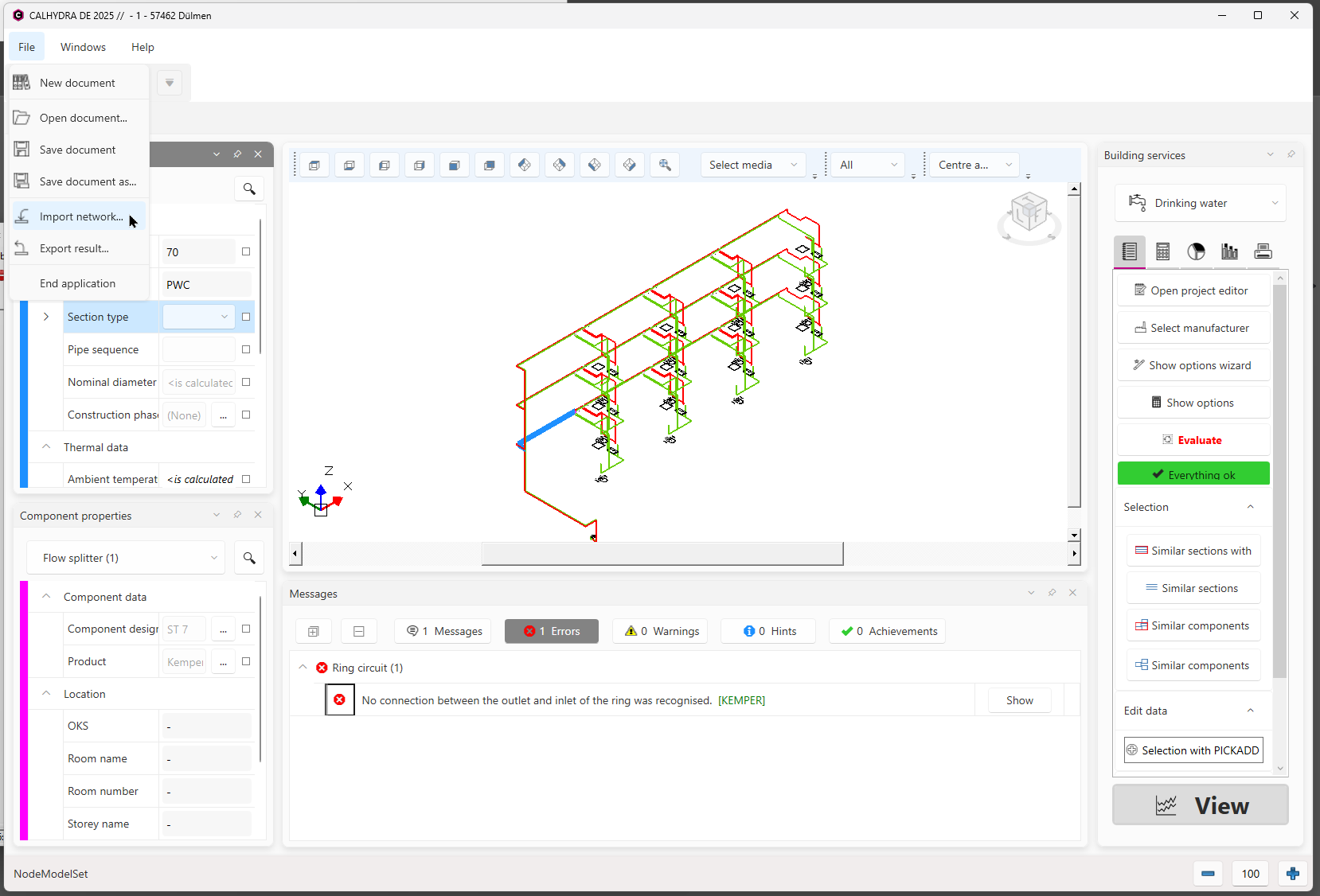
Use File > Import network to load the .chp file that you
exported in Step 3
CALHYDRA will display the imported network in its isometric and tabular
views.
Figure 3. Importing a network into CALHYDRA
If the network includes special objects (e.g. drinking water storage or
heaters), CALHYDRA may prompt you to select an appropriate product from its database.
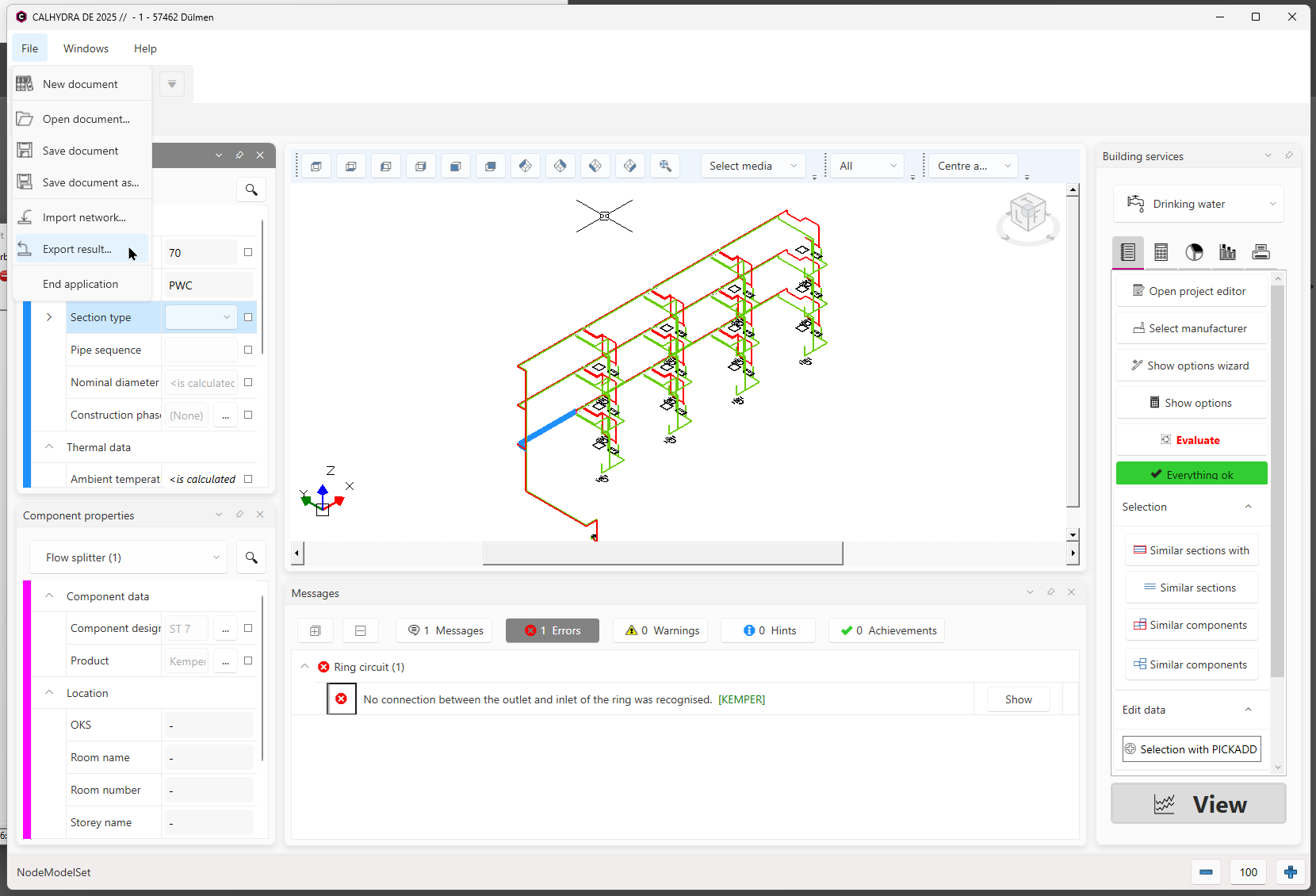
After a successful calculation, use File > Export result
This file will typically use a .calhydraResult
format.
Save the result file in an accessible locationFigure 4. Export result from CALHYDRA
Step 7 – Import results and update pipe
dimensions
In Archicad
, open the corresponding MEP
project
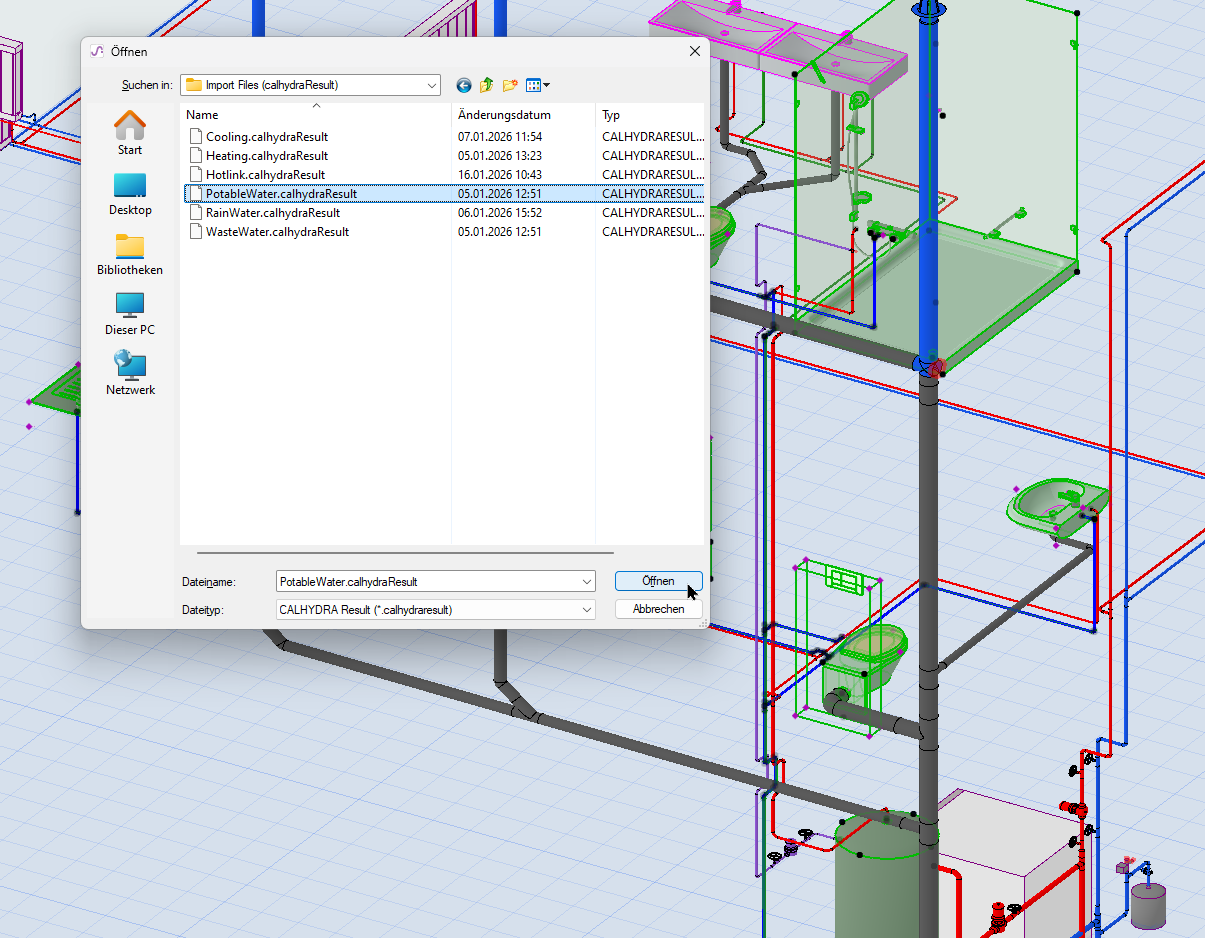
Go to File > Interoperability > CALHYDRA Connection >
Import results from CALHYDRA
Browse for the .calhydraResult file that you exported in Step 6
Click Open
Archicad
will use the CALHYDRA result to
update the pipe dimensions of all matching routes.
Figure 5. Importing a result file back to MEP Designer or Archicad
In Teamwork: Make sure to reserve the piping
elements to be updated. Otherwise, no update will occur.
If certain pipes were not
updated, check the following:
Is the System/Medium mapping in the CALHYDRA System Translator
dialog correct?
Does the CALHYDRA-calculated diameter exist in the Archicad
Route Specification? If not, the
route will remain unchanged without error feedback.
Tip: Use the same Route Specification set in both Archicad
and CALHYDRA
Is it a Teamwork project? Make sure you have reserved the piping
elements to be updated.
Save project in CALHYDRA - Update with changed MEP network
To save a project in Calhydra, use Save Document.
If the model is later modified in MEP Designer, the network normally needs to be
recalculated. However, you can save the existing Calhydra project and then import the
updated network. This preserves the calculation settings for the unchanged parts of the
project, so they do not need to be configured again.
Tracking what changed
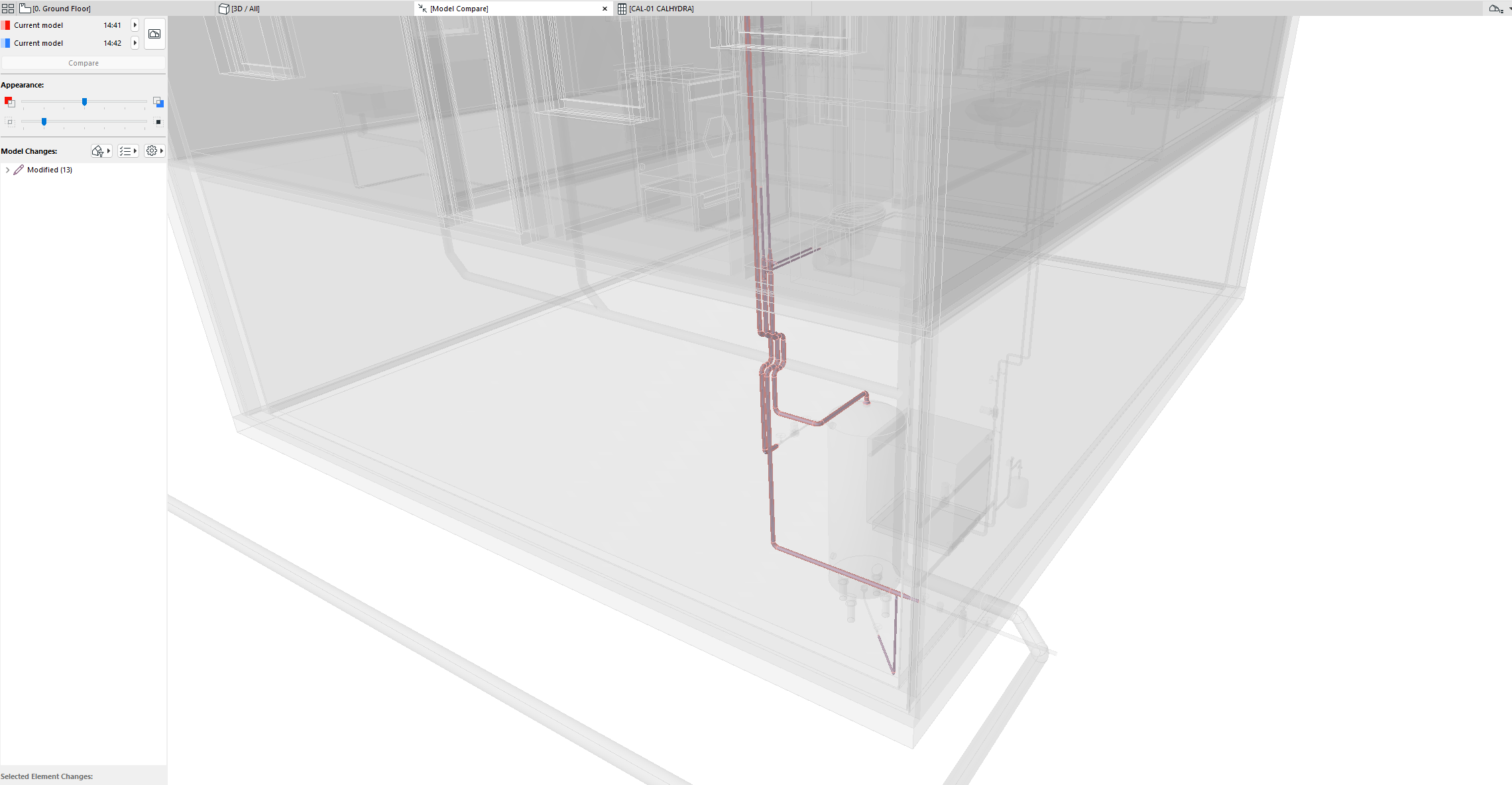
Use Model Compare between:
A saved version before result import, and
The model after import.
Model Compare will highlight exactly which pipes changed in
diameter.
Figure 6. Use Model Compare to see what changed
Useful settings for best results (by discipline)
For correct results, use these tips to set up your MEP Systems.
Waste Water systems
In the MEP model:
Model and connect two separate MEP Systems: Ventilation pipes and
Waste Water pipes
In the CALHYDRA System Translator, map the Ventilation system as LT
(Vent Line)
Potable water with circulation (PWH-C)
In the MEP model:
Model and connect two separate MEP Systems: The main Potable Water
system and the Circulation line. The Circulation needs to be a separate System and set
accordingly inside the CALHYDRA Translator
Classify and map potable water and circulation systems
separately
In CALHYDRA:
Choose a suitable drinking water storage/heater object when
prompted
Heating and Cooling systems
In CALHYDRA:
Assign Power (W) values:
Click on each radiator (consumer) and fill in the Power
parameter.
Missing power will give an error: “No power is entered in a consumer
(name).”
Assign Contents (l) values where required:
To correctly calculate the expansion tank, set the Contents (l)
parameter on radiators.
If missing, CALHYDRA shows: “The Content is missing for x
component(s).”
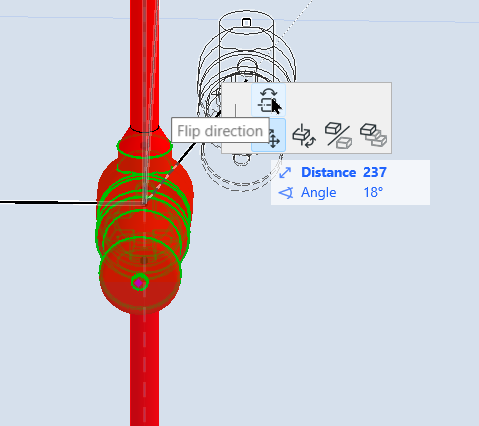
Flow direction: If CALHYDRA informs you that an accessory is placed
against the system’s flow, correct the accessory direction in the Archicad
project using the “Flip direction”
command, then re-export.
Rain Water Systems
In CALHYDRA:
Set Target discharge (l/s) on roof drains
Ensure roof drainage network is cleanly modeled and correctly
classified
If missing, CALHYDRA shows: “The process is not assigned to an area
and does not have a defined target process.
Known limitations
Mixed disciplines in a single export are not supported
If a CALHYDRA project contains systems from several disciplines at
once, CALHYDRA will not continue the calculation
You must restrict each export/Translator setup to one discipline at
a time
Systems currently not supported
Classification integrity required
The following are explicitly excluded and cannot
be reliably calculated:
Cold Water Circulation
Flow Splitters
Do not delete or rename the CALHYDRA Classification System
You can reorganize or delete individual entries, but the system name
must remain unchanged for mapping to work