Working with XREFs
External reference files (XREF) are similar to Hotlinked Modules, except that they are DXF or DWG files and not Archicad files.
See also Hotlink Modules and XREFs in Teamwork.
External referencing is a way of saving disk space and work. You can attach a DWG or DXF file to your Floor Plan or to a Detail; the file will be loaded into the project and displayed, using the settings of the DXF/DWG Translator you have selected.
You can snap to all drawing elements within the XREF and print or plot them.
A common use for XREFs is to draw elements that are common to several kinds of drawings within a project (e.g., the outlines of exterior and interior walls). If you have a file containing this data, you can attach it to other drawings that can use the geometric information contained in the XREF file without the Project file actually having to contain the data. Also, if the source of the data in the external reference (the DWG or DXF) is changed, then these changes can be updated immediately so the latest data is always available.
XREF is available in both Archicad and AutoCAD - both applications can detect circular references.
In Archicad, external reference files work much as they do in AutoCAD. Archicad XREFs can display 2D elements from DWG files, but three-dimensional AutoCAD elements (such as Solid elements) are not visible in the Archicad 3D window.
Attach XREF
- From the Floor Plan, Detail or Worksheet window, use File > External Content > Attach XREF.
- The Attach XREF dialog box appears.
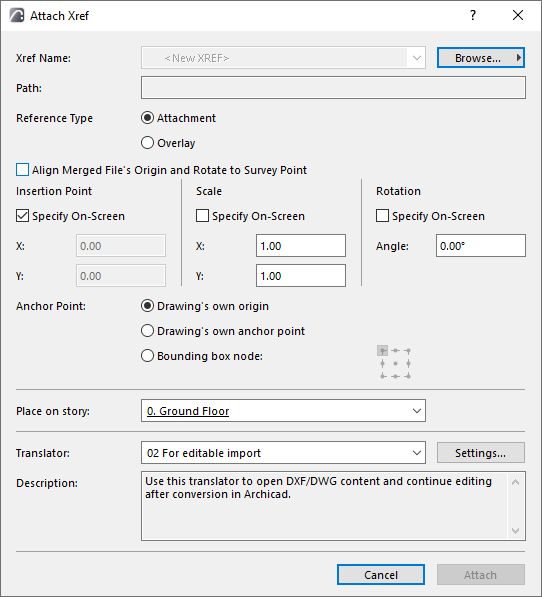
- From the XREF Name pop-up:
- Set insertion and rotation options as needed.
See Attach XREF for details.
- Choose a DWG/DXF Translator which will determine conversion options for the attached file (or just use the default translator shown). Click Settings to view the options for the current translator.
- Click Attach.
You can attach and detach XREF files, unload and reload them, bind them to the project file and view information about them. These functions are available in the XREF Management Dialog box (File > External Content > XREF Manager and File > Attach XREF).
Manage XREFs
To manage XREFs attached to the project, use File > External Content > XREF Manager.
The XREF Management dialog box displays information about the attached files, including the name of the reference (usually the same as the attached file), its status (Loaded, Detached, Reloaded, Unloaded or Bound), size, type (Attach or Overlay), Date and the number of instances, as well as information on the translator used to open each XREF.
For details, see XREF Management Dialog Box.