Import Rhino 3DM File as Object
- Use this command to import a Rhino file as
a single object in Archicad:
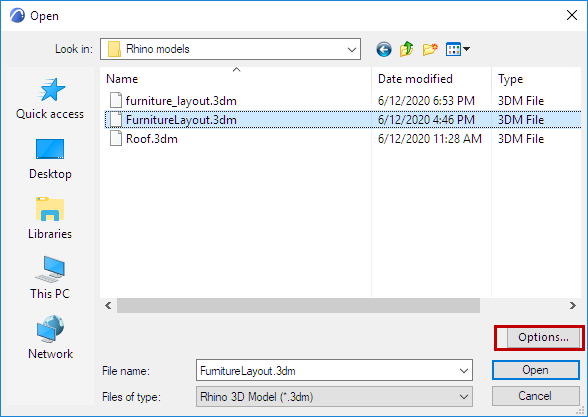
File > Libraries and Objects > Import Rhino 3DM file as Object
- Click Options for Rhino Open
Options:
- Set your preferences for Segmentation and
Hidden elements:
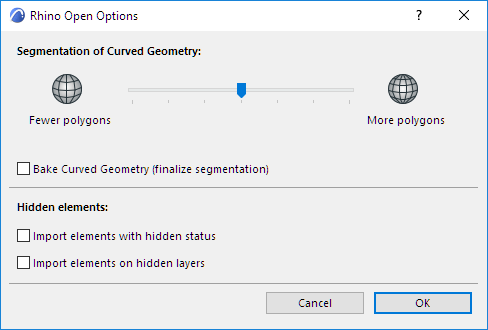
- Segmentation of Curved Geometry
Use the slider to adjust the segmentation of curved surfaces imported from Rhino.
Note:
- Baked Curved Geometry
- Hidden Elements
Use these controls to define how to interpret Rhino’s “hidden” elements.
In Rhino (unlike in Archicad), it is possible to hide an individual element, whether its Layer is visible or not. By default, such hidden elements are NOT imported to Archicad.
To import them, check the Import hidden elements box.
- Segmentation of Curved Geometry
- Click OK.
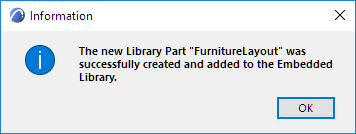
- You are alerted that the import was
successful:
- Use the Object tool to place it into the project.
Rhino Object Settings in Archicad
A Rhino file placed as a single object in Archicad is stored in the Archicad Embedded Library.
Use the Rhino Import Object Settings panel of Object Settings to set its appearance.
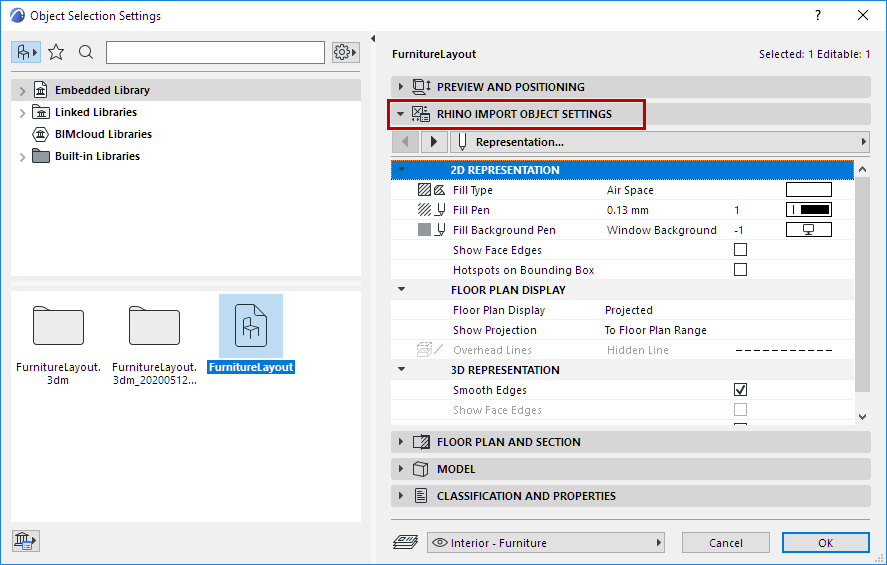
Note the following Rhino-specific parameters:
Segmentation
This control is available for objects imported from Rhino, provided that you did not check the Bake Curved Geometry option at import.
Use the Segmentation pop-up to adjust the smoothness of a selected curved object. Remember that a high polygon count may affect file size and performance.
2D Representation