Use IFC Assignments (IfcRelAssigns) to create groups of project elements.
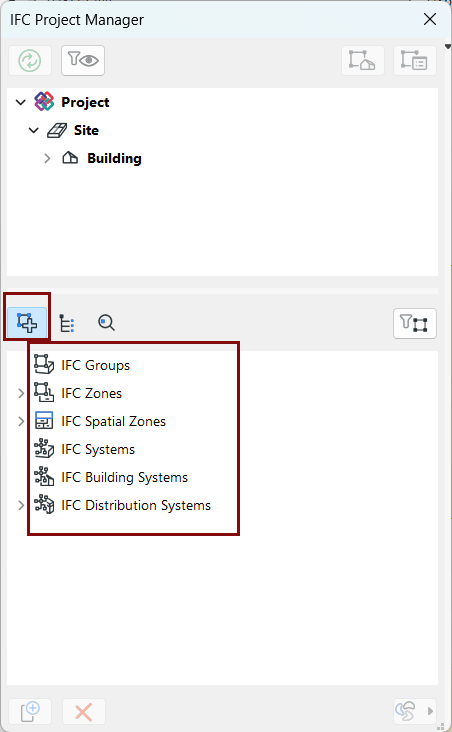
The major Assignment Types of the IFC standard can be seen in IFC Project Manager.
IFC Groups
IFC Zones
IFC Spatial Zones
IFC Systems
IFC Building Systems
IFC Distribution Systems
For more information on each Assignment type, see IFC
Assignments.
Figure 1. Assignment Types in IFC Project Manager
To group IFC elements by IFC Assignment in IFC Project Manager:
Use the New button to create a new Assignment under an Assignment
Type
Drag relevant IFC entities from the top tree view into the newly
created Assignment Relation item
This process is described below.
Note: IFC Spatial Zone assignments are created differently. To do so,
model the spatial elements in Archicad (use Morph or Zone tool only), classify them as Spatial
Zones, and map their IFC Type as ifcSpatialZone. See IFC Spatial Zones assignment
Create New Assignment Relation
Switch to Assignment view mode by clicking the Assignments icon. (See
illustration above).
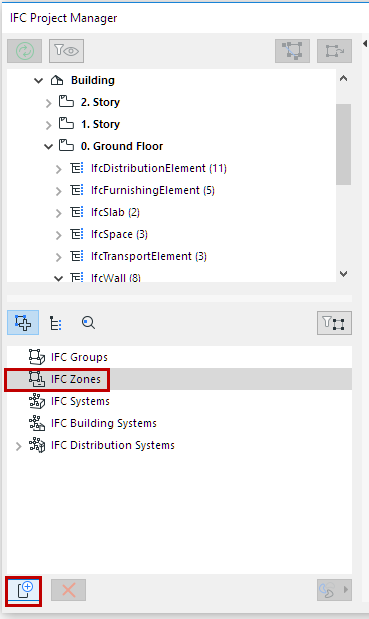
Click on an Assignment type to select it (e.g. IFC Zones)
Click the “New” button at the bottom of the window.
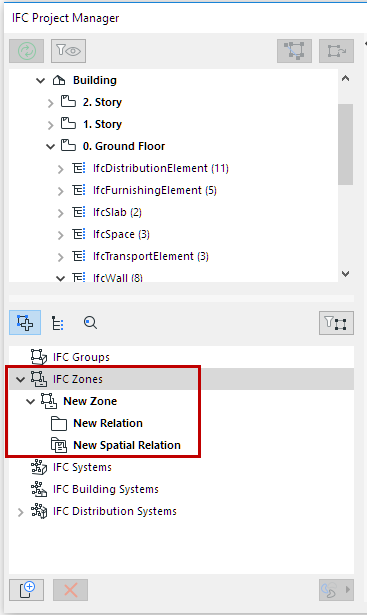
As a result:
A New Assignment (e.g. New Zone) is created for the
selected Assignment Type.
A New Relation folder is created within the new
Assignment. You can now add related IFC entities to this folder.
A New Spatial Relation node is also created within the new
Assignment. (Not available for IFC Groups). You can add related spatial entities to
this node.
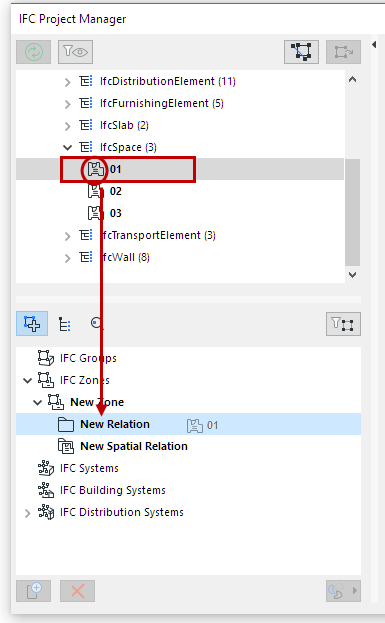
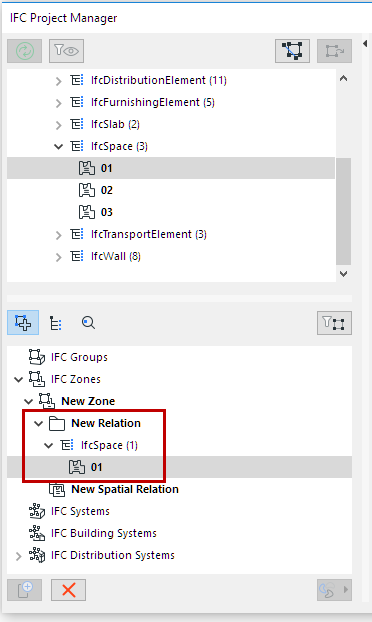
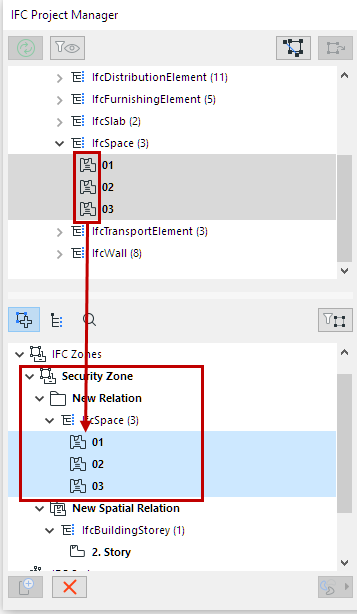
Drag related items from the IFC Entity tree above into the New
Relation folder and/or the Spatial Relation node.
Tip: Shift+click to multi-select, and grab the entities by their icons to drag
them.
Click and Drag IFC
Entity into New Relation Folder
Relation Folder: Entities that can be added to a Relation Folder
depend on the Assignment type:
IFC Groups: Drag any project elements here to create logical
group(s)
IFC Zones: Drag IfcSpace elements here
IFC Spatial Zones: Drag any element here to add it to the Spatial Relation folder
IFC Systems: Drag IFC spatial types (IfcSite, IfcBuilding,
IfcBuildingStorey and IfcSpace) and any of their related elements
IFC Building Systems: Drag related building elements here. Possible
items: IfcBuildingElement, IfcFurnishingElement, IfcElementAssembly,
IfcTransportElement
IFC Distribution Systems: Drag MEP elements (IfcDistributionElement
and/or sub-elements) here.
Spatial Relation: Spatial IFC elements (Site, Building, Story,
Zone) can be added to the Spatial Relation node.
Rename Assignment Item
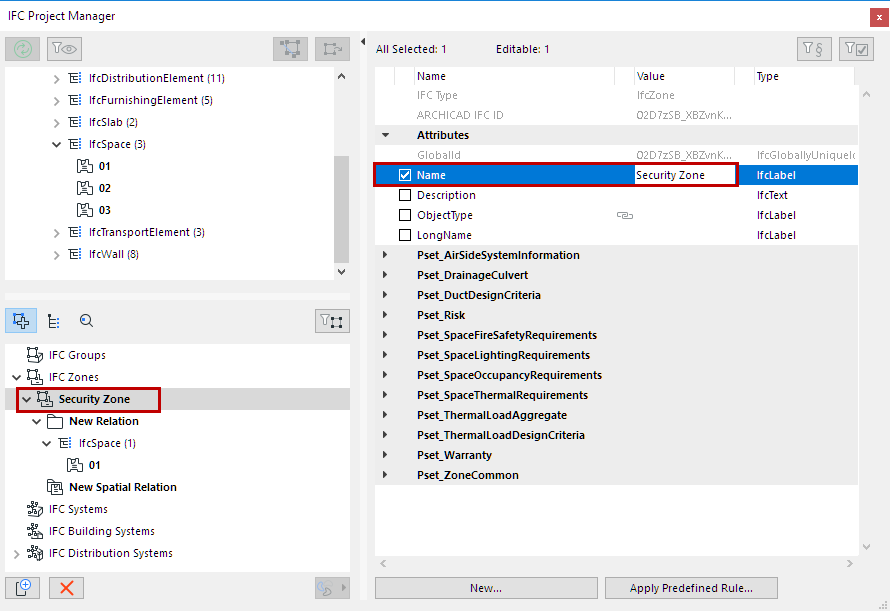
Rename any newly created item using the Name Attribute field on the
right side of the dialog.
Delete Assignment or Entity
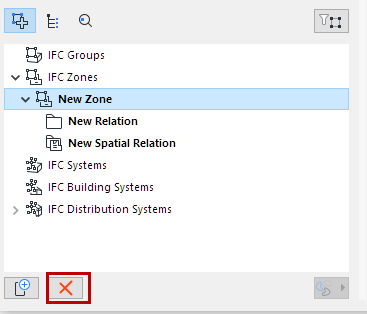
To delete a Relation entity or Assignment, select it and click the
“Delete” (red X) button.
Manage Assignment Hierarchy
Within a particular Assignment Type, drag and drop entities among
different Relation folders
Define new hierarchies: Select an existing Assignment or Assignment
Type item and click “New” to define a sub-item. This way, you can create a multi-level
hierarchy within an Assignment Type.
To copy an item, hold down Ctrl/Alt while dragging it
To make a child Assignment into a parent Assignment, select it and
drag it outside of the dialog box; it will reappear in the hierarchy as a parent
Assignment
Examples of Assignments
Create an IfcZone named “Security Zone”, which will group together
all of the project’s IfcSpaces that have a security function.
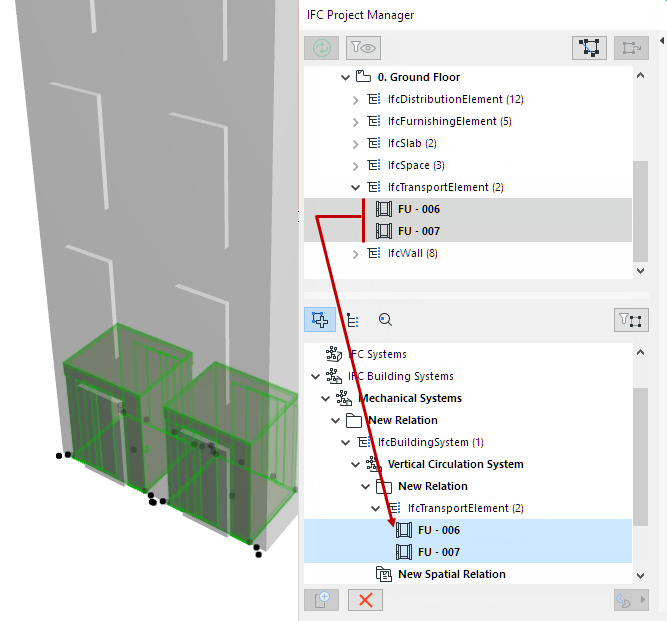
Group elevators in a vertical circulation system, which is a child
system of a mechanical system.
MEP Elements: Automatic Assignment to IFC Distribution System
MEP elements can be automatically added to the IFC Distribution
System Assignment, corresponding to each element’s MEP System. For example:
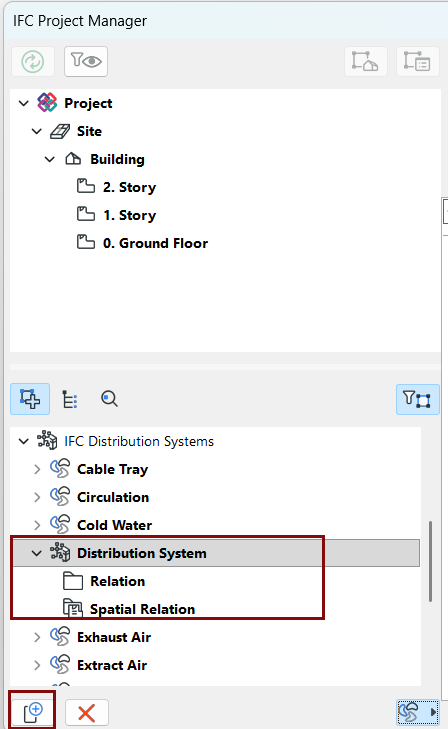
At the IFC Distribution Systems Assignment Type: Click the New button
to create a new, empty IFC Distribution System.
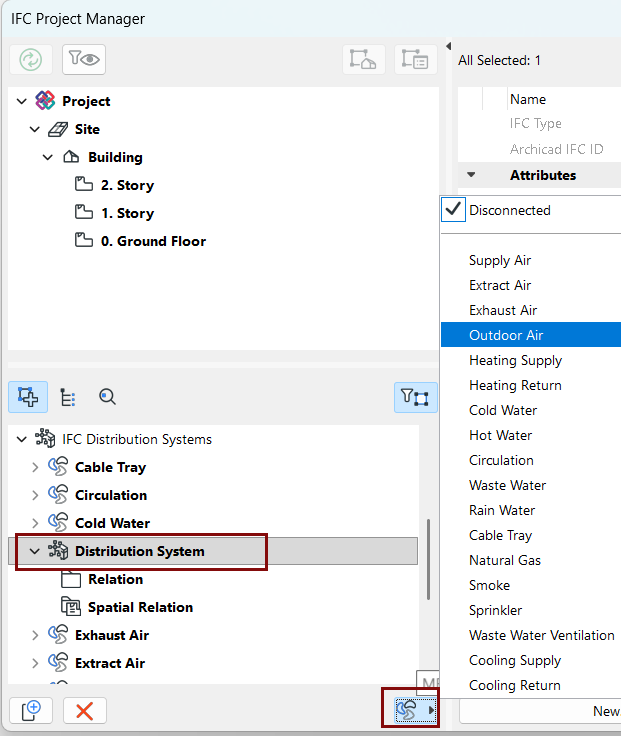
Select this new Distribution System, then click on the MEP icon at
the right (underneath the Assignment list).
Choose the desired MEP System from the pop-up menu (e.g. Outdoor
Air). The Distribution System is renamed accordingly.
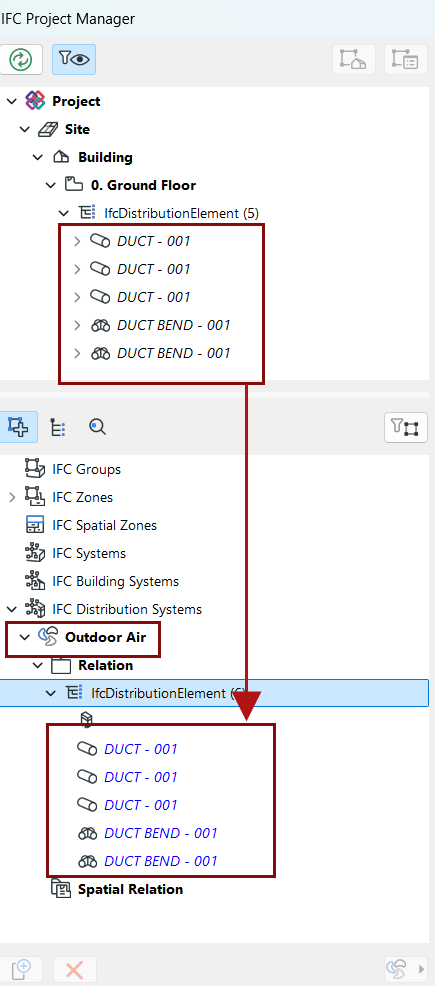
All elements that belong to this MEP System (e.g. Outdoor Air) are
automatically added from the tree into the “New Relation” folder.
Note: You can also add any other Distribution element manually to this
folder.
To delete MEP System elements from an IFC Distribution System, select
the Distribution System item (e.g. Outdoor Air), and choose “Disconnected” from the MEP
System pop-up menu.