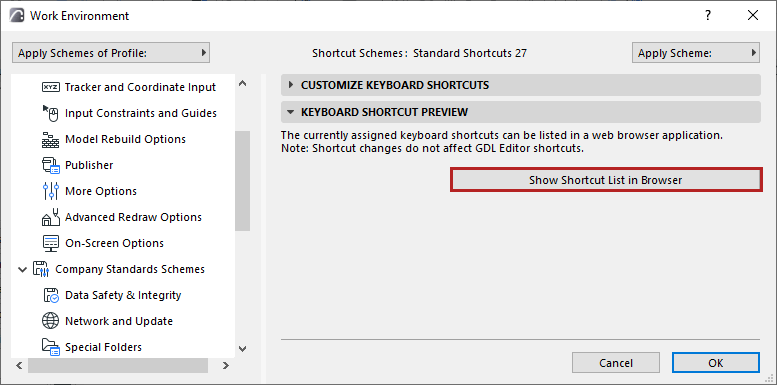
Shortcut Customization Dialog Box
Open Options > Work Environment > Keyboard Shortcuts.
From the list window, locate any function or command:
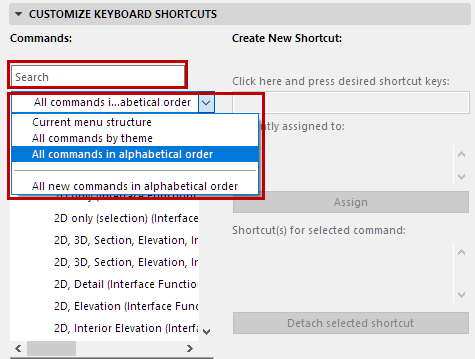
Click on any command or function to view its brief description in the field at the bottom of the list.
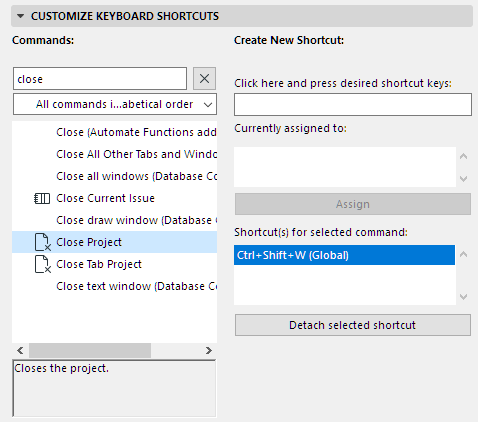
If the selected function/command already has a shortcut assigned to it, it is displayed in the Shortcut(s) for selected command window on the right.
Assign Shortcut
- If the command already has a shortcut: Click Detach selected shortcut to remove the existing shortcut.
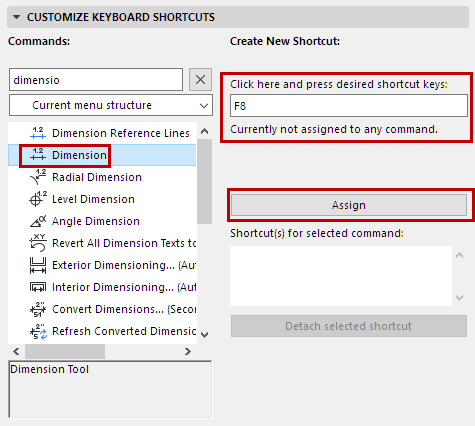
- Now type the keys that will constitute the new shortcut. (Use the field where it says “Click here and press desired shortcut keys.”)
- Click Assign.
- Click OK to close the dialog box and apply the selected shortcut scheme according to its current settings.
Shortcut Collision
If the key combination you entered has already been assigned to another function or command, this will be noted in the field: Currently assigned to. - In the following image, we typed F5 as a new shortcut, but this key has already been assigned.
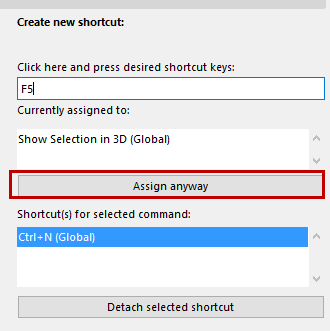
In this case, you can try typing a different shortcut.
See Window Types (Text or Non-Text).
To assign the shortcut despite the collision, click Assign anyway. This action assigns the shortcut and detaches the shortcut from the function/command to which it was previously assigned.
Window Types (Text or Non-Text)
The set of commands available varies slightly, depending on whether the active window is Text-type (Schedules, Lists, Report, Project Notes or GDL script window) or Non-Text type (all other windows).
Use these two radio buttons in the Keyboard Shortcuts dialog box to choose the window type in which the shortcut will work:
- Only in the currently active window type: The shortcut will work only in the type of window that is currently active (i.e. the one you were working in at the time you opened the Work Environment dialog box). If you choose this option, you can assign the same shortcut to two different commands as long as the two commands are from different window types.
- In All window types: The shortcut will work in all windows.
Click OK to close the dialog box and apply the selected shortcut scheme according to its current settings.
Keyboard Shortcut List
To see and/or print a list of currently assigned shortcuts for the chosen scheme, click Show Shortcut List in Browser.