Tool Settings Dialog Box Customization
Go to Options > Work Environment > Tool Settings Dialog Boxes.
Use the splitter bar as needed to change the width of the fields in this dialog box.
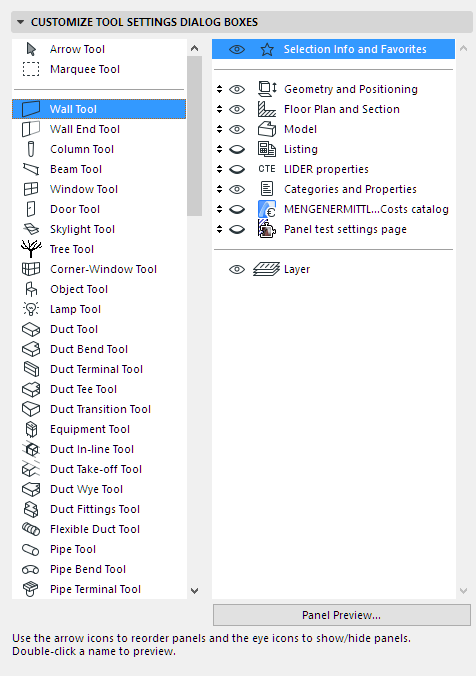
The left window contains a list of all program tools. The right window lists the panels that appear on the selected tool’s Settings Dialog Box.
- To see what the selected panel looks like, double-click its name or click the Panel Preview button.
- To change the order in which the Tool Settings panels appear, use the arrow icons.
- To show or hide Tool Settings panels, click to open or close the relevant “eye” icon. (Multi-select to set show/hide preferences more quickly.)
When you are satisfied, click OK to apply the changes and close the dialog box.