Story Settings Dialog Box
To open this dialog box, do one of the following:
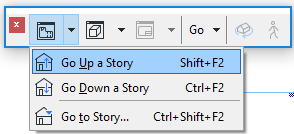
- Use the context menu of a Story tab
- Use the Design > Story Settings command
- Choose Story Settings from the context menu of a selected Story,
or the Stories folder, in the Navigator.
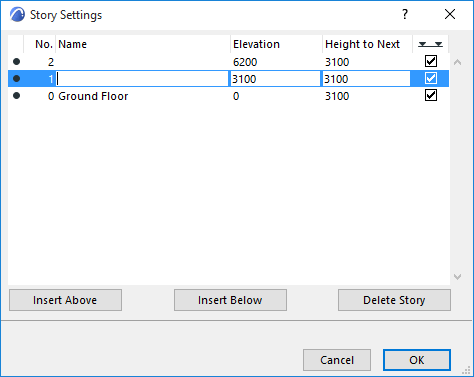
Use the splitter bars in the header to edit column width.
In the upper section of the dialog box, a scrollable list shows the current stories in your design. When starting a new project, you may have several stories already created by default. Every project must contain at least one story.
To activate a story, select it in the list and click OK. The Floor Plan will show this selected story.
Insert Above/Insert Below: Click either button to create a new story above or below the story currently selected in the list.
When the name of a Story is selected, you can edit its Name, Elevation (to Project Zero), its Height to the Story above, and whether to show the Story Level line on sections. The Number field is not editable manually.
Multi-selection is available, to edit these values simultaneously for multiple stories at once.
Changes to story height and elevation are interpreted differently:
- If you modify the height of a story, this will affect the elevation of all stories above (if the story number is positive) or below (if the story number is negative). In practical terms, you stretch or shrink the whole building by making the height of a story larger or smaller. The height of all other stories remain as they were.
- If you modify the elevation of a story, this will affect the
heights of the stories immediately above and below. In practical terms, you move the level
of a single story while keeping the rest of the building static. The elevation of all other
stories remain as they were.Note: Changing story heights may result in inverted elements: Their top elevation will fall below the bottom elevation.
See Inverted Elements.
Show Level on Sections (icon at far right in Story Settings): Check this box to display Level Lines of this Story in Section view.

For more information, see Show/Hide Story Level Lines in Section/Elevation/IE.
Delete Story: Click this button to delete the selected story.