Classifications and Properties Panel
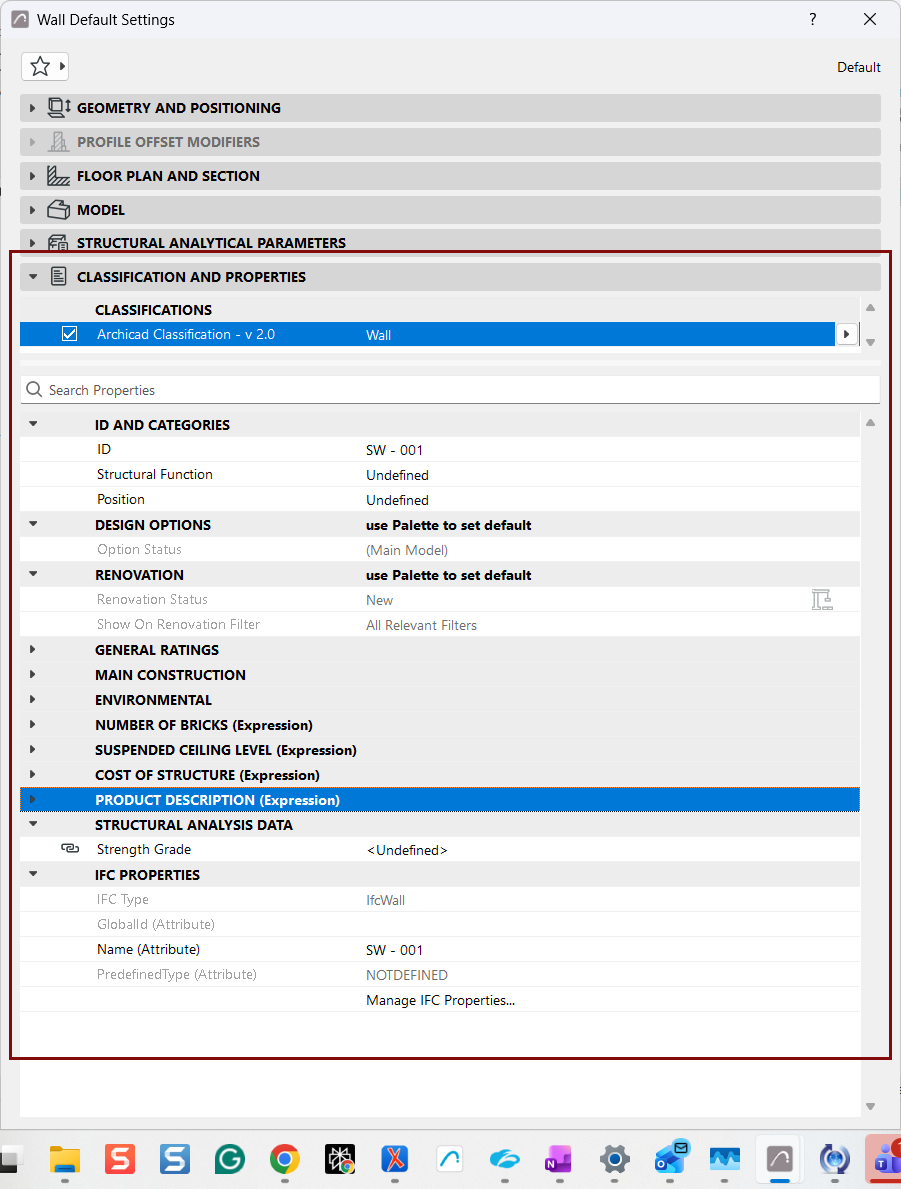
Classifications
Assign a Classification to the element. Available Classifications depend on the Classification System(s) that have been loaded in the project.
Element Properties
The rest of the dialog contains the list of user-added property data for the element, divided into groups. Property types and their default values are set in Property Manager.
The main property groups are described below. For more information, see Properties and Classification Systems.
As needed, use the search bar: enter any text to search for any properties or groups currently displayed in the dialog.
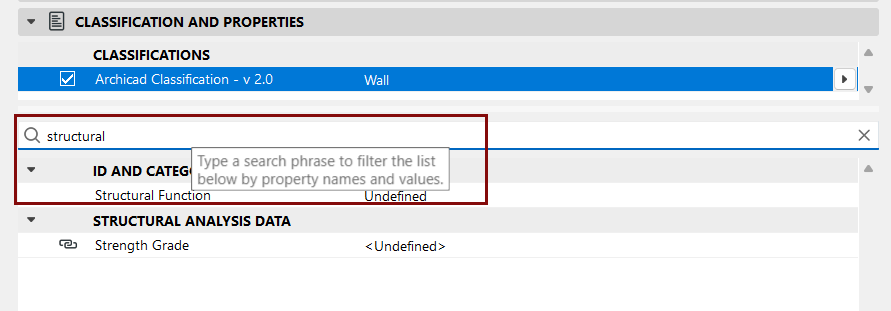
The search bar is not visible if there are no searchable properties in the current dialog.
ID and Categories
-
ID: Type an ID in this box for tracking this element in Quantity
Calculations.
The ID field serves to identify and group elements in list views. Any character can be used.
If a number is included anywhere in the ID, Archicad will add one to this number for each new element drawn, provided that the Assign New Element ID to Each New Element checkbox is enabled in the Options > Work Environment > More Options dialog box. Each new element will have a unique ID.
If elements are duplicated or multiplied, the IDs of the replicas will remain the same as those of the originals.
If you paste elements into a Project, you may have elements with conflicting IDs. Archicad does not automatically exclude ID conflicts. It is up to the user to designate different IDs for elements that may be in conflict.
IDs can be customized both before creating elements and after selecting a number of existing ones, by using Document > Listing Extras > Element ID Manager.
For more information, see Element ID Manager.
- Structural Function: Optionally, define the element as
either a “Load-Bearing Element” or a “Non-Load-Bearing Element” part of the
building.
If you have classified model elements as “Load-Bearing”, then you can use the Partial Structure Display “Core of Load-Bearing Elements Only” option to display those elements only.
See Partial Structure Display.
If you collaborate with partners who are using structural programs and export your Archicad model to IFC format, the Structural Function classification automatically adds the “load-bearing” property to structural elements in the export file.
- Position: Optionally, define the element as either an
“Exterior” or an “Interior” part of the building. This is useful to streamline
coordination with energy analysis applications.
You can search for elements by their Position classification, using the criteria of the Find & Select dialog box
- Classification by DIN: Set this value in the Classification and Properties section of Morph Settings. Available only in Morph Settings, and only if you are using the Flachenberechnung (Area List) Add-on (used primarily in German-speaking markets).
Design Options
This control shows the current Design Option status of the selected element. Use this interface to relink the element to a different Design Option.
Renovation Controls
Renovation Status: This control is available only for a selected element. (In Default Settings, the note “Use palette to set default” indicates that the Renovation Palette can be used to set a default Renovation Status for all elements.)
For a selected element, use this pop-up to assign a Renovation Status: Existing, New, or To be Demolished.
Show on Renovation Filter: By default, this option, for a selected element, is set to “All Relevant Filters.” That is, this element will be shown, hidden, or shown with an override, depending on its Renovation Status and on the Renovation Filter in effect. However, you can restrict the display of any selected construction element to one Renovation Filter only: Use this Show on Renovation Filter control to choose one particular Renovation Filter; this element will exist in that Renovation Filter only.
For more information, see Renovation.
IFC Properties
This part of the dialog box displays IFC Properties and Element Type Properties assigned to the selected Archicad element. These property and attribute assignments help to optimize your Archicad model for data exchange with other applications.
For details on Interoperability using IFC, see Working with IFC.