Time Tracker
-
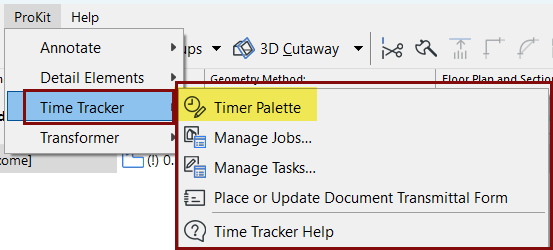
Open the Timer at ProKit > Time Tracker > Timer Palette:
- From the Timer palette, select the Job to be timed, or create a new Job with the
"Create Job" command.
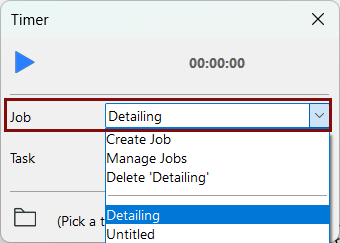
- Optionally, select or create a Task.Note: For another way to create and manage Jobs and Tasks: click Manage Jobs or Manage Tasks. See Manage Jobs and Tasks
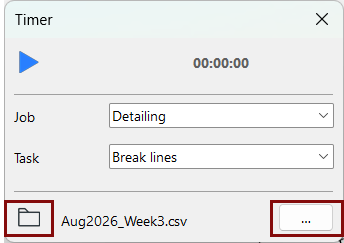
- Next to the folder icon, click the … button to choose where to save your timesheet
data, and then give the file a name. This file is continuously updated with the time
you spend per job or task, based on the Timer's start and stop data.
Time tracker files use the
.csvextension. - Start the clock. Click again to stop the timer.
To access your time sheet, browse for the saved .csv
file.