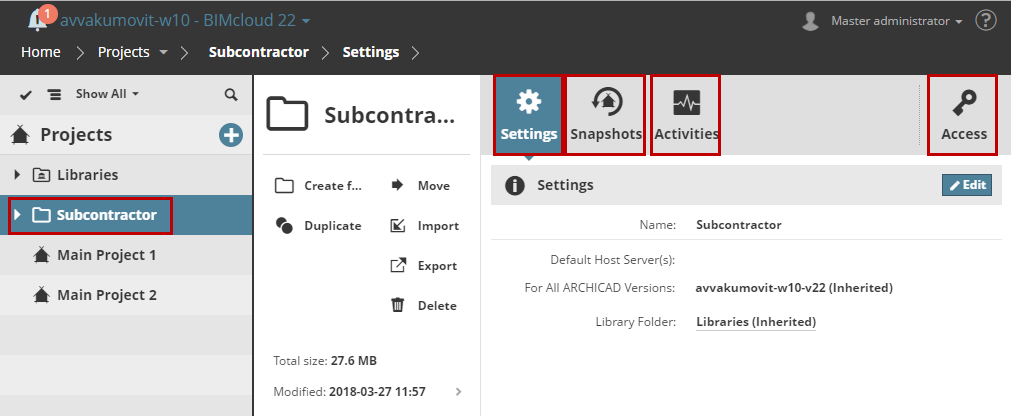
The following panels are available for a selected Project Folder:
Name: Name of the selected folder
Default Host Server: This is the default host server for projects created in this folder.
Note: Default host server settings is not available in BIMcloud Basic.
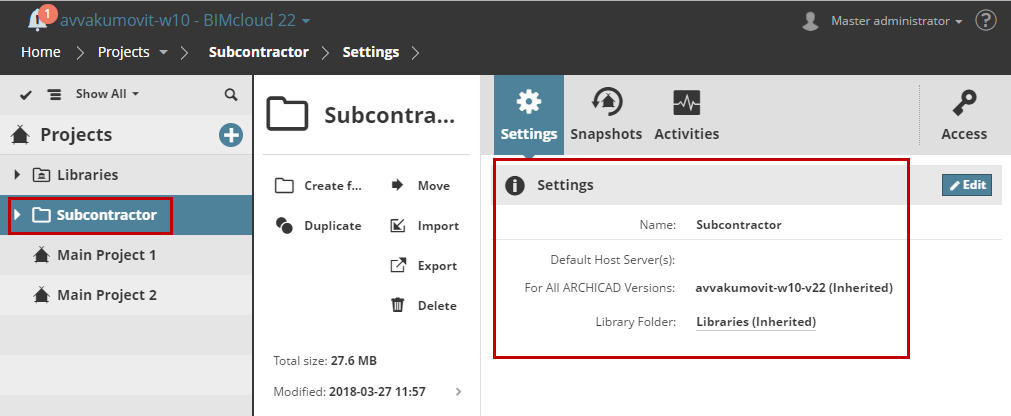
When a user shares a project from ARCHICAD and places it in the currently selected folder, the project will be automatically hosted by the BIMcloud Server chosen here.
By default, the Default Host server Settings pop-up inherits its value from its parent folder (or the Project Root).
To change this default, or to Add a new server, click Edit.
Then do one of the following:
•Choose from the pop-up list of available BIMcloud Servers
•Click the Add button to add another Server to the list
 Required permissions to Edit settings:
•Simplified management: Server administrator
•Detailed management:
-Modify details for the selected item
-Only those BIMcloud Servers appear in the default host server pop-up for which the current user has Modify hosted data permission
Library Folder
This is the default Libraries folder for the selected Navigator item, inherited from its parent folder (or the Project Root).
When you share a Teamwork project from ARCHICAD, the Share process (Libraries dialog) either uploads the project libraries to a folder on the BIMcloud, or links the project to existing BIMcloud libraries. By default, the Teamwork Share process uploads or links libraries to the Library Folder shown here.
To change this default, click Edit.
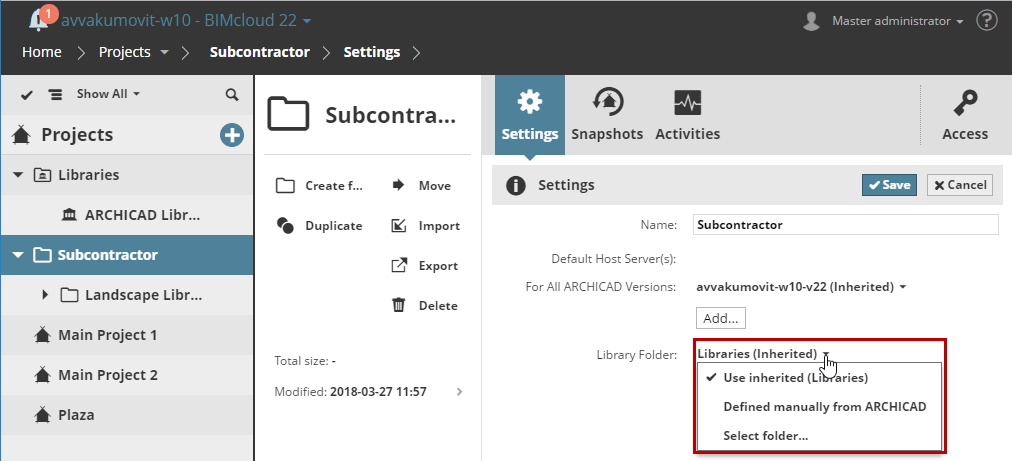
From the Library Folder pop-up:
•Choose Select folder to pick a different folder as the default, or
•Defined manually from ARCHICAD: with this setting, the Share process from ARCHICAD requires the user to specify a Library folder on BIMcloud.
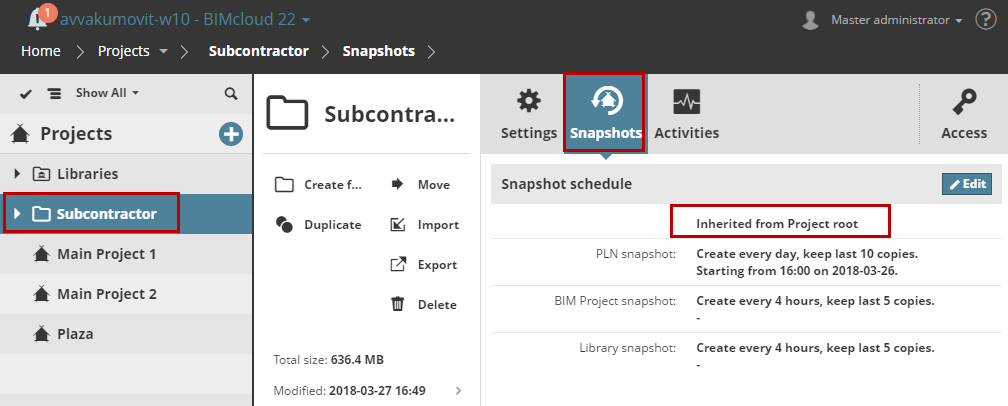
By default, the Snapshot schedule of a selected Project folder inherits its values from its parent folder (e.g. the Project Root).
Defining snapshot settings for a folder will not back up the contents of that folder. The only purpose of defining snapshot settings for a folder is to apply these snapshot settings to its child folders and to the projects/libraries they contain.
See also Project/Library Snapshot and Restore on how to use snapshots.
You can override these settings here, as needed. Click Edit on this panel to schedule snapshots for projects/libraries in this folder.
The schedule controls are the same as for a selected single Project/Library.
See the description at Snapshots.
 Required permissions:
•Simplified management: Project or Server administrator
•Detailed management: Modify details for the selected item
Activities
This panel shows all activities of all users across all projects located in the selected folder.
See Activities Panel.
Access
Note: Access panel for Project folder(s) are not available in BIMcloud Basic.
See Access Panel.