Project/Library data
Review or troubleshoot project/library data on the Servers page of BIMcloud Manager
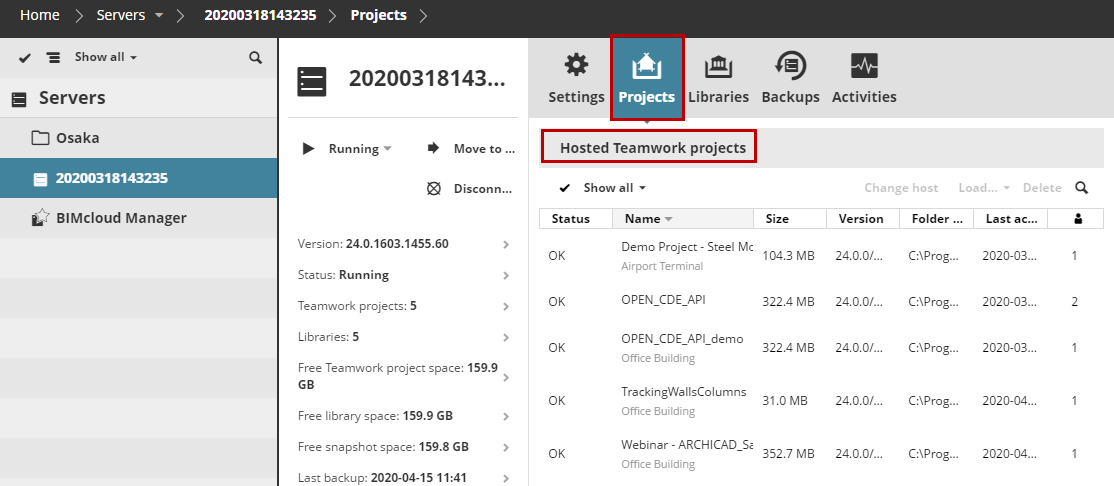
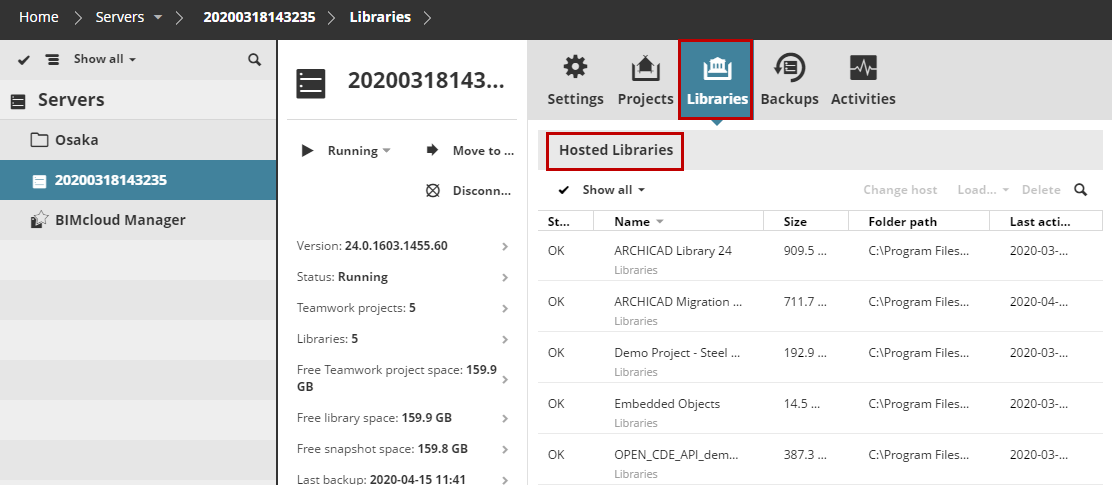
For a selected BIMcloud Server or folder on the Servers page, the Projects and Libraries panels list all hosted items, plus their key data.
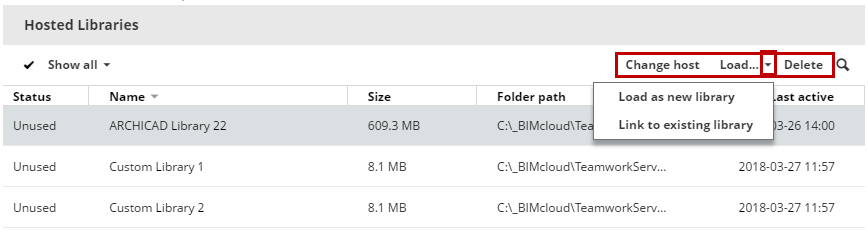
Project/library data: Change host or Delete
If you have multiple servers on your BIMcloud, use the Change host command to move Teamwork Project or Library data from one server to another.
You can also do this on the Projects page of BIMcloud Manager. See Change the Host Server of project or library.)
Delete: Deletes the project/library.
"Missing" or "unused" project/library data
The BIMcloud Manager and the BIMcloud Server are separate components. The BIMcloud Manager must be able to access the linked project or library data available on the server.
Sometimes the two components will become out of sync - for example, one of the components has been restored from a snapshot. The following errors can appear on the list of hosted projects or libraries:
-
Missing project/library: This "Missing" section appears if any listed project or library is missing its referred data.
To fix this, ensure that the project/library data is available on the given folder path.

-
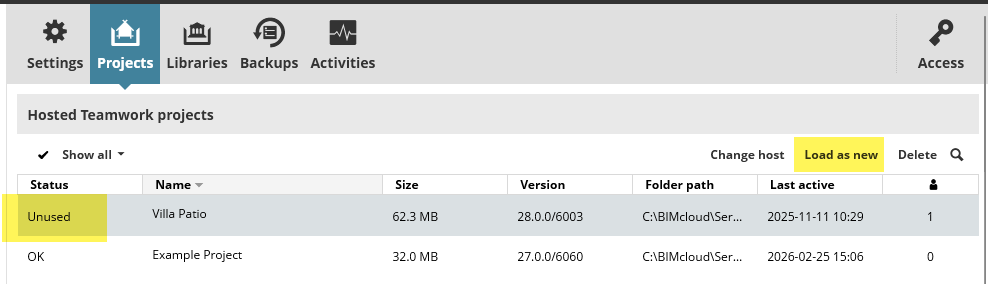
Unused project/library: If the BIMcloud Manager does not recognize the project/library data, even though it's listed on the Servers page of BIMcloud Manager, the hosted item's status is shown as "Unused".
To fix this, use Load as new: this will import the project/library data to the BIMcloud Manager.