Find your previously created public links
With the item selected, go to the Settings tab and review the Public links section.
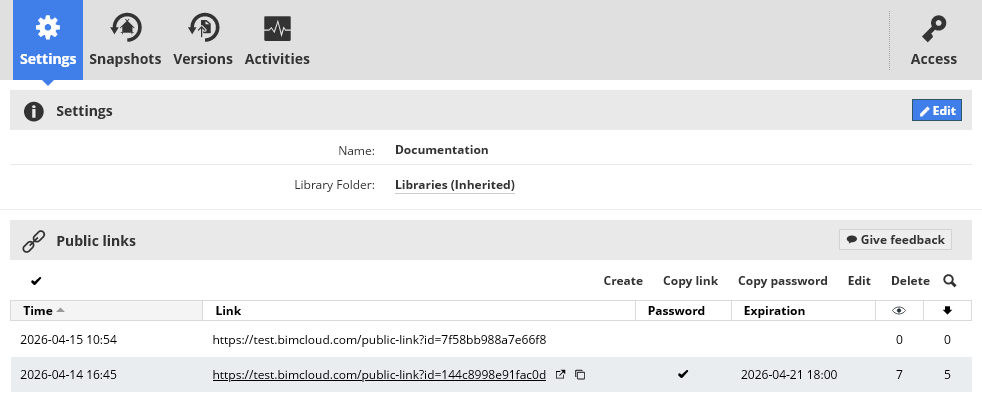
To select a single public link: Click anywhere in the link row
To select multiple links: Enable the checkmark icon, then check the links you need
Available functions:
- Create: Create a new public link for the item selected in the Projects tree
- Copy link: Copy the URL to the clipboard
- Copy password: Copy the link password to the clipboard
- Edit: Change the link password or expiration
- Delete: Remove the public link - this action revokes access to third parties
Hover the link text or the password checkmark to display quick command buttons: use these commands to open the public link in a new browser tab, or copy the link URL or the password to the clipboard.