System notifications
Warnings or info about server function
Each user will see only relevant notifications, based on their role and permissions.
When enabled, notifications appear automatically:
-
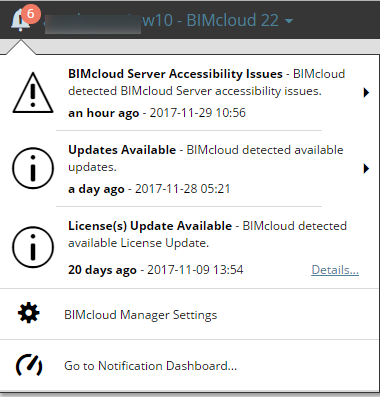
in the Notifications dropdown (bell icon) on any page of BIMcloud Manager
-
in the Notifications Dashboard (a separate page of BIMcloud Manager)
-
as pop-ups, in a relevant location of the BIMcloud Manager web interface
-
by email
Turn notifications on/off
Set up Notifications preferences for each user at User Settings. See System Notifications Section.
-
Display in BIMcloud Manager (this is On by default).
-
Enable the option to receive a daily email listing the current Notifications for your BIMcloud Manager
View list of notifications
The Notifications dropdown, with the full list of current Notifications, is available from the top left corner of every page of BIMcloud Manager.
Notification pop-ups
You will also see Notifications in pop-ups at the relevant parts of BIMcloud Manager:
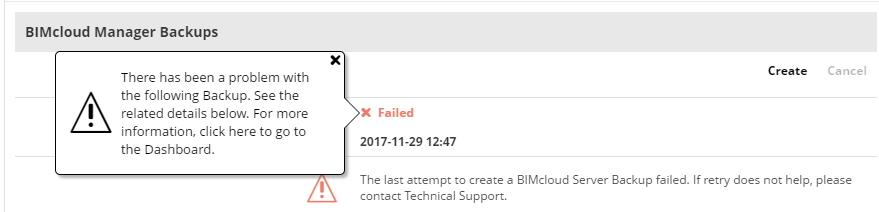
Click on a pop-up to get more information and navigate to the Dashboard.
View notifications on a dashboard
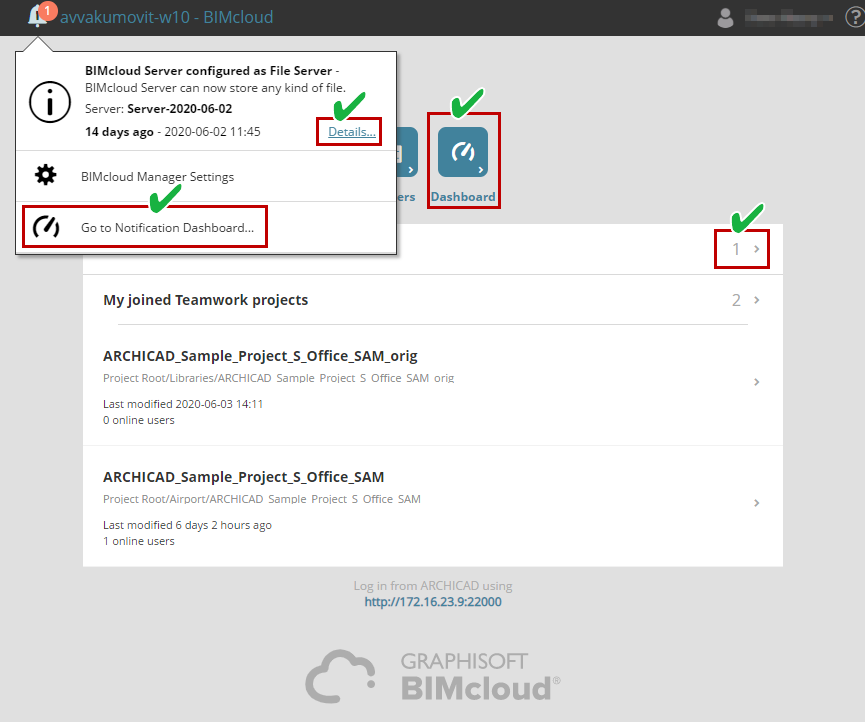
The Notification Dashboard lists the currently active notifications for the BIMcloud. To access the Dashboard, do one of the following:
-
Click on the “Dashboard” content type from the BIMcloud Home screen (visible to Server Administrators only)
-
Click Details, next to any item of the Notifications dropdown list
-
Use Go to Notification Dashboard, at the bottom of the Notifications dropdown list
-
Click the Notifications pop-up arrow from the BIMcloud Home screen
You can filter the list by Notification type:
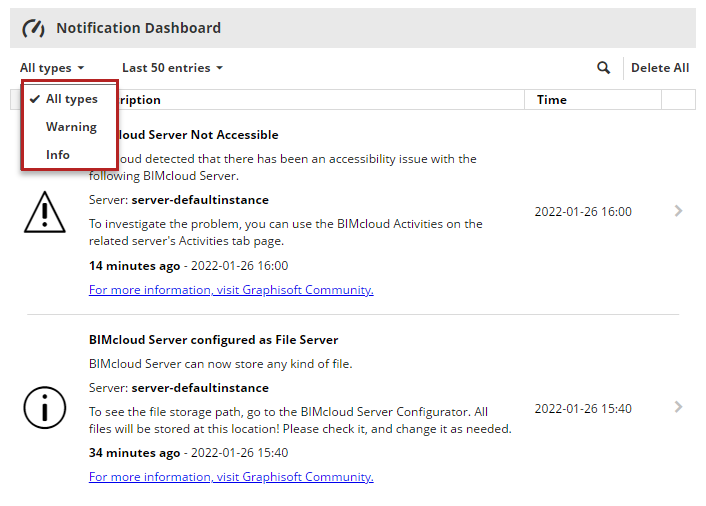
For any item, click the arrow to automatically open the page of BIMcloud Manager or other location, where you can view or fix the issue as needed.
Delete notifications
Some Notifications in the list disappear on their own when the issue is resolved. Other Notifications remain until you delete them.
To delete a Notification:
-
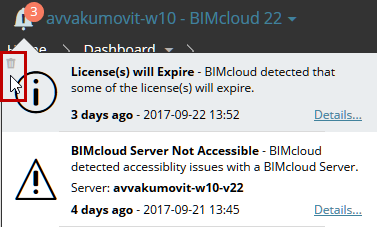
Hover over the Notification in either the Dashboard or the Notifications Dropdown.
-
The trash bin icon appears at left. Click to delete.