Connect existing BIMcloud user to GSID
BIMcloud SaaS with key-based licenses
Use this workflow to connect an existing BIMcloud user to their GSID account. This enables additional license options available for GSID users only.
Follow these steps:
Open the Users and groups page of BIMcloud Manager.
Select the user in the list.
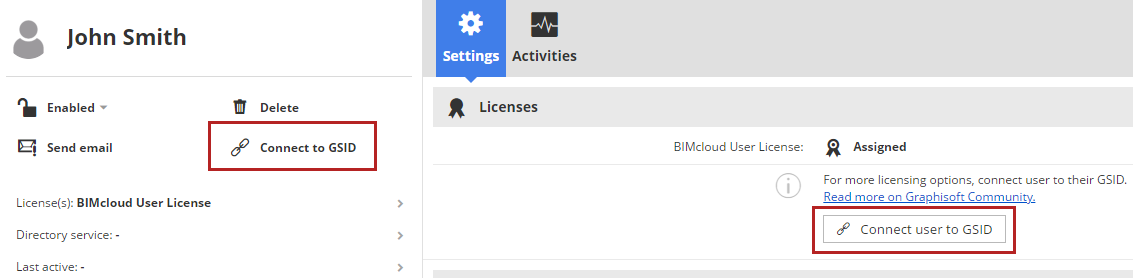
Click Connect to GSID (from the Summary panel or License panel of User Settings).
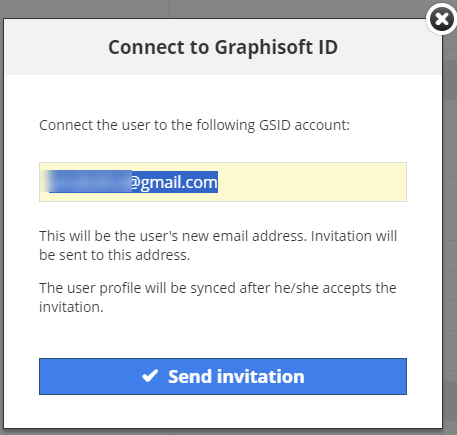
The appearing dialog shows the user’s GSID email.
 Note:
Note:Each user on the BIMcloud must have a unique GSID email address.
If the entered email is NOT a GSID email address, or is misspelled, click “Connect to GSID” from user's profile, and type a new address
The user receives an email containing a login link. Click to log in to BIMcloud using GSID credentials.
The user is now connected to BIMcloud via GSID.
Notes
During the connection process, the user can work without interruption on Teamwork projects (no need to accept the invitation immediately, no need to log out or log in immediately.)
Until the user accepts the invitation, they can still use their old username and password to log in to BIMcloud.
After accepting the invitation, they must log in to Archicad again, using their GSID credentials.
GSID users cannot be imported or exported. They are connected to an external service (GSID)