Design Options
Use Design OptionsDesign Options to test different design ideas in the same project. The Main Model stores the shared project content, such as the Site, Contextual Buildings, 3D Constraints, Compliance targets, and Unit Planner settings.
Content in the Main Model appears in every Design Option. Edit or delete this shared content only from the Main Model.
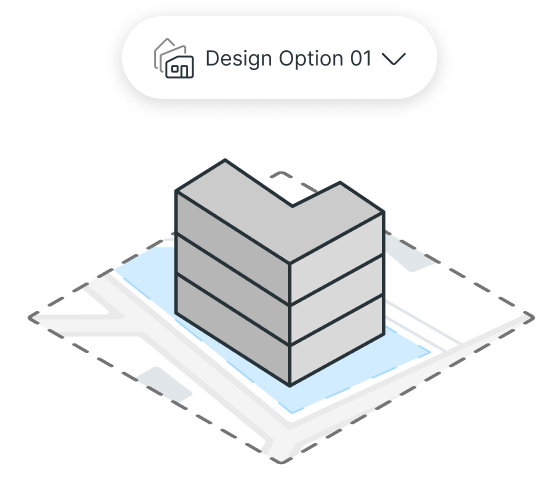
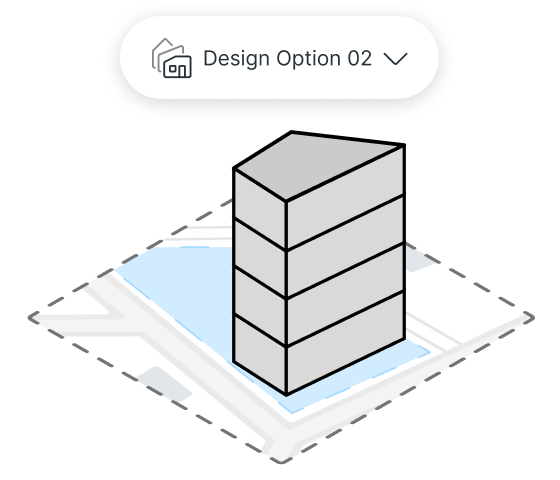
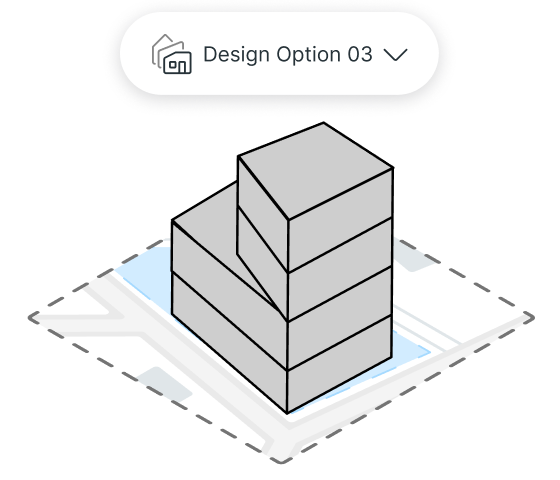
For a typical workflow
- Create the Site and Contextual Buildings in the Main Model.
- Add shared project settings, such as compliance targets and Unit Planner data.
- Create one or more Design Options.
- Start designing buildings and option-specific changes inside each Design Option.
If you are working on only one design concept, you can stay in the Main Model. You do not need to create Design Options.
Note: The Unit Planner is available only in the Main Model. Its unit program applies to all Design Options.
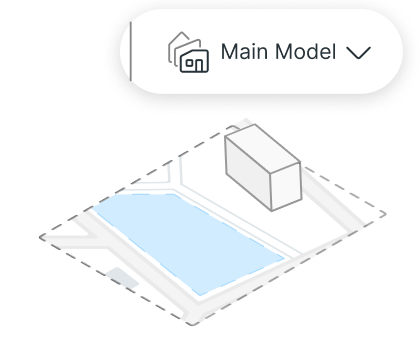
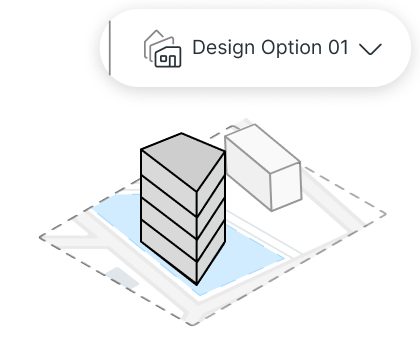
Create and manage Design Options
- Open the
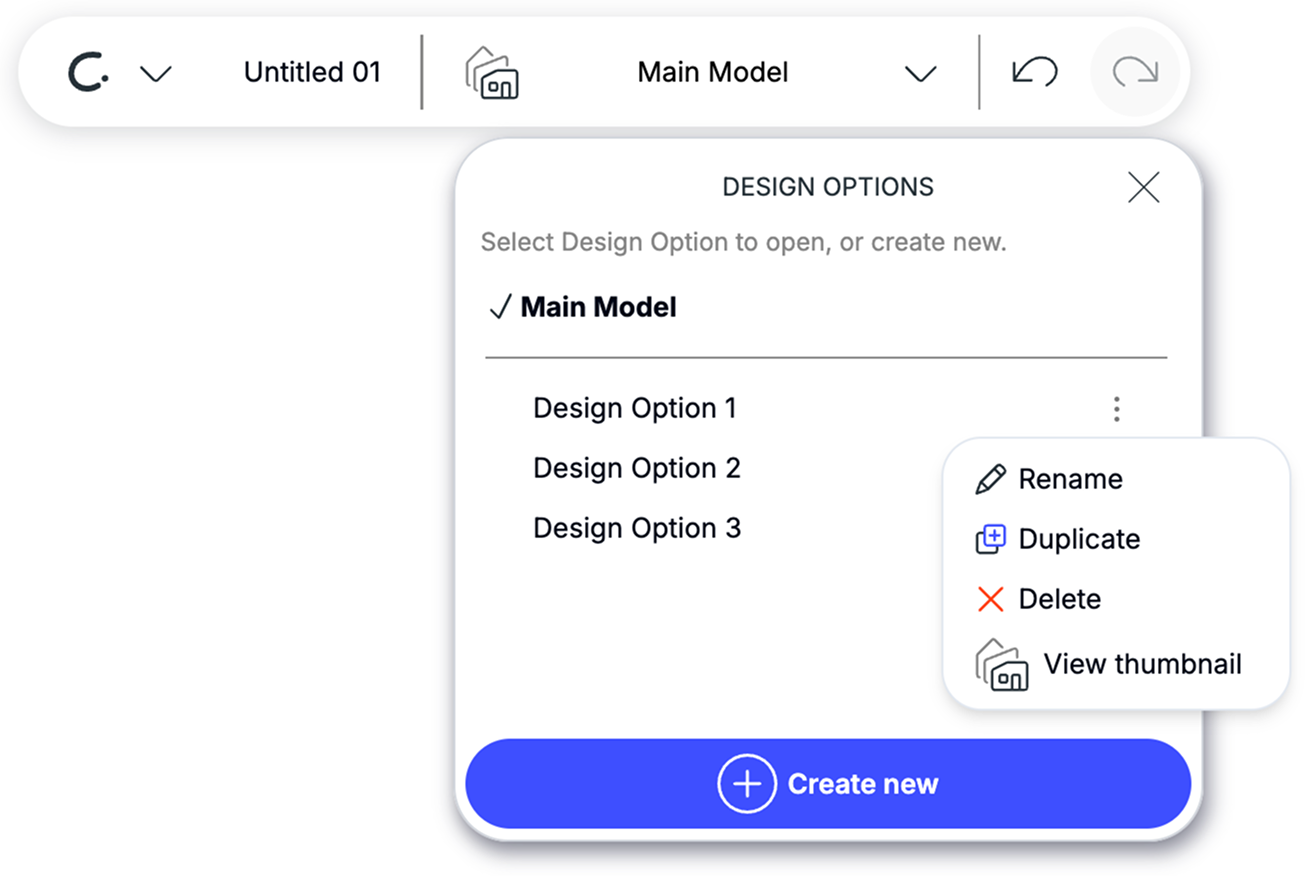
Main ModelMain Modeldropdown in the main menu bar. - Click
Create newCreate newto create a Design Option. - Select a Design Option from the list to manage it.
- Use the menu commands to
renamerename,duplicateduplicate, ordeletedeletethe selected option. - When you transfer the project to Archicad, each Creator Design Option becomes a separate Archicad Design Option.
- Switch design options using the dropdown in the main menu.
Compare Design Options
Creator saves analysis results for each Design Option, so you can compare alternatives later.
To review detailed area results, go to Area Metrics/Compare Results.