Import a Creator project into Archicad
- Open Archicad.
- Go to Window > Palettes > Creator Connection and open the
ImportImporttab. - Under
Choose Creator projectChoose Creator project, clickBrowseBrowse. Search for or select the project you want to import. - Open
Story settingsStory settingsand choose how Creator floors are handled in Archicad. See Story settings below. - Open
Elements to ImportElements to Importand choose what you want to import. See Filter elements below. - Open
Attributes of Imported ElementsAttributes of Imported Elementsand choose the building materials for walls and slabs and the layers the elements should be stored. - Check the preview.
- Click
ImportImport.
Wait while Archicad creates the model from the Creator project.
If you're new to the workflow, keep the default settings for a quick first result. With the default settings, the whole project is imported, including all Design Options.
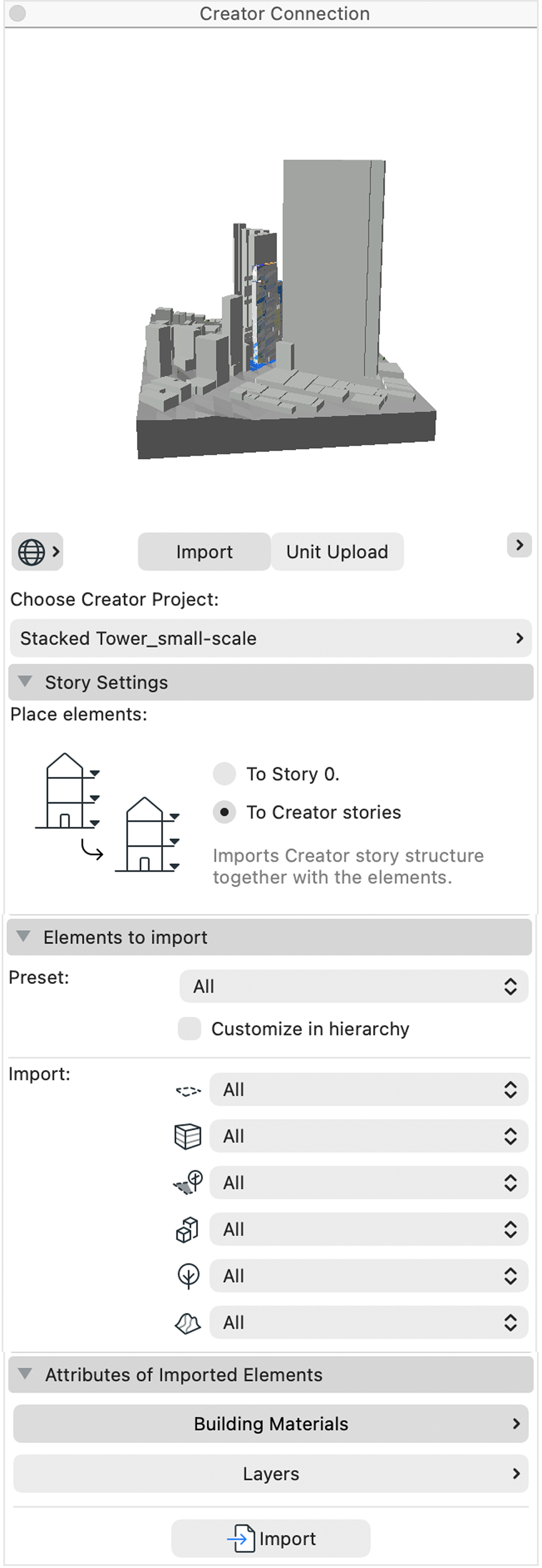
Story settings
Choose how to place elments from Creator floors onto Archicad stories.
To Story 0To Story 0
Elements are placed at the correct height, but they're all linked to Story 0 as their home story.
Use this option if you don't want to change the existing Archicad story structure.
To Creator storiesTo Creator stories
Archicad creates stories based on the floors in Creator. Each element is linked to the story that matches its Creator floor.
Use this option if your project has one Building, or several Buildings with the same floor heights and base elevation. The number of floors can differ.
- If the Creator floors and Archicad stories match, the elements are linked to their matching stories.
- If Archicad has extra stories above or below, they're kept. This protects technical stories you use for other content, such as modules, DWG files, or survey drawings.
- If Creator has more floors than Archicad, the missing stories are created.
- If you change a floor height in Creator, the matching story height is updated in Archicad the next time you update.
If the Buildings have different floor structures, Archicad uses the Building with the most floors to create the stories. The other Buildings are matched by floor number. Their elements are placed at the correct height, but they may have a large offset from their home story.
Elements to Import
Use the controls at Elements to ImportElements to Import to choose which content is imported.
PresetPreset
Choose a preset to filter the content quickly:
AllAll— The full project.Main ModelMain Model— Only the shared content in the Main Model.Design OptionDesign Option1, 2, … — A single Design Option.
When you select a new project, the preset is set to All.
If you change the filters by hand, the preset changes to Custom. You can't select Custom from the list.
ImportImport
Below the preset, set a filter for each element type: All, Design Option, or None.
The Terrain belongs to the Main Model only, so it can't be filtered by Design Option.
Customize in hierarchy
Turn on Customize in hierarchyCustomize in hierarchy to see the full project content in a tree view. This mode expands the possibilities for importing any combination of elements from the Main Model and Design Options.
The tree shows the Main Model and each Design Option, with the element types inside them:
TerrainTerrainSiteSiteInternal ZoneInternal Zone3D Constraint3D ConstraintBuildingsBuildings, with each Building listed by nameContextual BuildingsContextual BuildingsVegetationVegetation
Turn items on or off to choose exactly what you want to import.
Attributes of Imported Elements
Use Attributes of Imported ElementsAttributes of Imported Elements to set the building materials for the imported elements:
- Walls, Slabs, Contextual Buildings and Terrain — Set the building material for each element type from Creator.
How Creator elements are converted
The main conversion rules are:
3D Constraints3D Constraintsare imported as Zones.BuildingsBuildingscan be imported as Zones or Slabs.Contextual BuildingsContextual Buildingsare imported as Morphs.Generic elementsGeneric elementsare imported as Morphs.SitesSitesare imported as Zones.TerrainTerrainis imported as a Mesh.VegetationVegetationis imported as GDL Objects.
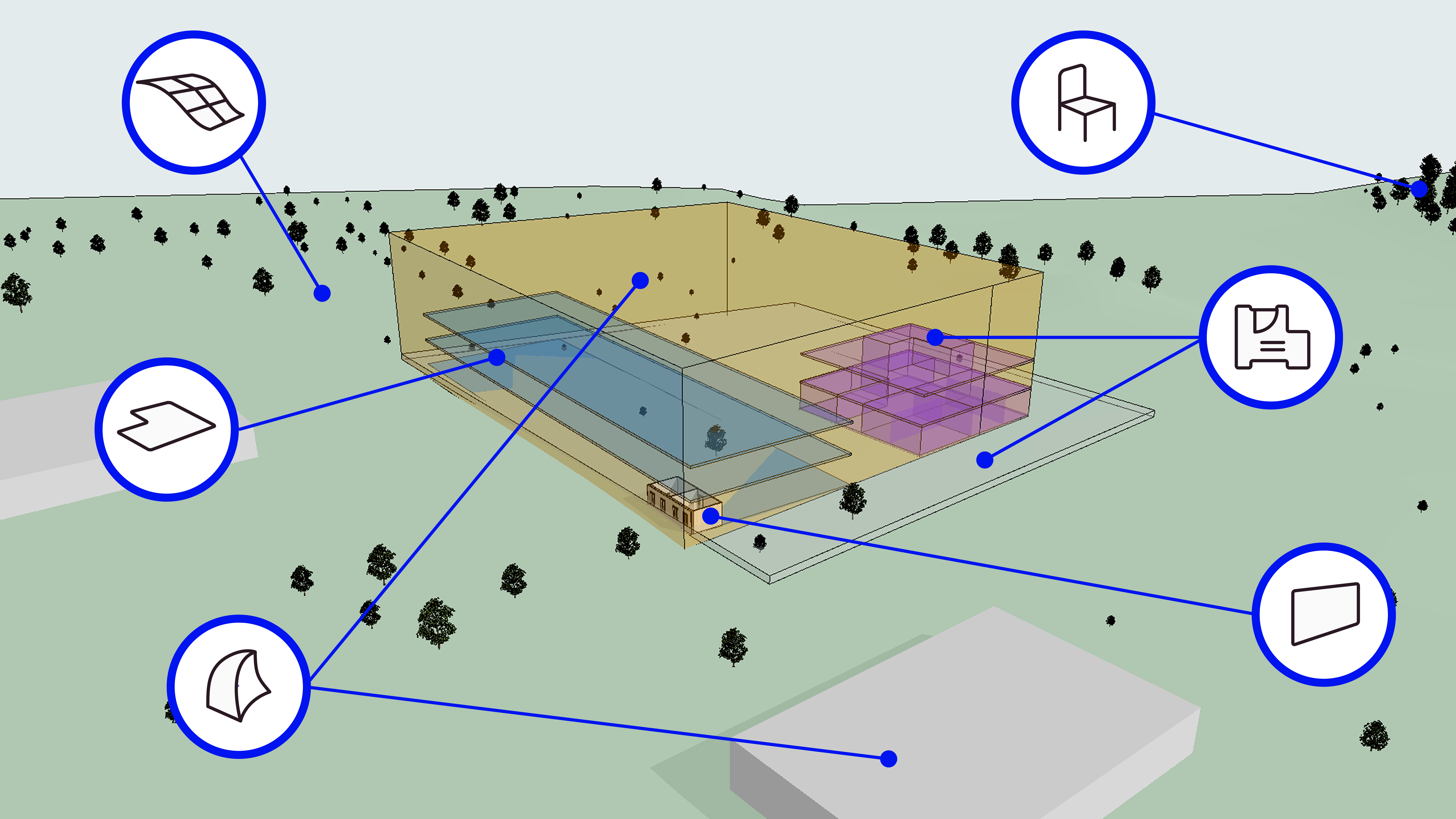
The parts of each Building are placed on separate layers in Archicad, so you can show or hide them individually.
Creator Design Options become Archicad Design Options.