Teamwork and Project Sharing in Creator
Share a project with other Creator users so your team can work on it at the same time. Each person gets a role that decides what they can view, edit, and manage.
Use project sharing when a team develops Design Options in parallel, when reviewers need to see the design without changing it, or when more than one person must be able to manage the project.
How it helps your team
- Several people can work on the same project at the same time.
- Designers can develop their own Design Options while the shared project data stays protected in the Main Model.
- Consultants, and reviewers can explore the model without changing it.
- With more than one Project Lead, the project can still be managed when one lead is unavailable.
Before you begin
Share a project
You must be a Project LeadProject Lead to share a project.
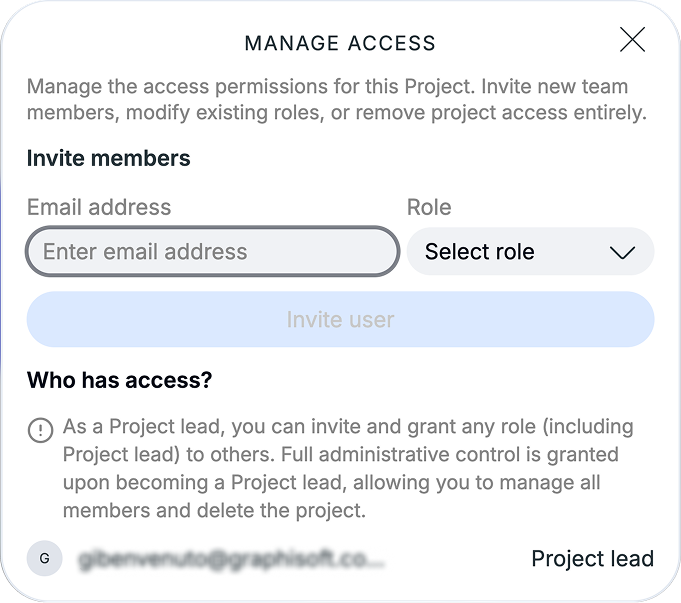
- On the Project Hub, click the three-dot menu of the project tile you would like to share.
- Select
Manage AccessManage Access. - Enter the email address of the person you want to invite.
- Select a role:
Project LeadProject Lead,DesignerDesigner, orViewerViewer. - Send the invitation. The project then appears in their Project Hub with a tag on the top indicating their role.
Work on a Design Option
Creator uses reservations so only one person edits a Design Option at a time. Reservations happen automatically.
How reservation works
When you open a Design Option that no one else has open, Creator reserves it for you. While it's reserved, other members can view it but can't edit it.
Explore without reserving
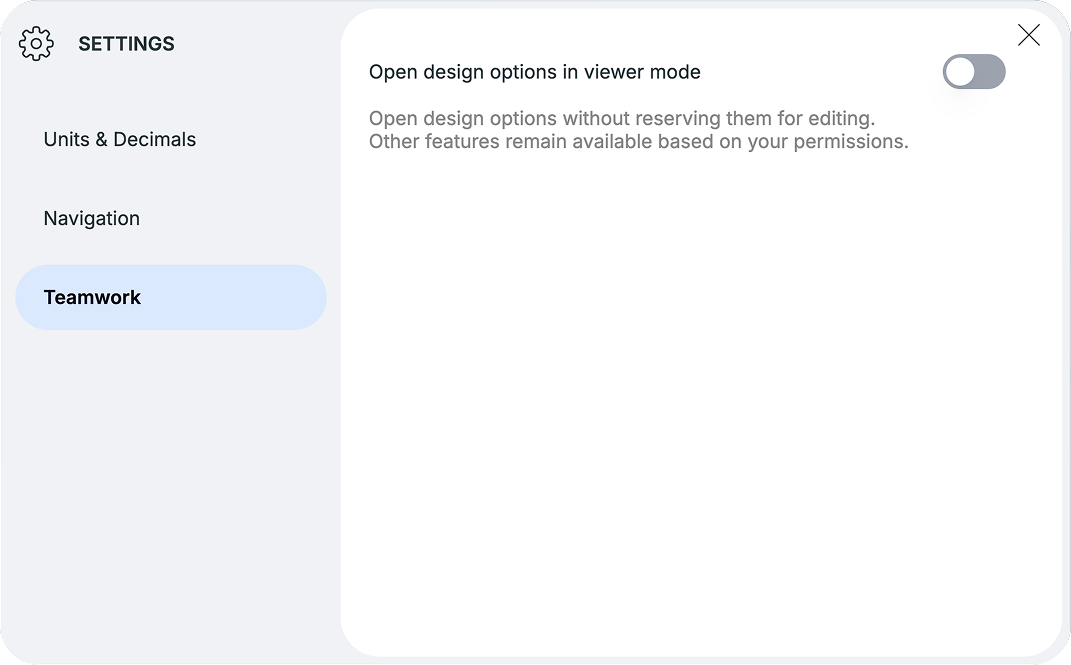
To look through Design Options without blocking anyone else, Click on the Creator logo > Settings > Teamwork and turn on “Open Design Options in viewer modeOpen Design Options in viewer mode”. You can then move around the model and review each Design Option without reserving it.
Use viewer mode when you're reviewing or comparing Design Options. Your teammates stay free to edit the options they need.
Check if you can edit
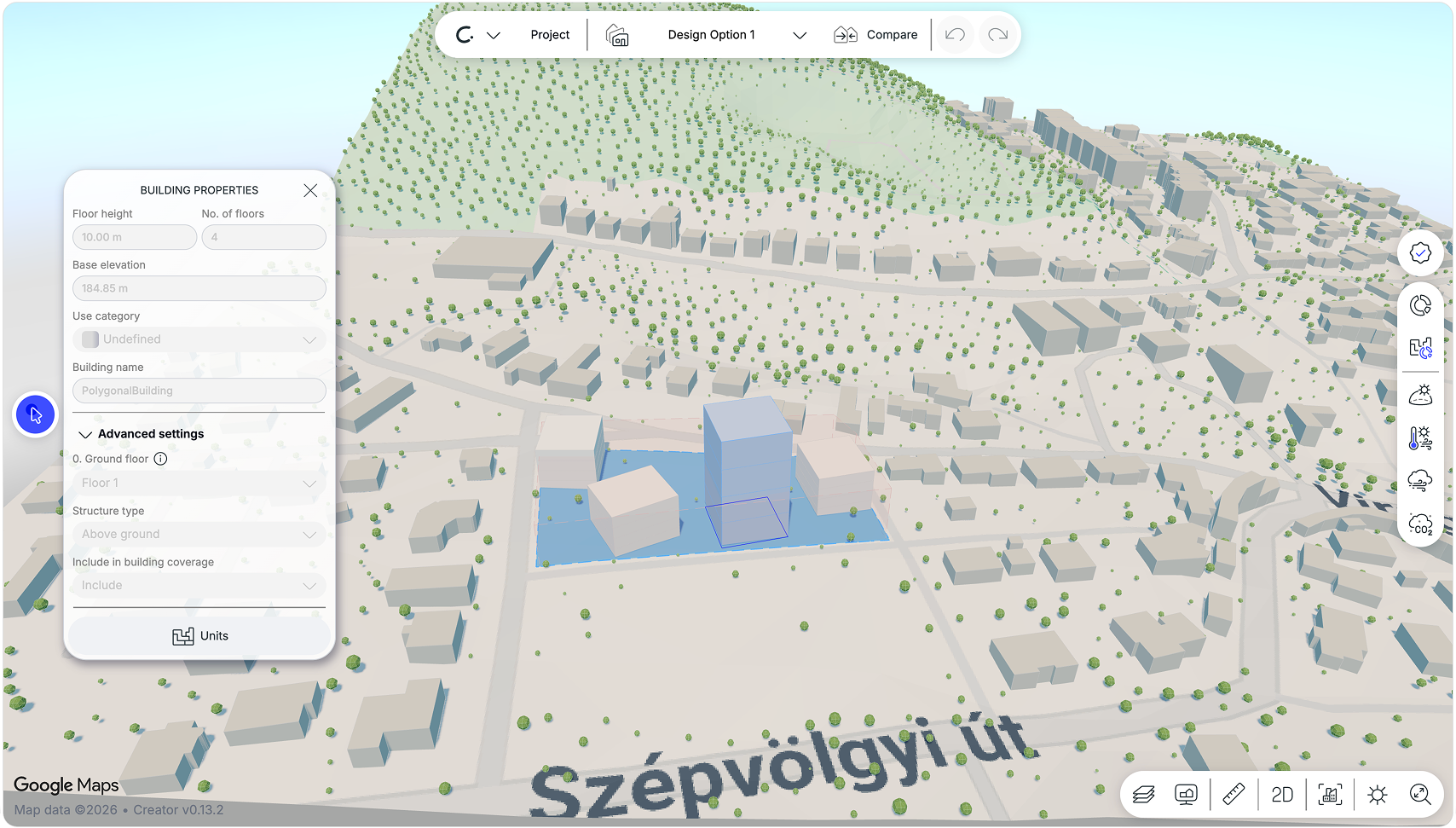
Select a Building in the Design Option. If the Building PropertiesBuilding Properties menu is grayed out, you can't make changes. This happens when:
- Another member is working on that Design Option.
Open Design Options in viewer modeOpen Design Options in viewer modeis turned on.
To edit, pick a Design Option no one else is using, or turn off viewer mode and open the Design Option again.
Work in multiple browsers
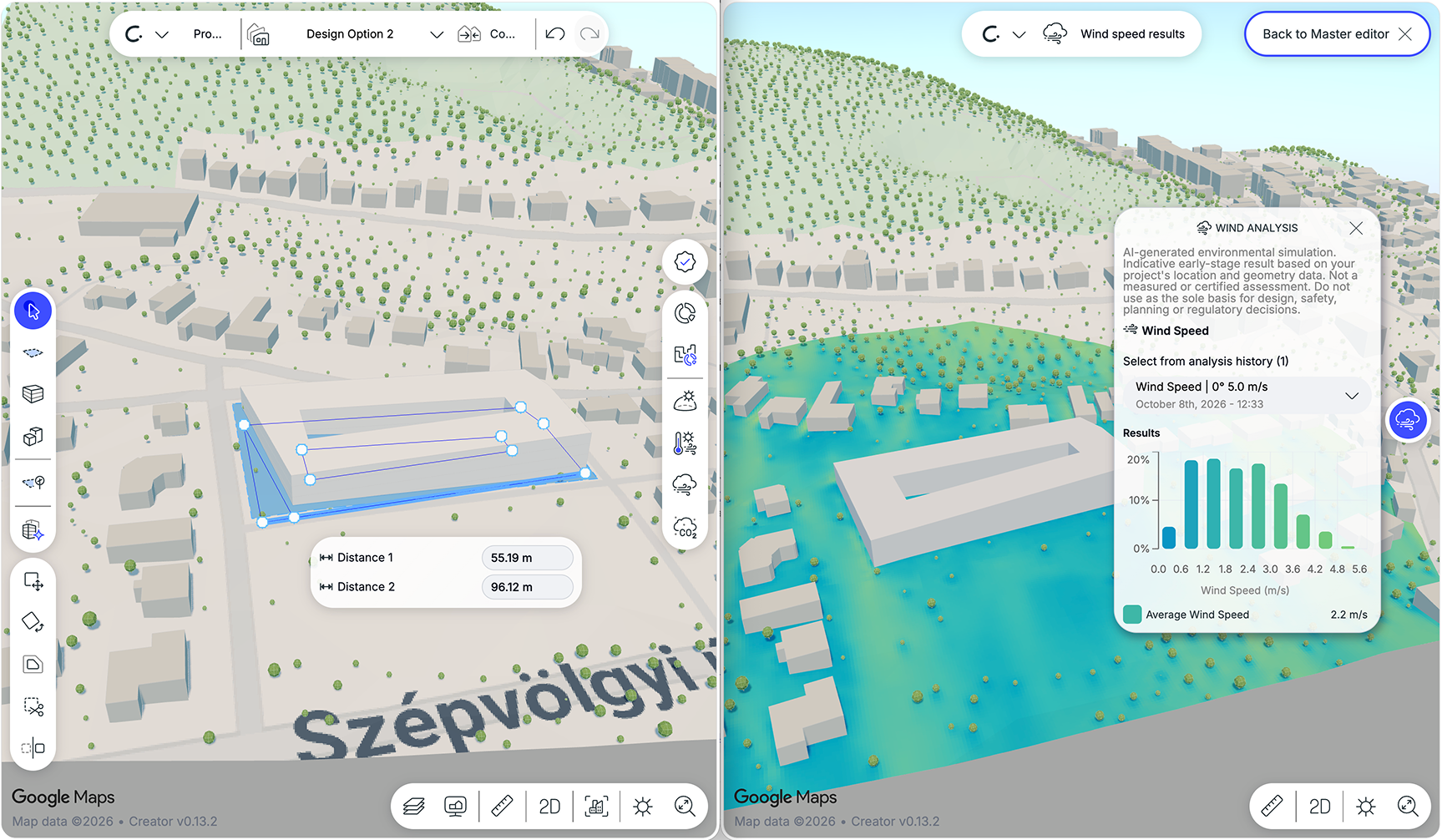
You can open the same project in more than one browser tab or window. This is useful when you want to compare Design Options side by side or review one option while editing another.
How editing works across tabs
Each Design Option and the Main Model can be edited in only one tab at a time. If one is already open for editing in another tab, it opens as view-only. This applies to your own tabs as well as to other members.
See the latest changes
Changes made in one tab don't show up in the others automatically. Refresh the page to see the latest version.
Release a Design Option
Creator releases a Design Option as soon as you close the tab or switch to another Design Option or the Main Model.
Other members or tabs might still show it as view-only for a moment. To see that it's free, refresh the page or switch to another Design Option and back.
Roles
Every member of a project has one of three roles.
Project LeadProject Lead - Has full control of the project. A Project Lead can do everything a Designer can, and can also edit project-level data, manage members, and rename or delete the project.
Designer Designer - Develops Design Options and runs analyses. A Designer cannot change the Main Model.
Viewer Viewer - Explores the project without changing it. A Viewer can navigate the model and review the design, but cannot edit it or run analyses.
When you create a project, you automatically become its Project Lead.
What each role can do
|
Action |
Project Lead |
Designer |
Viewer |
|---|---|---|---|
|
Explore the model (Switch between Design Options, turn Layers on or off, switch between saved Views) |
Yes |
Yes |
Yes |
|
Open the Unit Editor to review the unit layout |
Yes |
Yes |
View only |
|
Create or modify Views |
Yes |
Yes |
No |
|
Run analyses |
Yes |
Yes |
No |
|
Reserve and edit Design Options |
Yes |
Yes |
No |
|
Edit the Main Model (Site, Contextual Buildings, 3D Constraints, Compliance Targets, and Unit Planner settings) |
Yes |
No |
No |
|
Edit project settings |
Yes |
No |
No |
|
Invite and remove members |
Yes |
No |
No |
|
Rename or delete the project |
Yes |
No |
No |
Content in the Main Model appears in every Design Option. Because only Project Leads can edit the Main Model, set up the Site, Contextual Buildings, Compliance Targets, and Unit Planner data before Designers start working on Design Options.