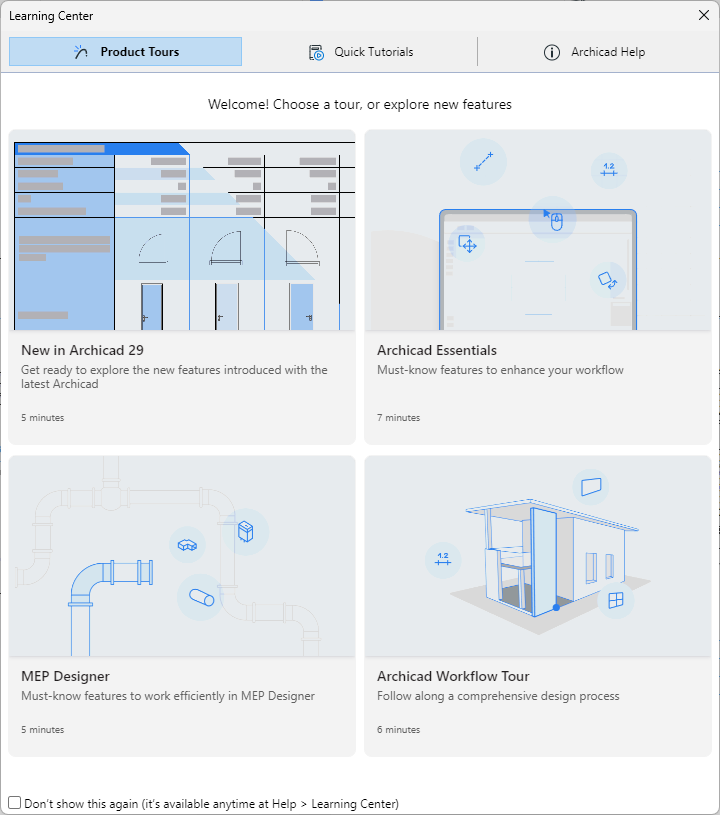
MEP Designer provides help at your fingertips right inside the program.
Check out product tours and tutorials to get up and running. Reach the Learning Center when you start the program, or anytime from the Help menu.
•Expanded tool tips: Hover over any tool for an introduction to what it can do
•Coach marks: Click “Show me more” for an expanded introduction, with mini-videos
•Turn this content on or off from the Help menu
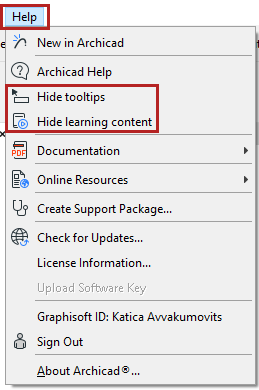
In MEP Designer, go to Help > MEP Designer Help
Click here to access in PDF format.
Need more in-depth resources to resolve your question? Visit our Support Site for troubleshooting and assistance.
Do one of the following:
•Press F1 (Windows) or Cmd+? (Mac)
Note: Shortcut may vary depending on your language version.
•Right-click on any user interface element and choose the ‘What’s this’ command
The Help will open to a topic relevant to the interface item you have clicked. (In some cases, the Help will open to its starting page.)
Knowledgebase articles, tutorials and videos are available at Graphisoft Community.
When you do have an internet connection, click the links below to download the files (either the PDF, or the ZIP file, or both). That way, you will be able to access the Help even while working offline.
MEP Designer Help (PDF document)
Download the PDF to your computer.
Help in ZIP format (for context-sensitive Help)
Follow these steps carefully to enable context-sensitive Help while working offline:
1.Download Help.zip to your computer and unzip it.
2.Now go to the original Help folder where MEP Designer is installed (for example: Program Files/Graphisoft/MEP Designer 29/Help).
3.If the original Help folder contains a Files folder, delete it. (If not, continue.)
4.Go back to the new Help folder you just unzipped, and open it.
5.From there, move the Files folder into the MEP Designer Help folder.
Note for Safari Users
The Safari browser is not supported.
However, if you are still using a Safari browser (v. 11 and later), follow these steps in order to view the offline Help.
1.Go to Safari Browser Settings
2.Choose Preferences
3.Choose Advanced
4.Choose “Show develop menu in menu bar”
5.From the Develop menu: Select “Disable local file restrictions.”
This manual is a complete reference to Graphisoft’s proprietary scripting language, GDL (Geometric Description Language). Available at Help > Online Resources.
The Calculate function interacts with the project database to calculate the number of elements in a project, their spatial disposition and the quantity of element components. This is a legacy function. Most users will use the Interactive Schedule.