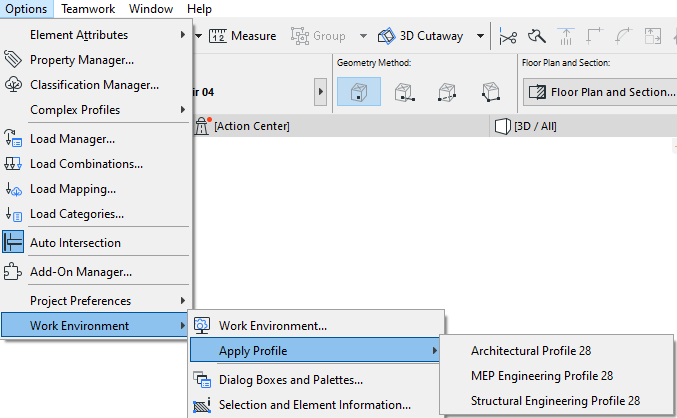
Your program is shipped with one or more default Profiles:
•MEP Engineering
See MEP Work Environment.
Naturally, you or your office CAD manager can reconfigure profiles as needed.
Apply a Different Work Environment Profile
Use Options > Work Environment > Apply Profile and choose a profile.
Customize Work Environment Settings
As you get used to working with MEP Designer, you will develop personal preferences for using the program’s features and arranging the various palettes, toolbars and menus on screen. You will set most of these options in the many sub-dialog boxes opened from the Work Environment dialog box at Options > Work Environment > Work Environment.
You can customize any of these settings while you work: Just open the needed dialog box, change the setting, and press OK. The setting will take effect.