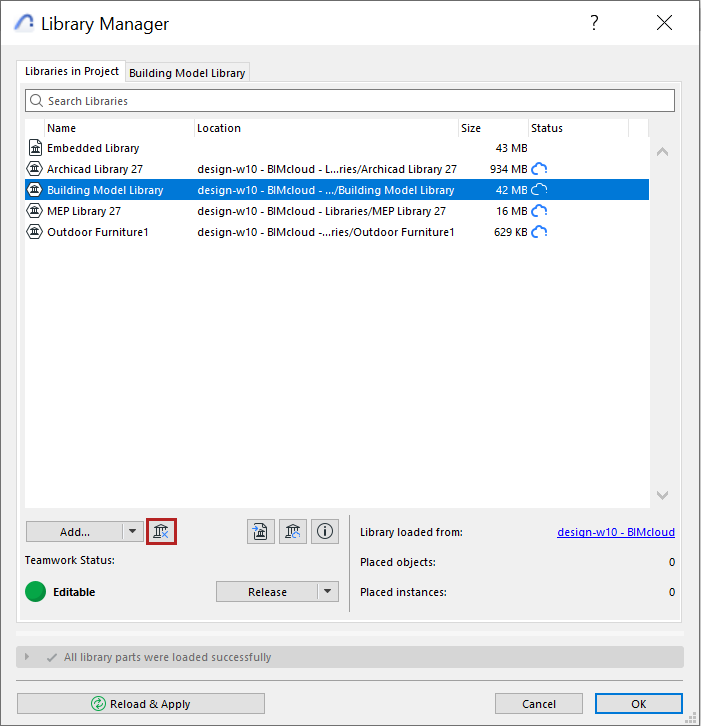
Select any Linked Library or BIMcloud Library from the Library Manager. (File > Libraries and Objects > Library Manager).
Click the Remove icon to remove the library.
As a result of removing a library, you may end up with missing library parts. These are listed in the Warnings panel of Library Manager, in the “Missing Objects” folder. In the project model, they will be represented by fuzzy dots.
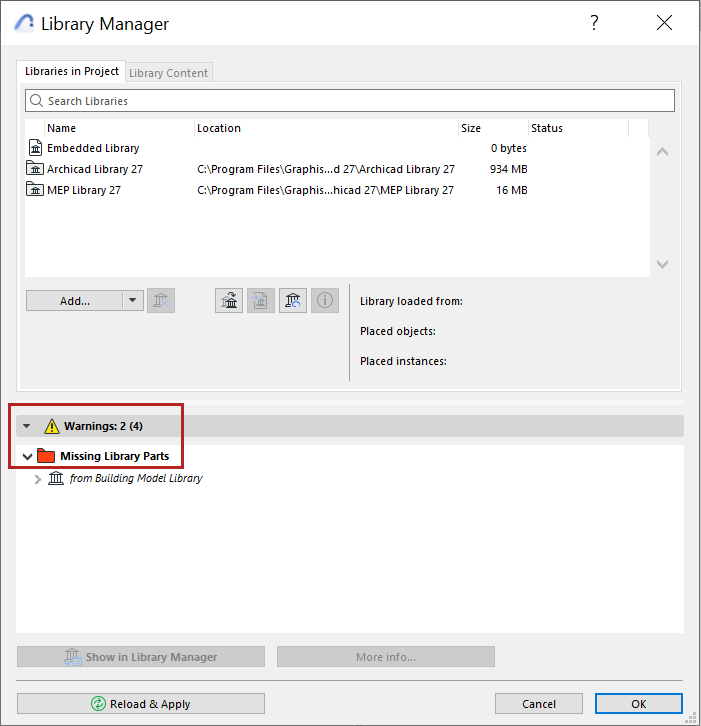
Removed libraries can be re-linked to your project at any time; then the missing objects will be found.
See also Troubleshooting Library Issues.