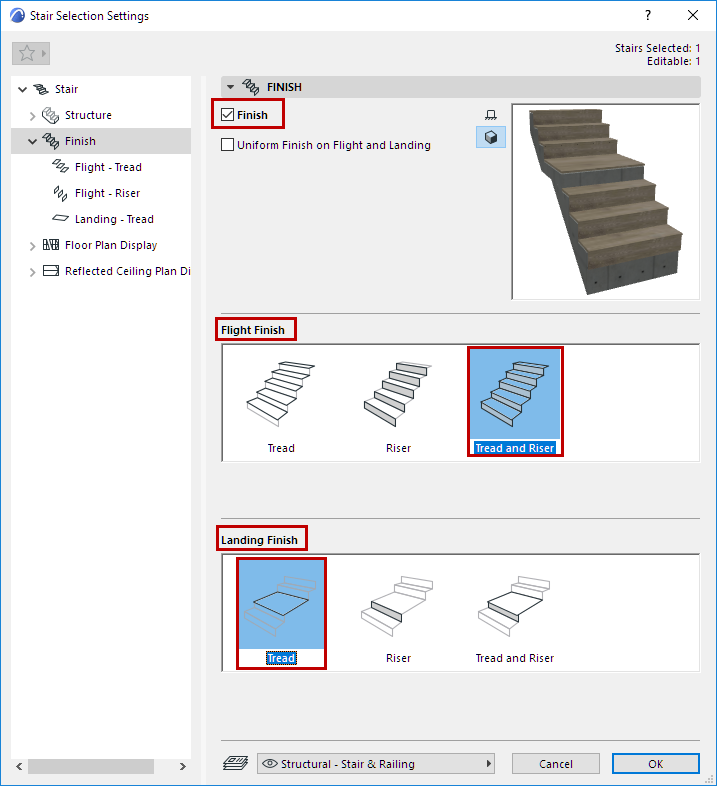
From Stair Settings, select Finish from the tree to open this page.
Check Finish to add Tread/Riser Finish components to the Stair.
Below, click the components you need:
•Flight Finish: Apply to Tread, Riser, or both
•Landing Finish: Apply to Tread, Riser, or both
The components you choose appear in the tree structure: a separate settings page for each of the Tread/Riser/Landing/Flight finishes.
Uniform Finish on Flight and Landing
Check this option to use the same Finish settings for all the Stair’s Treads and Risers, on both Flights and Landings. The number of settings pages is thus reduced.
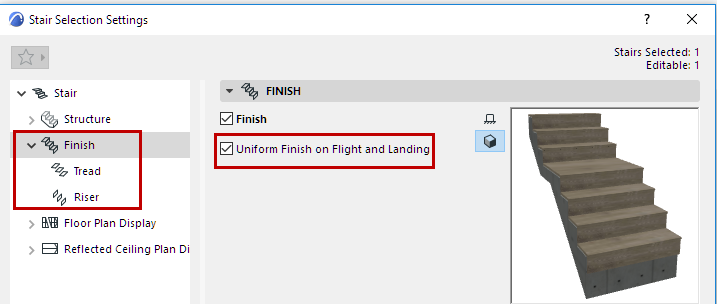
Tread and Riser Settings: Choose Component
On the Tread and Riser Settings pages, as applicable, choose a GDL component from the pop-up to serve as the Finish:
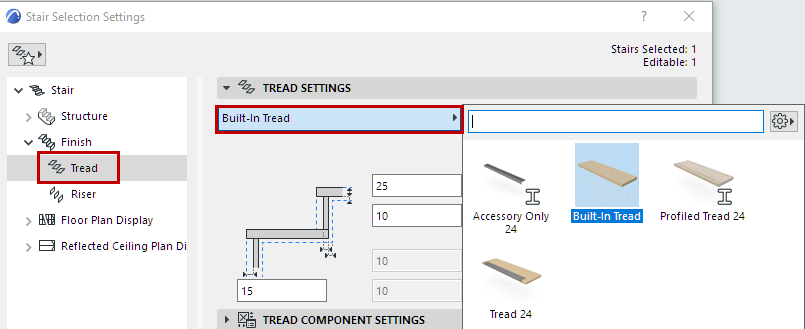
Choose Component as Tread Finish
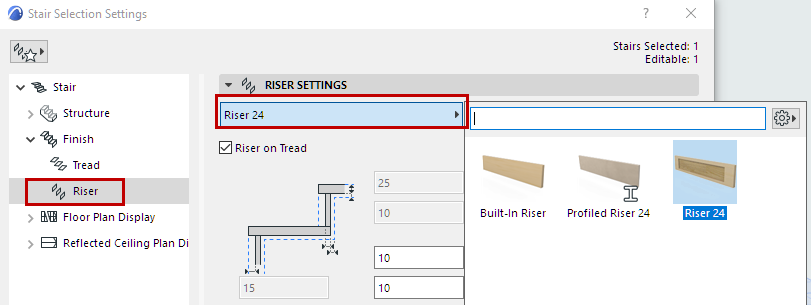
Choose Component as Riser Finish
Riser on Tread: Check this to place the Riser on top of the Tread. (If this is unchecked, the Riser extends to the bottom plane of the Tread - see the diagram.)
Tread and Riser Component Settings
Use the Component Settings panel to specify the shape and appearance of the chosen finish. The settings vary depending on the chosen component:
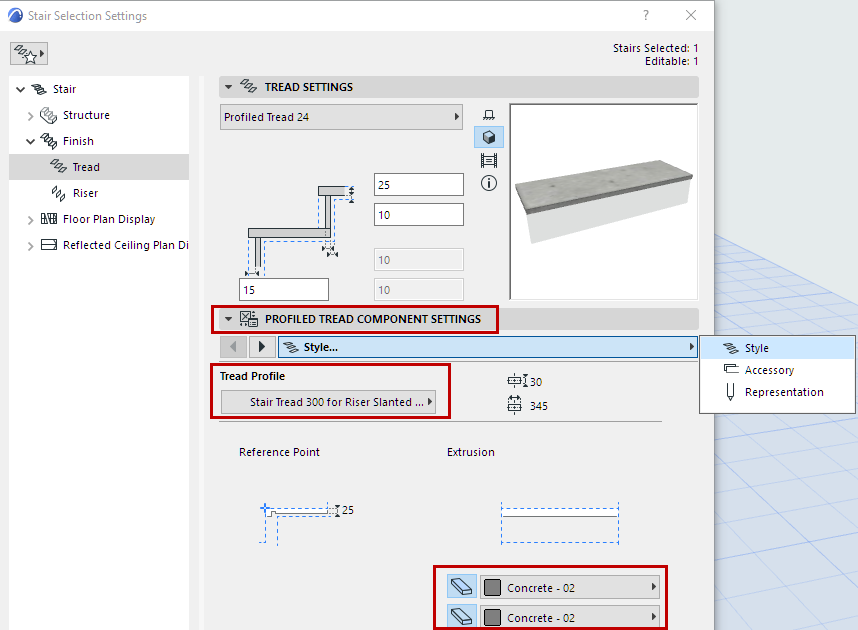
Choose Tread Profile and Building Materials
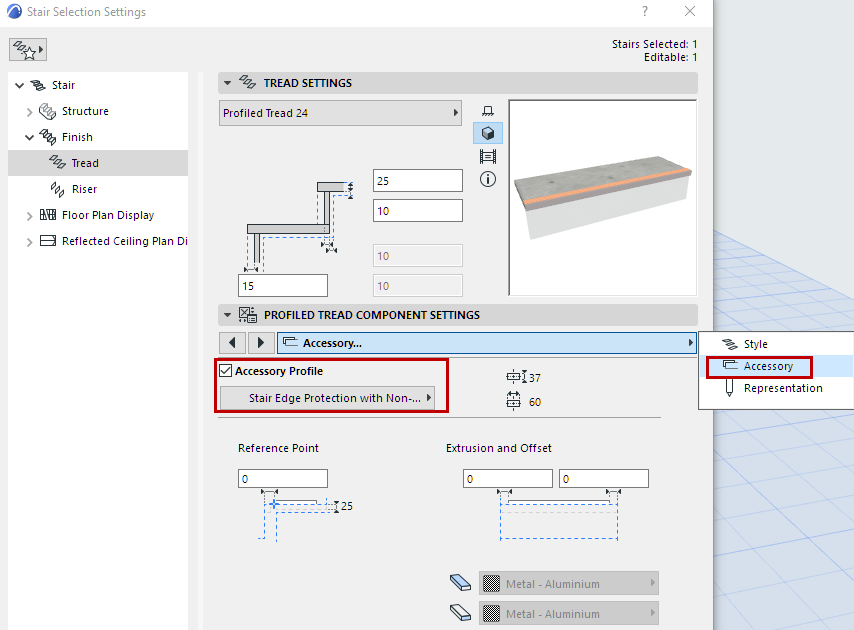
Choose a Separate Accessory Tread Profile