Note for MEP Designer users: You can create and edit doors and windows, but they are intended as a reference for your MEP model and are displayed with an override.
The handling and behavior of Windows and Doors are quite similar, therefore they will be described together.
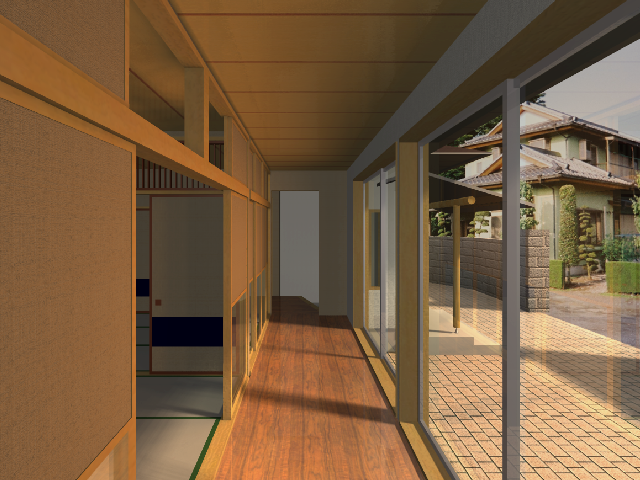
In MEP Designer, Doors and Windows are always placed into walls. They cut real, see-through openings into the wall, so that 3D visualizations are more accurate and lifelike. The glass surface lets light in and you can look through the Windows and glass Doors in PhotoRendered views.
In elevations, glass panes are represented as solid shapes.
The geometry of Door or Window is defined by the information included in the Library Part.
Open Door or Window Settings and choose from the loaded libraries. Use the Settings dialog to adjust the parameters as needed.
For information on setting parameters of Doors and Windows, see Door/Window Tool Settings.
Floor Plan Display of Doors/Windows
Setting the Window/Door Plane in Slanted or Complex Walls