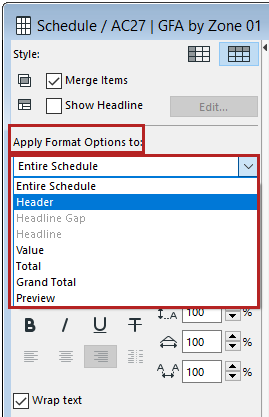
Apply formatting to cells by category
You can customize text, borders, and background color for each cell category (such as “totals” cells and “header” cells).
1.Do one of the following:
•From the Format Options popup, choose a cell category to format:
•Click into a schedule cell to choose its cell category for formatting
Note: The “Preview” cell category refers to the element Preview pictures in the schedule. (See Format Preview Picture.)
2.Set text formatting and cell borders for the chosen cell category.
Notes:
–When formatting text, you can apply saved Text Favorites (see also Apply a Favorite)
–The “leading” control modifies the vertical line spacing, as a percentage. Enter a number or use the up-and-down arrows to change the value in increments of 25 percent.
–Wrap text: Automatically fits text into column width
3.Set the cell background color (see Cell background colors)