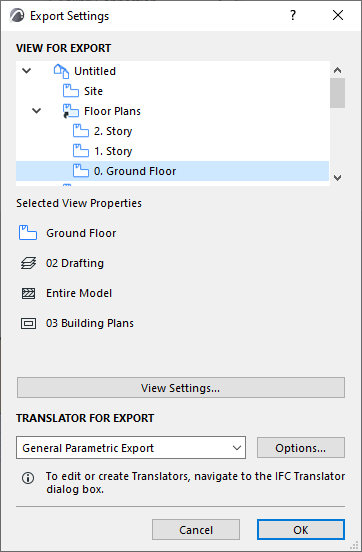
1.In the Solibri Connection palette: Click the Export Settings button.
2.Select the view for export.
The selected view can either be 2D or 3D. In case of floor plan view, the visible elements on the selected story will be exported.
3.Select the IFC translator for the Export. (Click Options to see a summary of the IFC Translator’s settings.)
Translators can be managed from File > Interoperability > IFC > IFC Translators.
4.After you have selected the view and the translator: Click OK.
5.In the Solibri Connection palette: Click Export to Solibri.
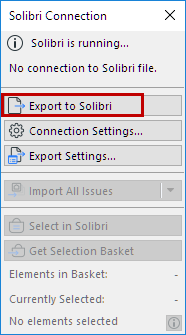
6.The model is exported.
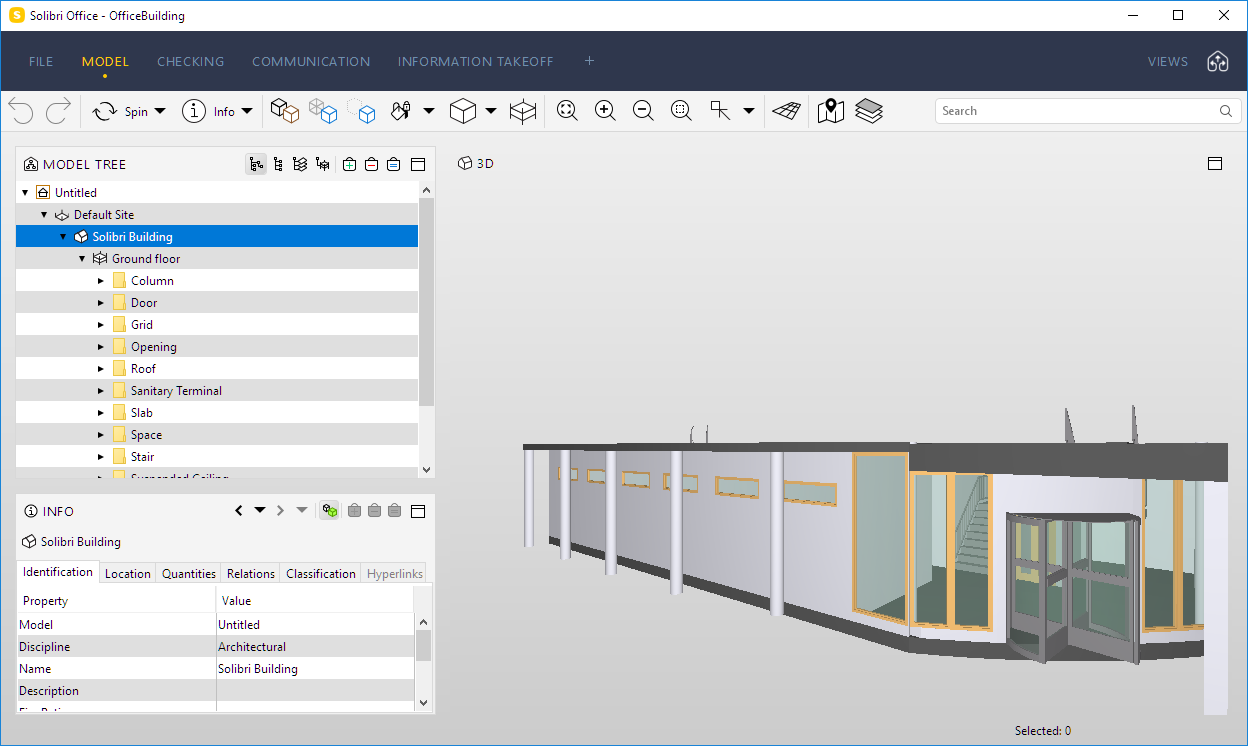
7.Make sure to save the model in Solibri: The next time you open it, the Solibri model can resume its connection to the MEP Designer model.
Export multiple models into one Solibri
Users can connect multiple MEP Designer instances with one Solibri. Once the connection between the MEP Designer and Solibri is established, the second Archicad can be connected as well.
1.Launch the second MEP Designer.
2.From the Solibri Connection palette, click on Export to Solibri.
3.A Warning appears: Another MEP Designer model is already connected to the currently loaded Solibri model.
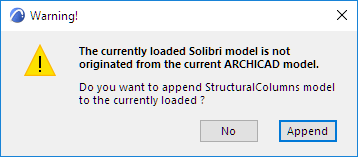
4.To add a second MEP Designer model: Click Append.
Note: In this situation, Connection Settings indicates that Solibri is using the port to connect to another MEP Designer. The same connection is used for the second model, too.
This model will appear in Solibri next to the first one.