Merkmalserver-Verbindung Add-on
The GER and AUT versions of MEP Designer automatically include the Merkmalserver-Verbindung Add-on.
Note: Merkmalserver-Verbindung is based on the ÖNORM A 6241-2 standard (freeBIM). (For more information, see www.freebim.at.)
Functions of the Merkmalserver-Verbindung
Merkmalserver Properties in IFC Exchange
Export/Import Scheduled Merkmalserver Properties
Using Merkmalserver-Verbindung in Teamwork
Functions of the Merkmalserver-Verbindung
•Loads the Merkmalserver data file so that you can access the following data in MEP Designer according to the Merkmalserver (freeBIM) standard:
–Classifications and available Properties
–IFC Type mapping and IFC Property mapping (freeBIM Conversion Presets are available for IFC Translators)
•Lets you filter the visibility of Merkmalserver Properties, depending on the current stage, in the MEP Designer Tool Settings dialogs
•Lets you export only the visible Merkmalserver Properties, when you export a model to IFC
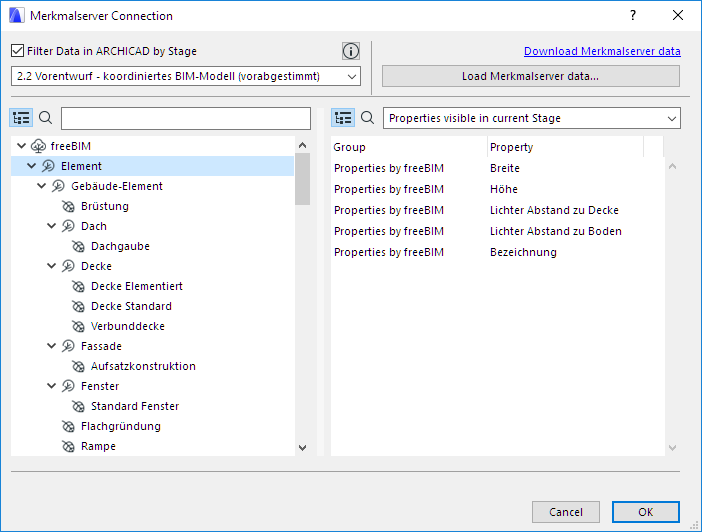
This dialog is available here: File > Interoperability > Classifications and Properties > Merkmalserver-Verbindung.
freeBIM Classifications are on the left. Properties are on the right.
Use the Merkmalserver-Verbindung to do the following:
•Load the latest Merkmalserver database
•Set the current Merkmalserver Stage
•Preview list of Merkmalserver Properties and see information on each
•Enable filtering of visible Properties, by stage, in MEP Designer Tool Settings dialogs
Each function is described below.
1. Open the Merkmalserver-Verbindung here: File > Interoperability > Classifications and Properties > Merkmalserver-Verbindung
2.Click Load Merkmalserver data...
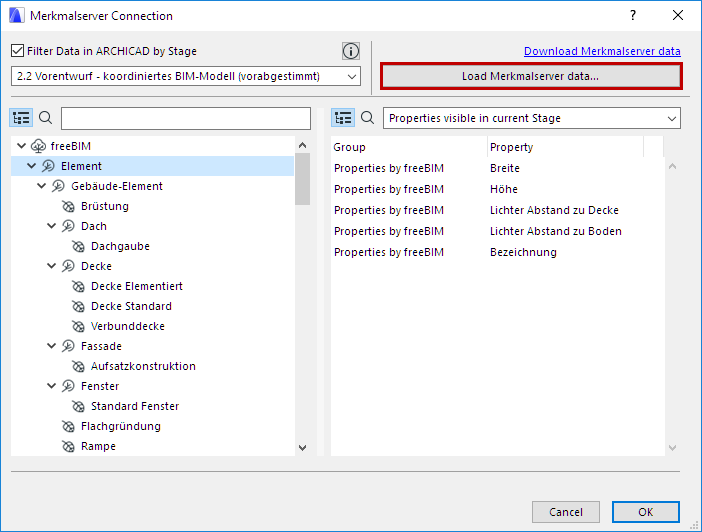
3.Browse for the XML file you need. (To download the latest Merkmalserver XML file, go to the Graphisoft downloads page: Download BIM Content.)
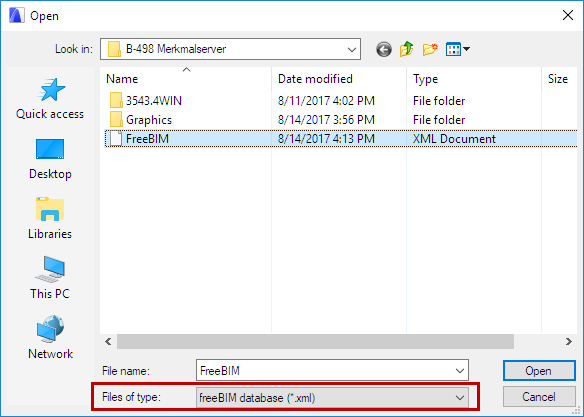
4.Click Open.
The data is loaded into the project.
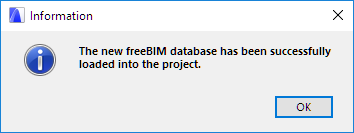
If your project already contains Merkmalserver data, choose how to manage existing data: either Update or Replace.
See details at Update Merkmalserver Database.
1.Open the Merkmalserver-Verbindung here: File > Interoperability > Classifications and Properties > Merkmalserver-Verbindung.
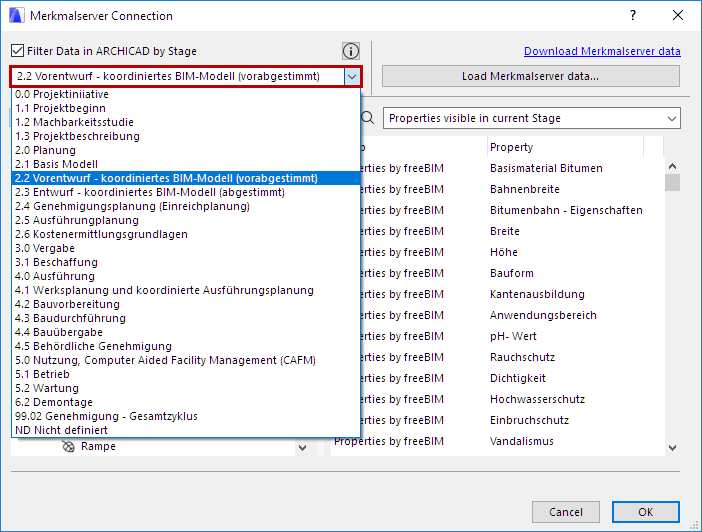
2.On the left side of the dialog, choose a design stage according to the Merkmalserver standard.
1.Open the Merkmalserver-Verbindung here: File > Interoperability > Classifications and Properties > Merkmalserver-Verbindung.
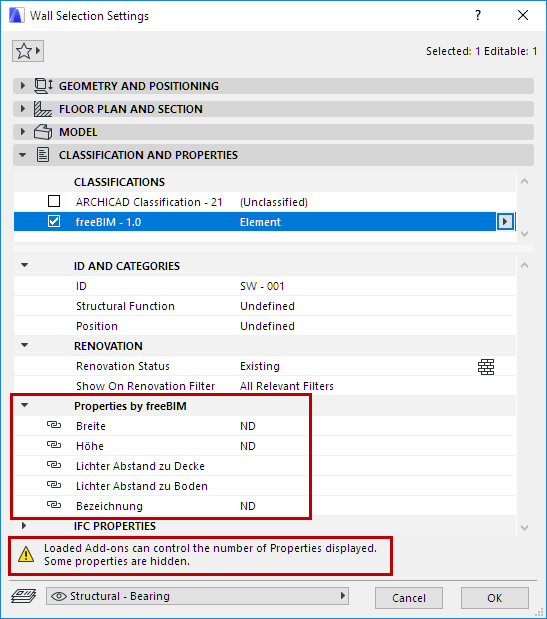
2.Check the Filter Data in Archicad by Stage box.

3.As a result, Merkmalserver Properties will be shown or hidden in Tool Settings in MEP Designer according to the current Stage.
Preview Merkmalserver Properties
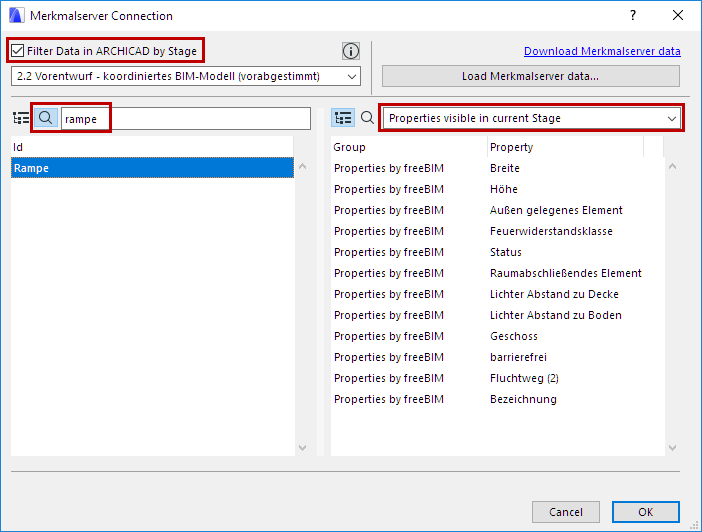
You can easily check which Merkmalserver Properties are available and visible for a given Classification item, depending on the current stage.
1.In Merkmalserver-Verbindung, use the search controls at the top of the Classification list (on the left), to select a Classification item.
2.For any Classification selected (on the left), you can check (on the right) which Properties are available for this Classification, according to the current freeBIM stage.
3.If the Filter Data by Stage checkbox is on, the list shows which Properties are visible in Tool Settings dialogs.
Get Info on a Merkmalserver Property
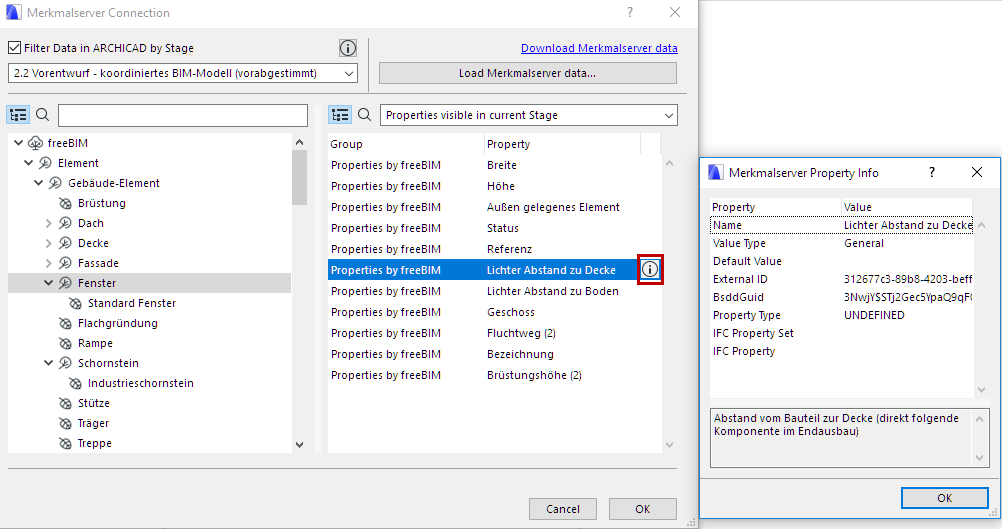
•In Merkmalserver-Verbindung, click the Info button next to any selected Property to see its definition according to the Merkmalserver standard.
Merkmalserver Properties in Interactive Schedule
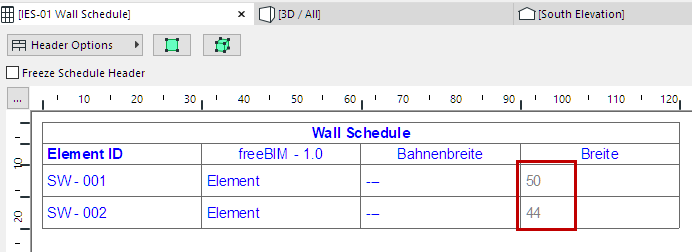
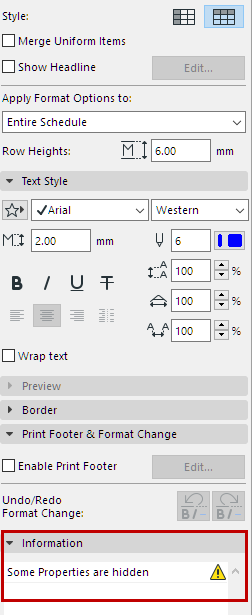
4.All Properties and their values are visible in Interactive Schedule lists. However, if a Merkmalserver Property is hidden in Tool Settings for the current stage, then that Property’s value is shown in the Schedule with grayed out fonts. The Schedule’s Info field displays a note to this effect.
The Merkmalserver definitions are modified from time to time by the ÖNORM standard.
As needed, use Merkmalserver-Verbindung to load the latest XML file and update your database in MEP Designer. Follow the instructions:
If your project already contains Merkmalserver data, choose how to manage existing data: either Update or Replace.
Update existing data
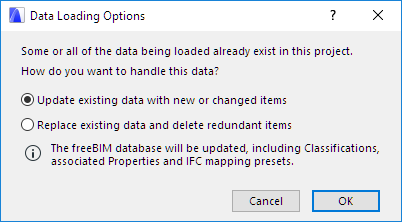
Choose the Update option to add any new definitions, and update existing data with changed definitions.
The following data are updated: freeBIM Classifications, associated Properties, and IFC mapping presets.
Even if a data item definition is updated, its associations (e.g. property assignment to elements; property use in Schedule Criteria) will be maintained.
Replace existing data
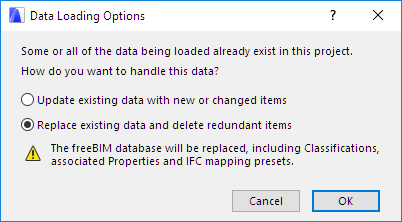
Choose the Replace option to delete the Merkmalserver data that exists in the MEP Designer project, and replace it with the incoming new Merkmalserver database.
The following data are replaced: freeBIM Classifications, associated Properties, and IFC mapping presets.
•If you created new data items in MEP Designer (e.g. a new Property in the freeBIM group), then the Replace function will delete these newly created data types.
•Even if a data item (e.g. property) is replaced with a new one of the same name, its associations (e.g. property assignment to elements; property use in Schedule Criteria) will be maintained.
Merkmalserver Properties in IFC Exchange
When you exchange an MEP Designer model using IFC, the data export/import is controlled through IFC Translators (File > Interoperability > IFC > IFC Translators). With the Merkmalserver-Verbindung Add-on, you can optimize this process by using built-in data mapping presets, and by filtering the exported properties by visibility.
Use freeBIM Conversion Presets
Use the predefined freeBIM Conversion Presets for IFC Property Mapping (export translators) and Type Mapping (export/import translators).
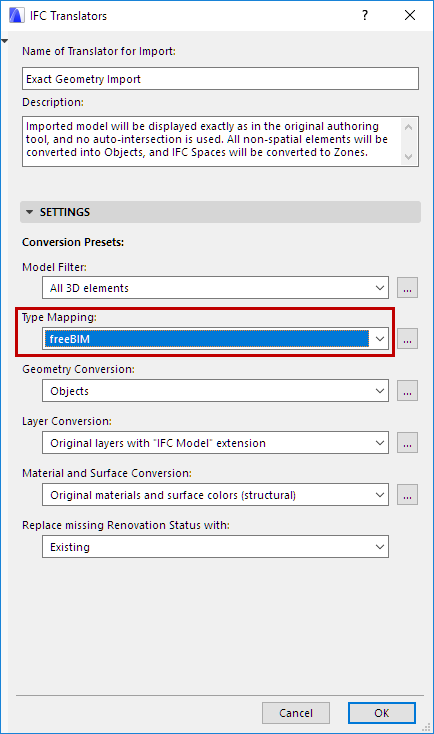
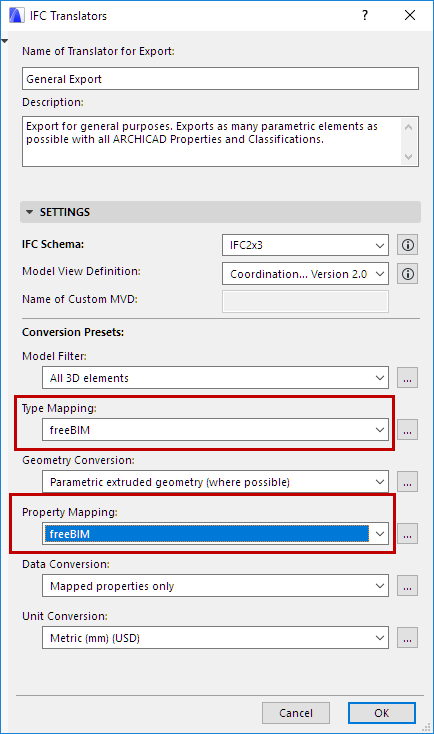
freeBIM Presets for IFC Translators: Type Mapping, Property Mapping
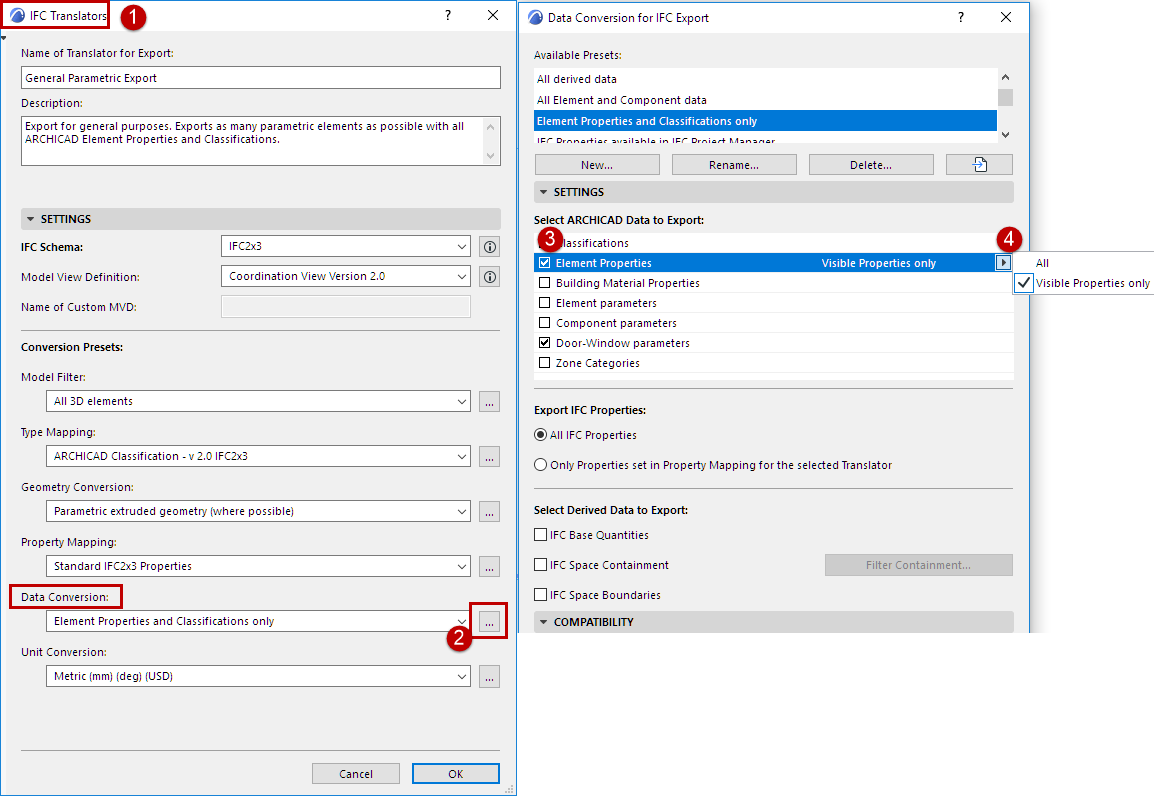
Export Visible Properties Only
Use this option if you are exporting Merkmalserver properties to IFC, and you wish to export only the visible properties (as set up in Merkmalserver-Verbindung, using the “Filter by Stage” filtering checkbox).
1.Open File > Interoperability > IFC > IFC Translators
2.Open the IFC Translator dialog’s Data Conversion for IFC Export dialog.
3.Check the box to export Element Properties.
4.Choose the Visible Properties only option.
Export/Import Scheduled Merkmalserver Properties
You can export and import scheduled Merkmalserver data via Excel spreadsheet, using the File > Interoperability > Element Properties > Export Property Values from Schedule/Import Property Values in Elements command.
In this workflow, all Merkmalserver Properties are exported and imported, regardless of their visibility in MEP Designer.
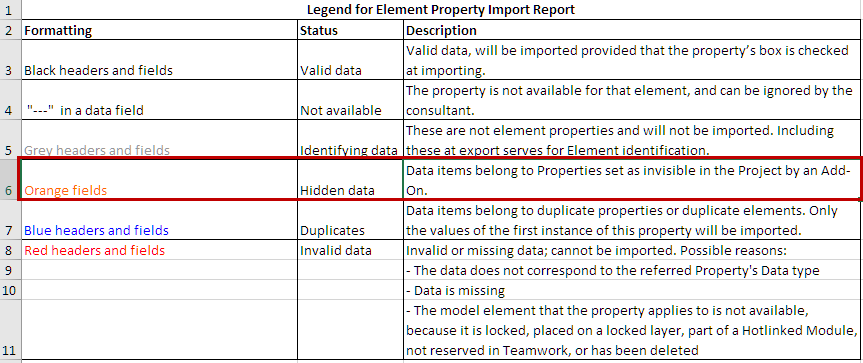
However, you will receive colored and textual feedback about any exported/imported values that are hidden in MEP Designer due to the Merkmalserver-Verbindung Add-on.
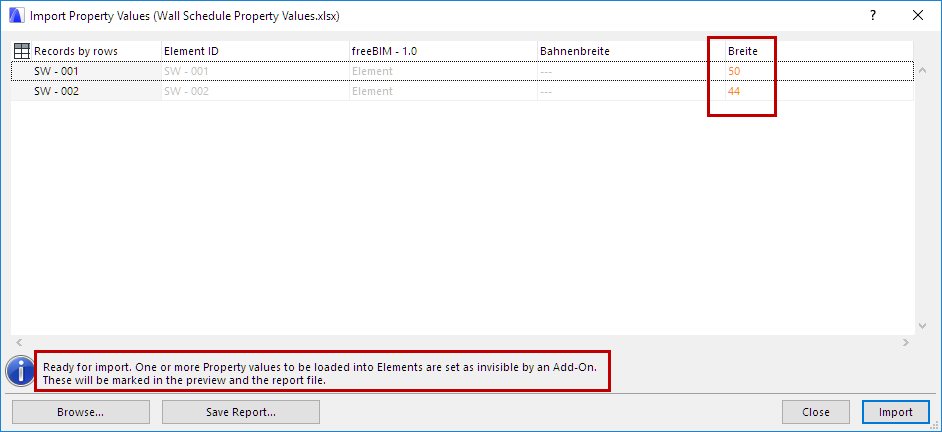
Similarly, the Export/Import function’s Report (click Save Report at the bottom of the list) also displays hidden Merkmalserver properties in a special color.
Using Merkmalserver-Verbindung in Teamwork
You must have the needed permissions, and reserve the needed dialogs, before you can use Merkmalserver-Verbindung in Teamwork.
Set Merkmalserver Stage
Reserve Merkmalserver-Verbindung.
Load Merkmalserver Database
Reserve all of the following dialogs:
•Classification Manager
•Property Manager
•IFC Translators
Required permissions to load Merkmalserver database:
•Classifications and Properties - Create
•Classifications and Properties - Delete/Modify
•IFC Translators - Manage
Note: If you do not have permission to manage IFC Translators and/or you have not reserved the IFC Translators, you can still load the Merkmalserver database - however, in this case only the Classifications and Properties will be loaded. No Translator Presets will be created.