Edit Line Type (Symbol)
A symbol line type is based on a customized stencil of copied 2D drawing elements.
To create a new symbol line type:
- Draw the stencil on the Floor Plan or in another window, using Lines, Arcs and Hotspots.
- Select the 2D elements.
- Choose Edit > Copy.
- Open the Lines dialog (Options > Element Attributes > Lines).
- Click New.
- From the New Line dialog box, select the Symbol option and click OK.
- In the Lines dialog, click Paste into Pattern under the graphic editing section.
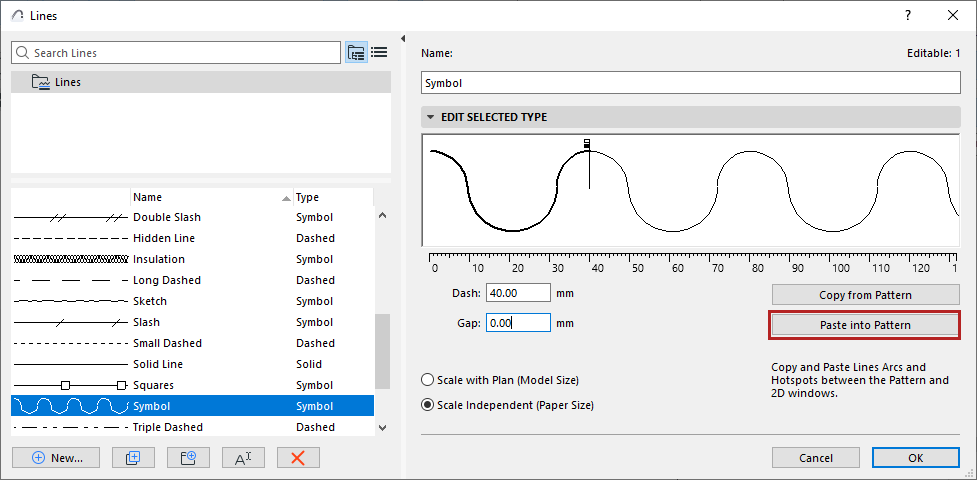
The symbol appears in the editing window.
Edit the line segment and the gap by dragging the flags horizontally, or edit their value in the Dash or Gap field below.
The line component will be scaled as a whole.
In the resulting Symbol line, the bounding box of the pasted elements will be centered on the centerline.