Edit and manage surfaces
Open the Surfaces dialog:
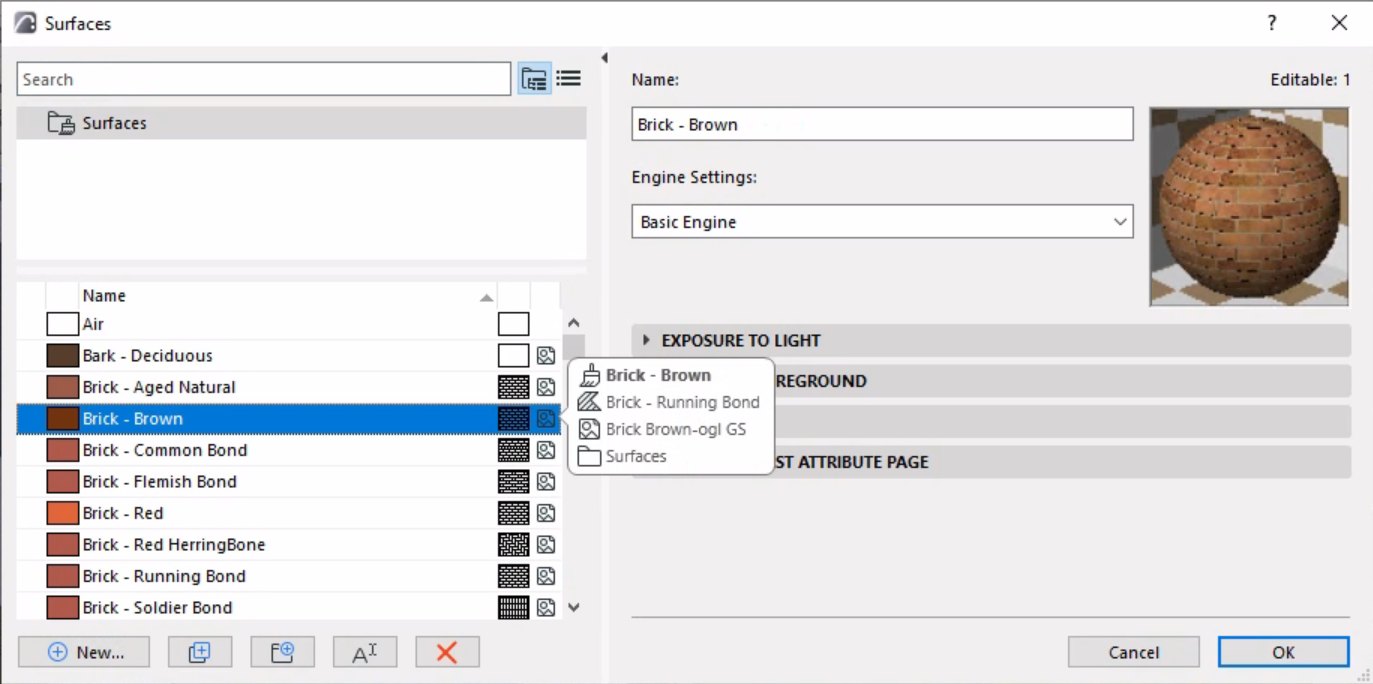
- Select one or more surfaces to edit.
- Use the fields on the right side of the dialog box to edit the surface properties.
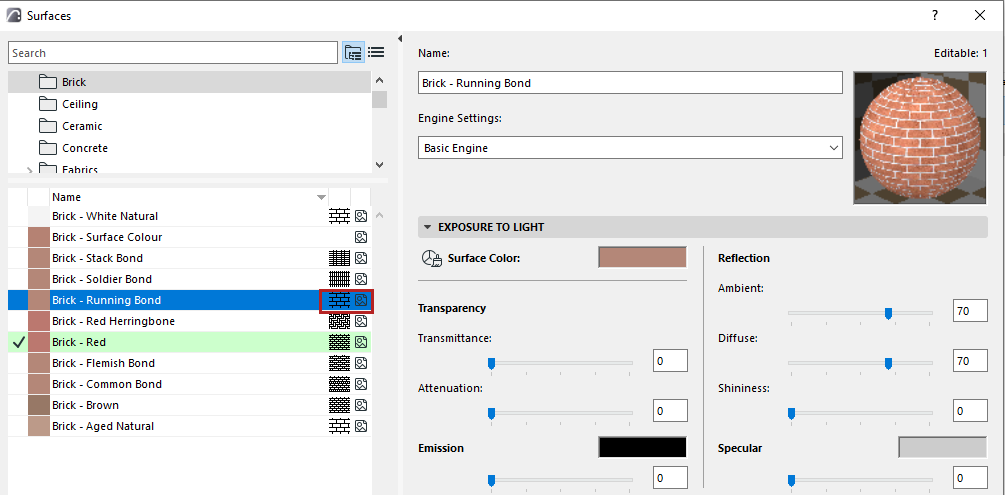
- Surfaces can have a cover fill and/or textures as part of their definition, as indicated by icons.
- If a texture is missing, the texture icon is displayed in red.
- Surfaces used by currently selected elements are listed with a checkmark and highlighted in green.
The Preview picture changes dynamically as you work in the Surfaces dialog box, so that you can see the effects of your settings.
For general information: see Using the attribute dialogs.
Note on the GENERAL Surface
The GENERAL Surface is available for Building Materials, element-level surface overrides, and GDL. When a surface is defined as “GENERAL”, it will display a solid color based on the element’s uncut line pen.
By default, this General Surface will be assigned to new Building Materials and to new Surface parameters added within GDL. It is used to avoid assigning to an incorrect surface or creating a missing attribute. It is hard coded and is not available in the Surfaces dialogue or the Attributes palette.
Engine Settings
Choose a rendering engine from the list.
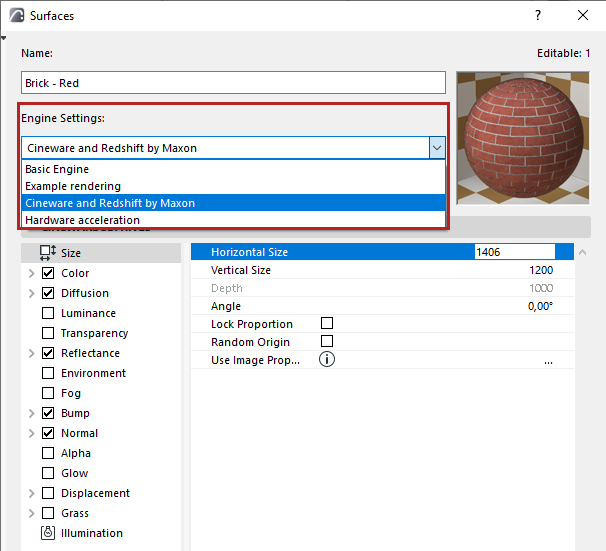
For more information on rendering engines, see PhotoRendering Settings.
The panels of the Surfaces dialog are different for Basic and Cineware/Redshift engines.
They are described in the following sections.
Surface Exposure to Light settings (Basic Engine)