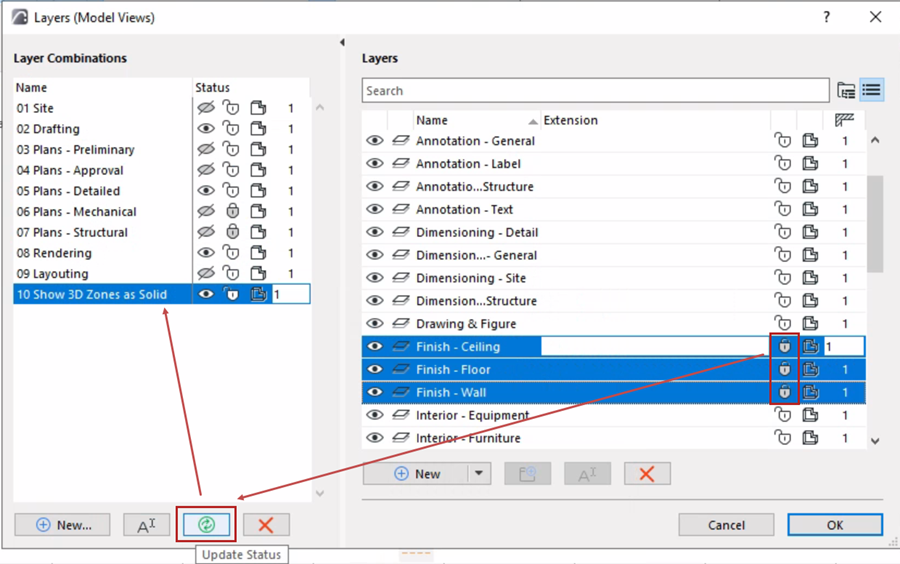
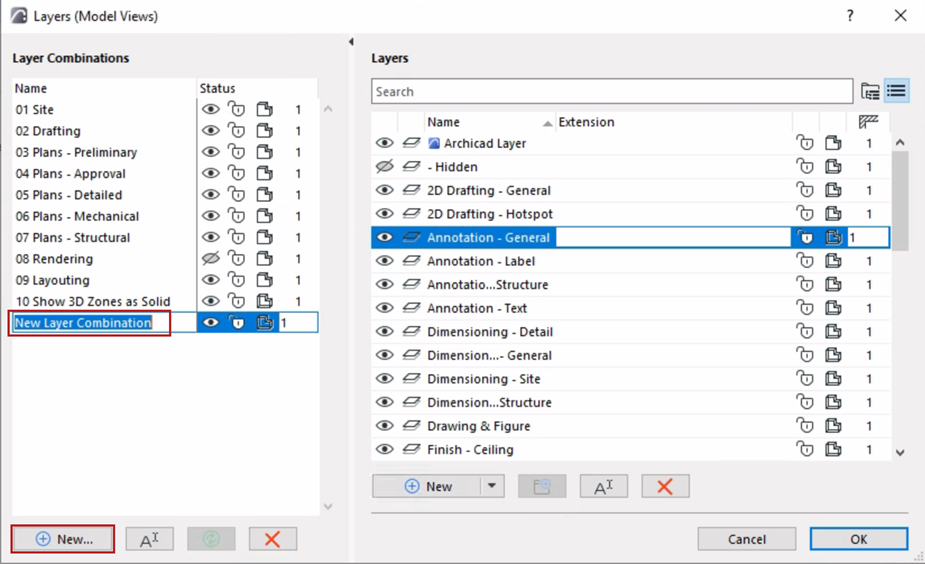
Layer Combinations
Layer Combinations are named sets of layers with varying statuses. Use these combinations to hide or lock layers that you don’t need to see or edit in a view.
Each view is saved with a particular Layer Combination.
MEP Designer comes with a default set of Layer Combinations, listed on the left panel of Layer Settings. You can modify these and create new ones.
A given layer can have different statuses in different Layer Combinations. To check this, select any layer and see its status in each Layer Combination.
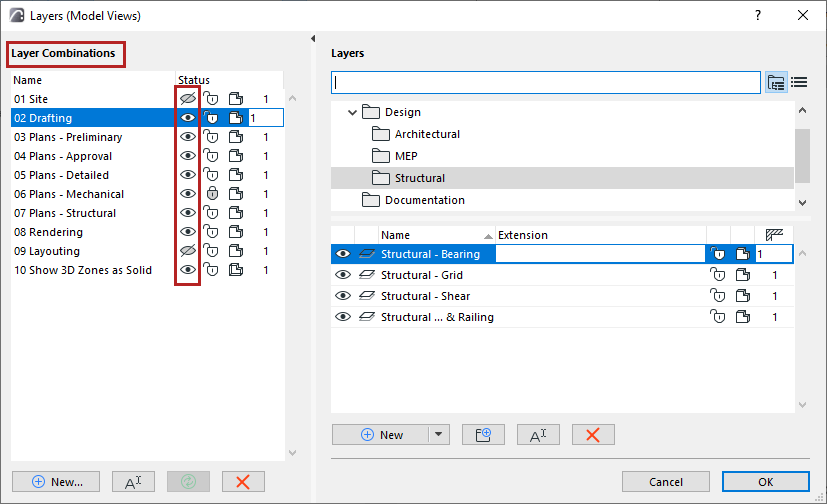
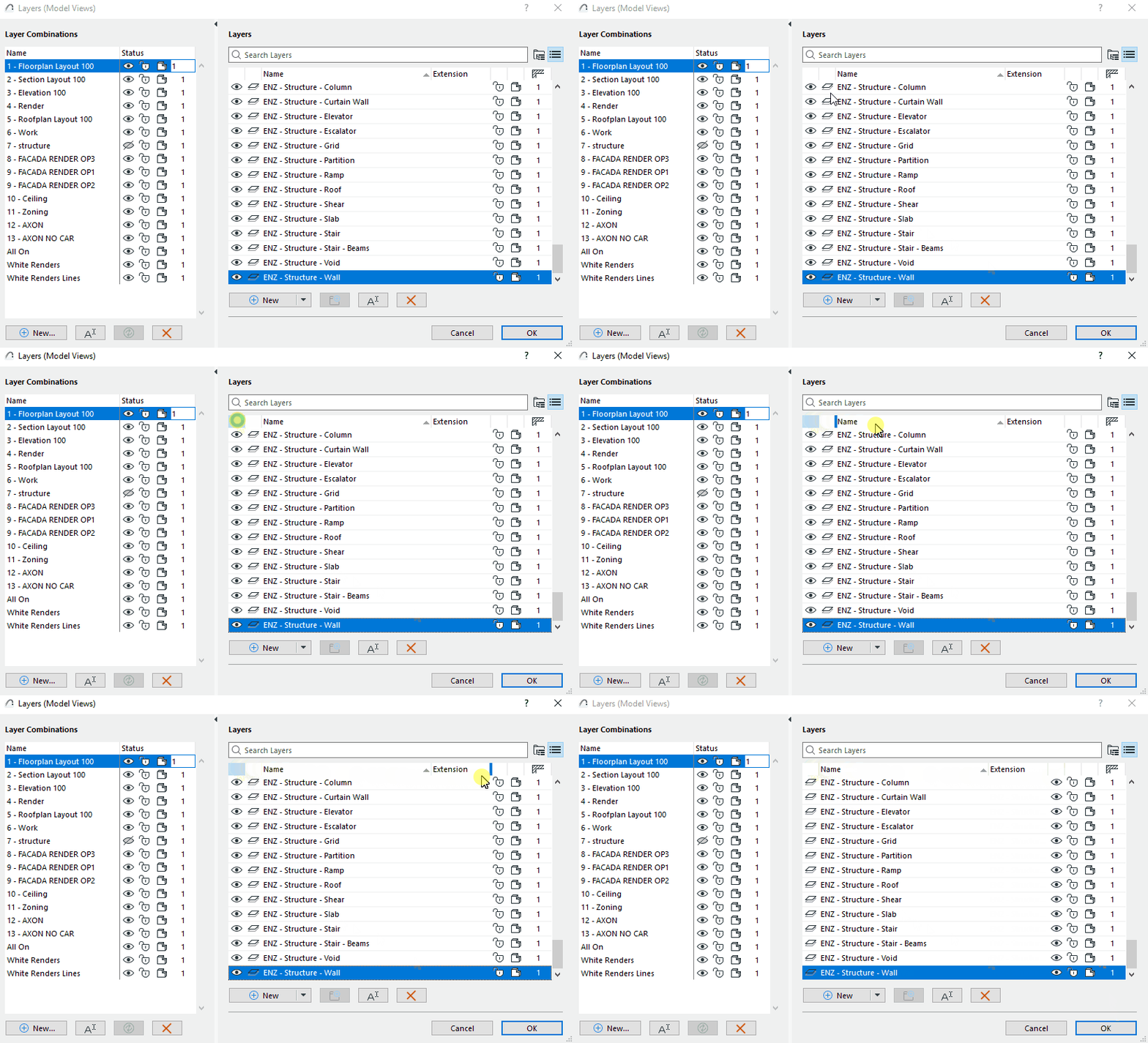
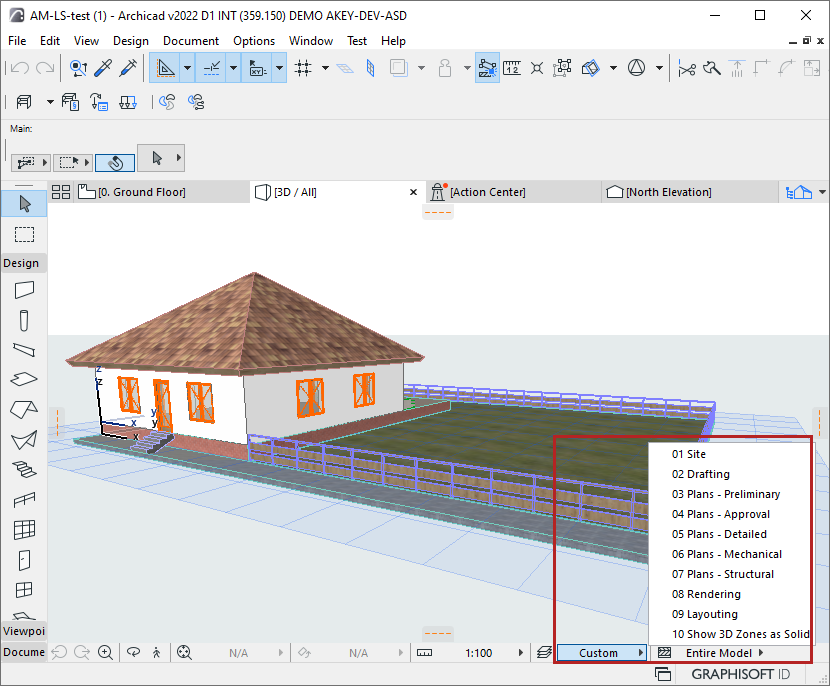
Apply Layer Combination to current view
Do one of the following:
- Use the Layer Combination pop-up control from the Quick Options Bar at
the bottom of the model window.
- Open the Layer Settings Dialog Box. Select a layer combination from the list in the left panel, then click OK
- Go to Document > Layers and click a listed layer combination.
- In View Settings, switch the Layer Combination.
Edit Layer Combination
Do one of the following:
- Select Layers to edit.
- Change their status in any Layer Combination, using the Layer Combination's icons.
OR: