Intersecting elements that belong to the same Layer Intersection
Group will connect to each other, provided they are drawn correctly.
Exception: Two elements that are both set to
intersection group 0 will NOT intersect.
By default, every layer is set to Group 1, so all intersecting elements
will be joined according to the regular connection rules.
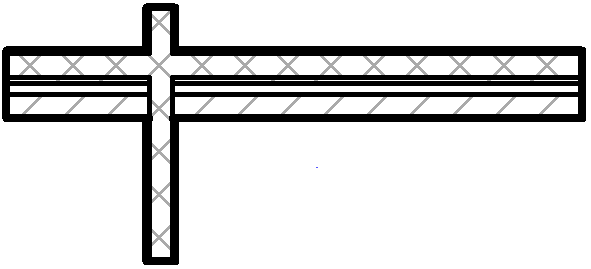
Figure 1. Wall Layers Have Identical Intersection Group Numbers: Walls Connect
Prevent element connections: Assign different layer intersection groups
You may want to prevent element connections - for example, to show the
details of composite walls. In this case, place the intersecting walls on different layers,
and then give one of these a layers a different Layer Intersection Group number. Elements on
different Layer Intersection Groups will not connect.
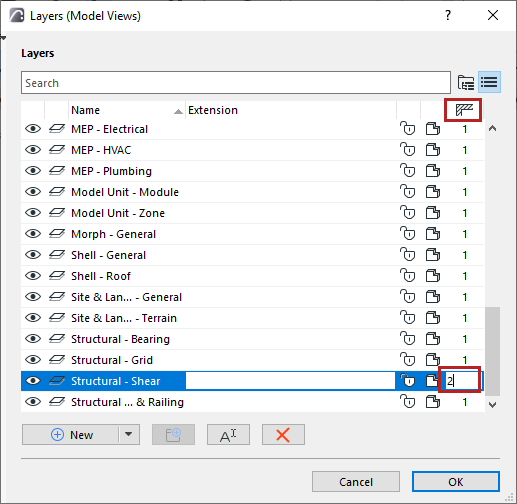
Open Layer Settings (Document > Layers > Layer
Settings)
Select the layer of one of the intersection elements.
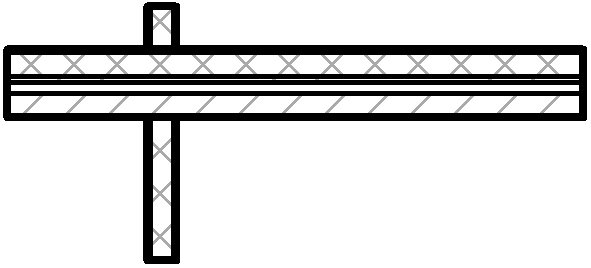
Edit the value under the intersection icon. Figure 2. Wall Layers Have Different Intersection Group Numbers: No Connections
Note on intersection with hidden
layer: Elements having identical intersection groups will intersect even if one of
the layers is hidden. This may result in “missing” lines, indicating an intersection
with an element on a hidden layer. To avoid this, go to Layer Settings, select one of
the layers, and assign it any different intersection group.
Note: Layer Intersection numbers have nothing to do with element priorities; they
serve merely as tags for grouping elements.