Move/Rotate/Reset Reference
These three command icons are available from the Trace & Reference palette:
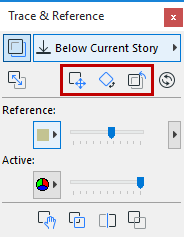
From left:
- Move: Click drag the Reference to another location.
- Rotate: Click to rotate the Reference.
- Reset: Use this icon if you want to reset the Reference to its original default position after you have moved it.
In the image below, a Section viewpoint is displayed as a Reference and rotated alongside the Floor Plan that contains the Section marker:
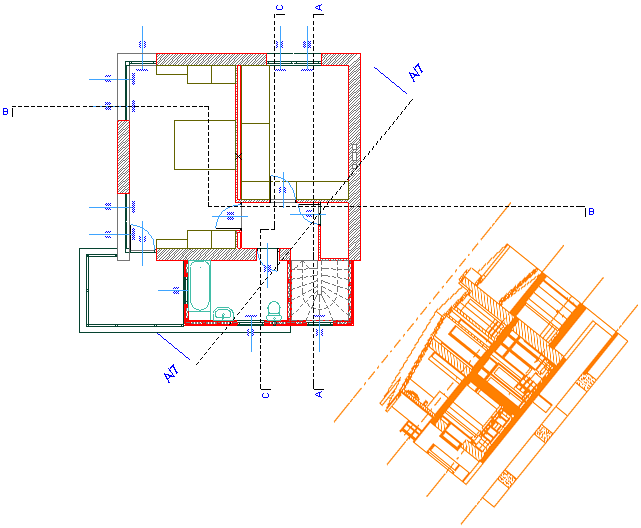
Drag/Rotate commands applied to the Reference will be reflected in the Tracker’s coordinate data (coordinate data are calculated according to the Active’s coordinate system, not the Reference’s.)