Snap Points
Snap Points are temporary hotspots that appear at particular intervals (defined by you) on elements, to help you place and draw new elements more accurately.
Activate Snap Points
Do one of the following:
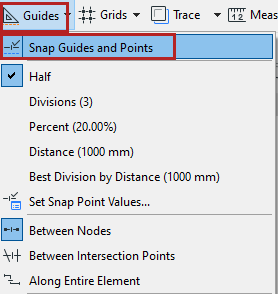
Using Snap Points
Hover your cursor over the element on which you want to see the Snap Points.
The Snap Points appear. Their number and position depend on the options set by you.
See Define Snap Point Intervals, below.
The Snap Points act as a temporary hotspot - you can snap to them with your cursor, and they also serve as Snap Reference points. ( See Activate Snap References .) You can start drawing new elements from these points or use them for editing other elements in relation to them.
Snap Points will disappear after about 5 seconds. However, if they are located along a Snap Reference segment, they will remain visible as long as that Reference does.
Another way to use snap points is to draw a temporary vector that displays the defined Snap Points.
Define Snap Point Intervals
Use the commands from View > Snap Point Options menu, or the Drafting Aids toolbar.
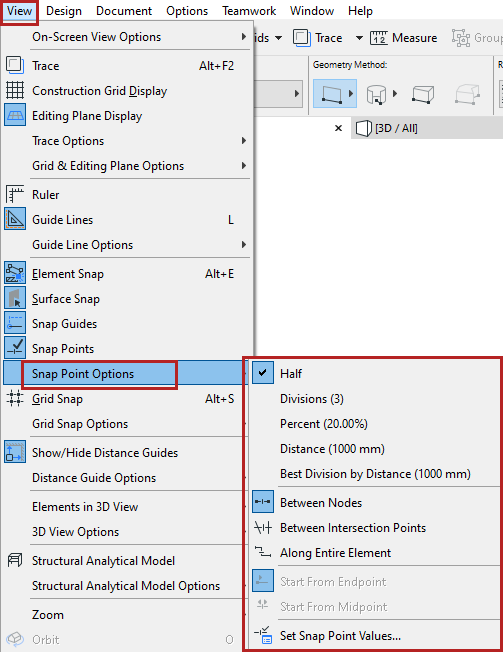
- Half: Divides an edge into two equal parts.
- Divisions: Divides an edge into the set number of segments. Range: 3-100.
- Percent: Divides an edge into two parts according to the set percentage.
- Distance: Divides an edge into segments that are the set distance apart.
- Best Division by Distance: Snap points will divide the edge
into equal parts that are as close as possible in length to the distance defined
here.
See Snap Point Values, below.
When using the Percent or Distance interval, you have two further options:
Snap Point Values
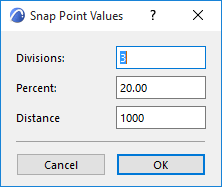
From the Snap Points menu in the Drafting Aids toolbar (or View > Snap Point Options), click Set Snap Values.
In the appearing dialog box, define the values for your divisions, percentage, and/or distance.
Snap Points Options
Choose a Snap Point option from:
- the Drafting Aids toolbar
- View menu
- Guides menu in the Standard toolbar (if available)
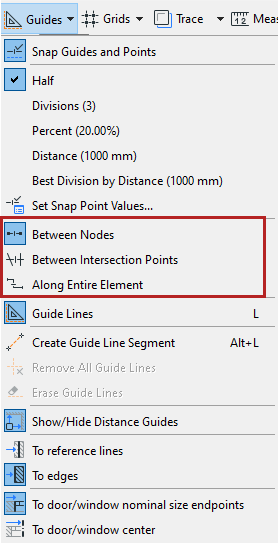
- Between Nodes: Snap points appear only on the chosen segment
(between the neighboring nodes).
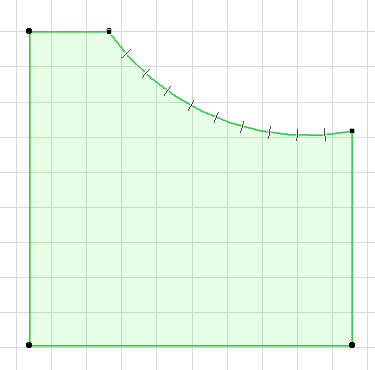
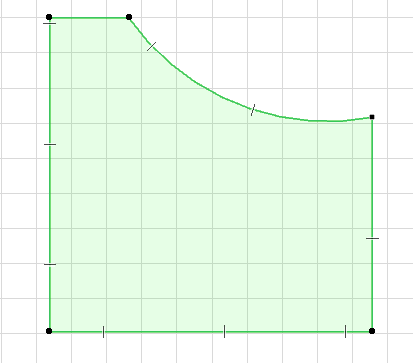
- Along Entire Element: Snap points appear at the defined
intervals along the whole element (including polygon elements), regardless of any
intersecting elements.
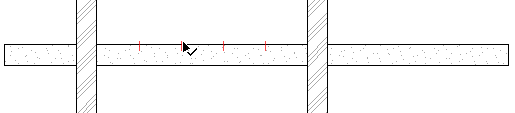
- Between Intersection Points: Snap points are placed on the
chosen element only from one intersection point to the next.
Snap Point Color
To customize the color of your Snap Points, use the control in Options > Work Environment > Input Constraints and Guides.