Use this function to pick up the parameters of one element and transfer
them to another element of the same type.
Note: Line, Arc, Polyline and Spline elements are of the same
type.
Certain basic parameters are always transferred.
You can also control the set of additional settings (“Transfer Set”) which
should be transferred: Configure sets at Element Transfer Settings, and apply the Set
you need during Parameter Transfer (see below).
At Edit > Element Settings > Pick Up
Parameters and Inject Parameters.
Pick Up/Inject Parameters
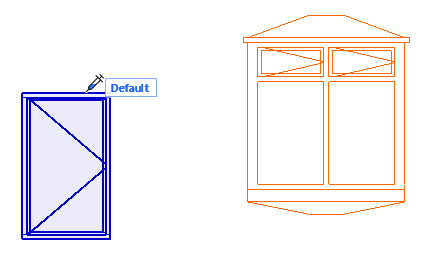
Move the cursor over the element whose parameters you wish to
transfer. (The Element Information Highlight tells you which element you are focusing
on.)
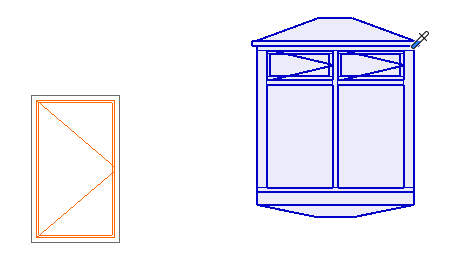
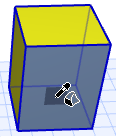
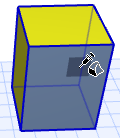
Press and hold Alt. The cursor changes to Pick Up
(eyedropper) form.Figure 1. Alt to Pick Up Parameters
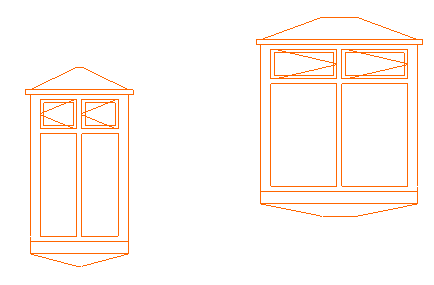
Click the element. All its parameters are now the default for that
element type.
Move the cursor to the target element.
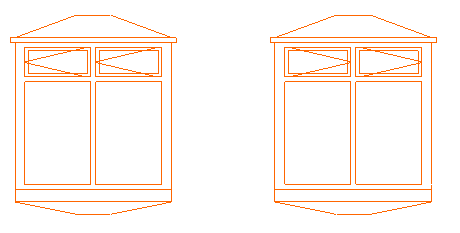
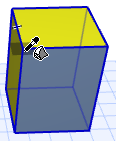
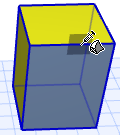
Press and hold Ctrl+Alt (Alt+Cmd on Mac).
The cursor changes to the Inject (syringe) cursor.
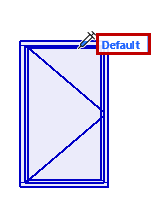
The name of the last used Transfer Set appears: This Set defines
which parameters will be transferred when clicking to inject. Figure 2. Ctrl/Cmd + Alt to Inject Parameters
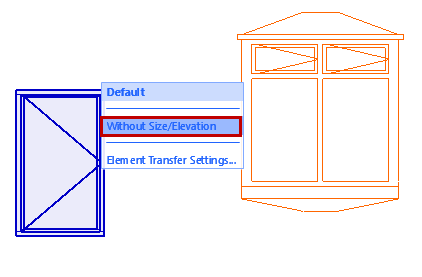
Before injecting parameters, change to a different Transfer Set, if
needed:
Click on the Set name to bring up the full list of Transfer Sets,
then click on another Set to apply it.
The Set you choose here becomes the default Transfer Set for
the next parameter transfer operation.
The transferred attributes are loaded into the Find &
Select Palette’s corresponding fields, provided that the Find & Select Palette
is open during the parameter transfer.
The transferred parameters will be the default setting when
opening any of the corresponding Attributes dialog boxes (Lines, Pens &
Colors, Fills, Surfaces, Composites, Zone Categories).
When injecting a GDL object, the transferred line type
attributes will take effect only if you are overriding the object's GDL
attribute definition. That is, make sure you have checked the Override Object's
Lines checkbox in the Floor Plan and Section panel of its Settings dialog
box.