Display of Zones in Section
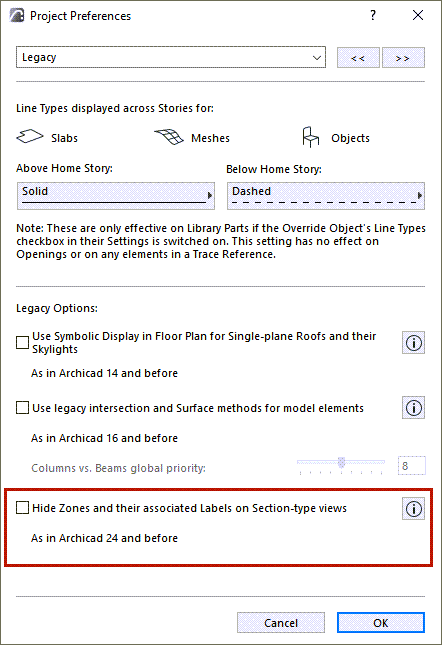
For updated logic in Zone display: Make sure the checkbox at Options > Project Preferences > Legacy is off.
Default Display of Zones
|
|
Cut section display |
Uncut section display |
|
Floor plan (Symbolic) |
Category Color |
Category Color |
|
Section/Elevation/Interior Elevation |
Category Color |
Surface |
|
3D Document |
Category Color |
Surface |
|
3D window + cutaway |
Surface |
Surface |
Set Transparency of Cut Zones in Section
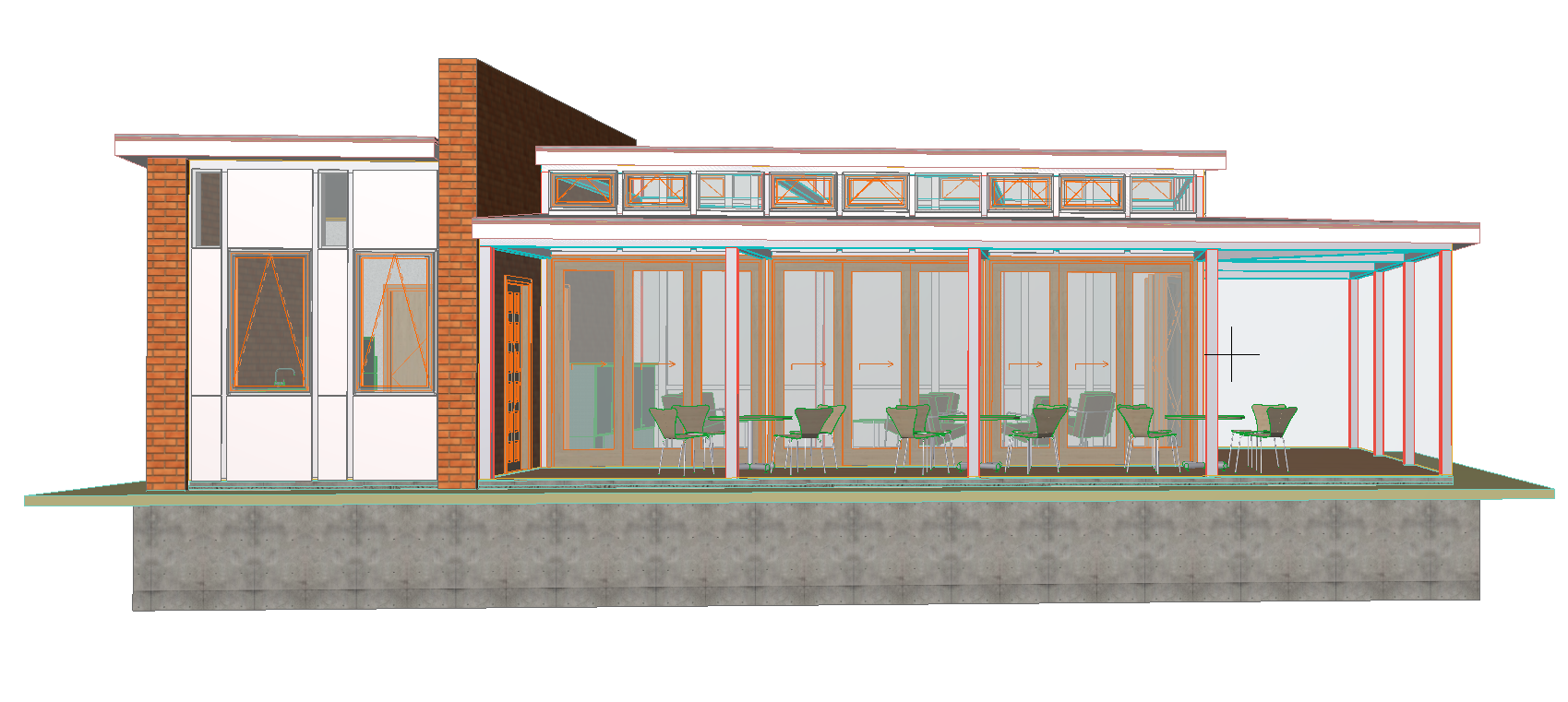
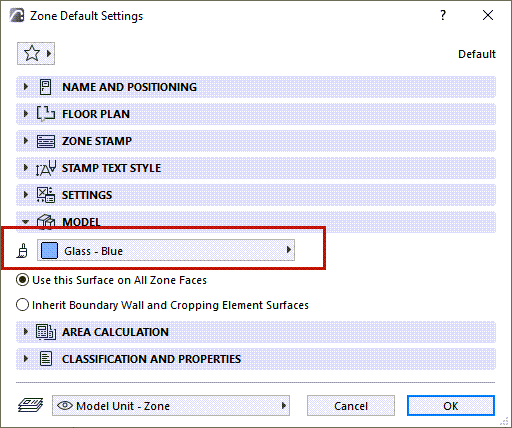
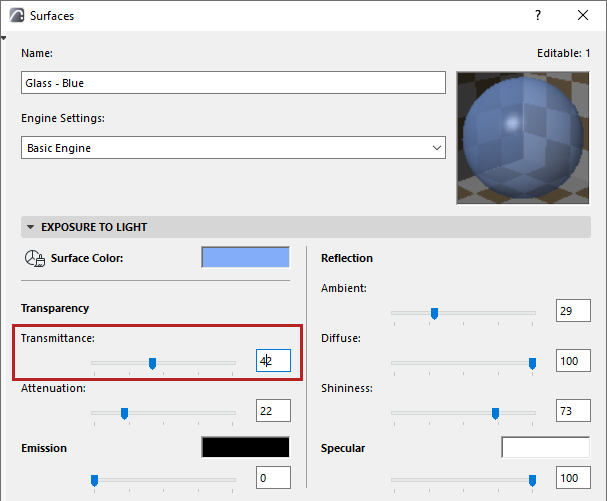
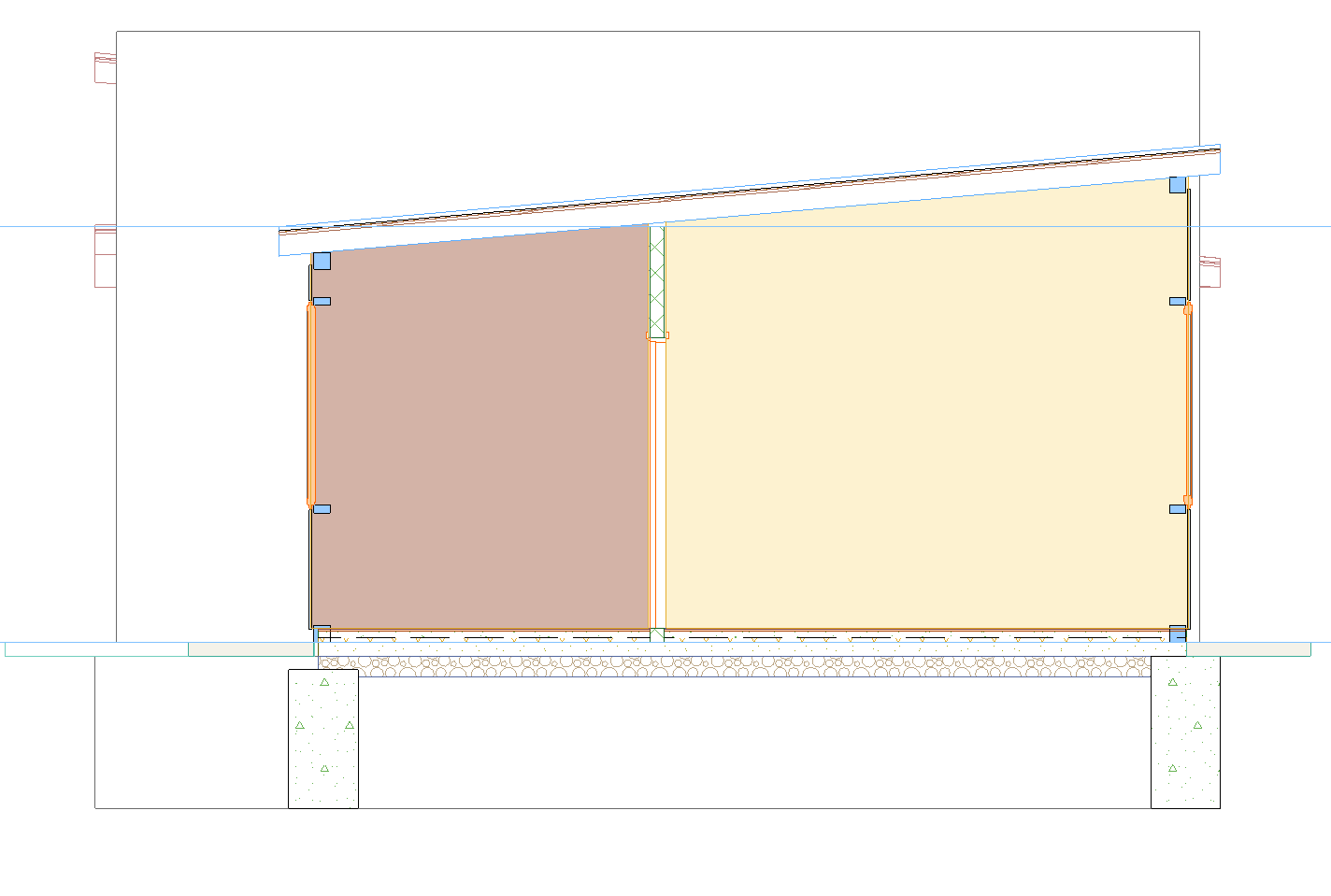
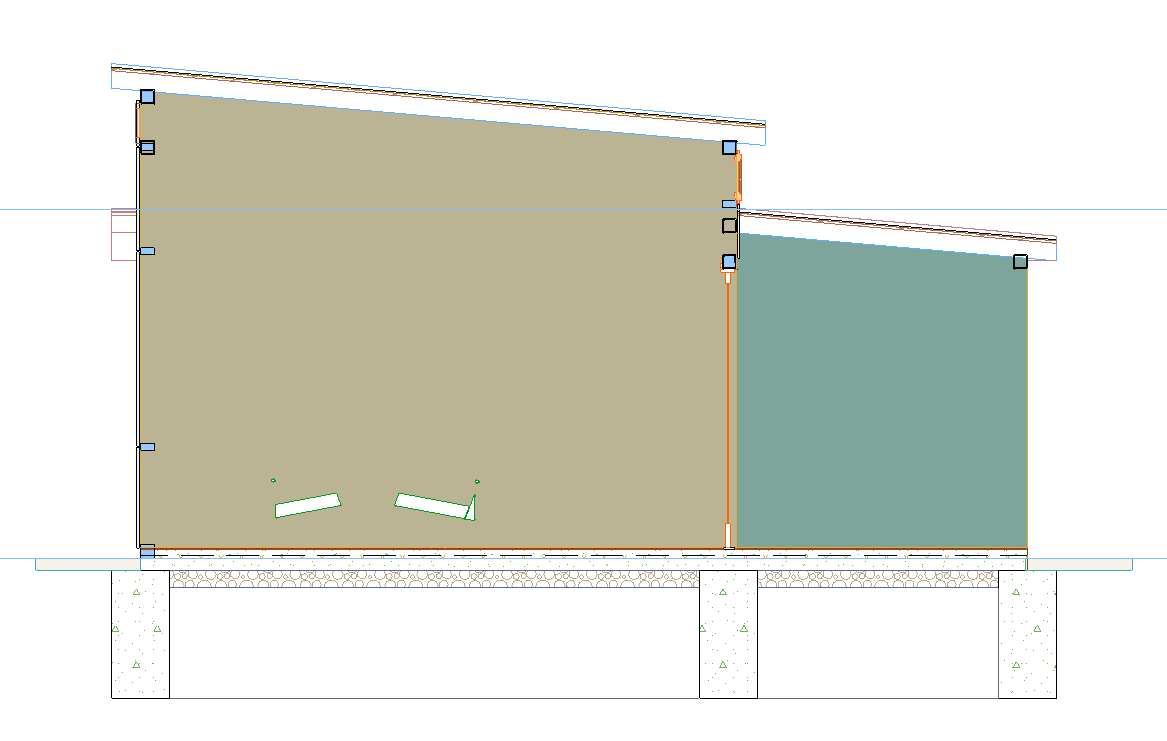
If you have a cut Zone in a Section, you can make it fully transparent by setting its surface transmittance parameter to a value of at least 50.
If the transmittance parameter is 49 or below, the Zone is opaque.
In a transparent Zone, the contours of objects will be displayed, but their colors are not affected.
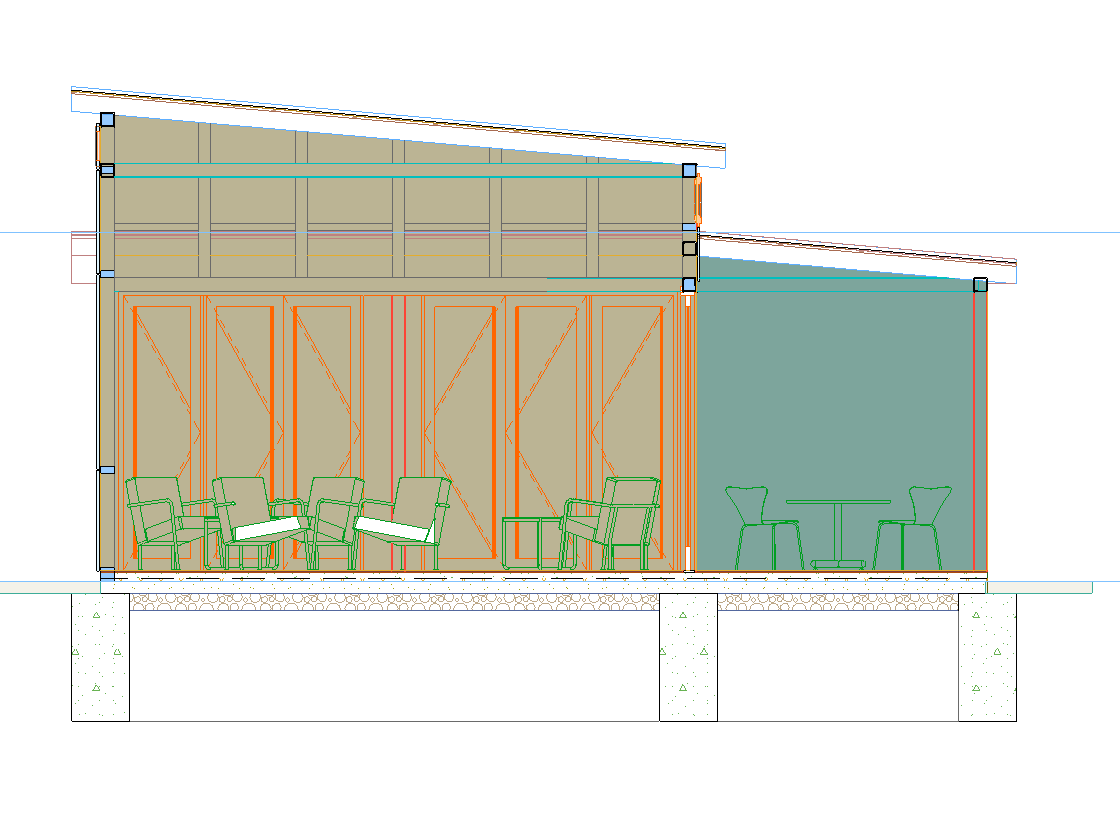
Set Transparency of Uncut Zones
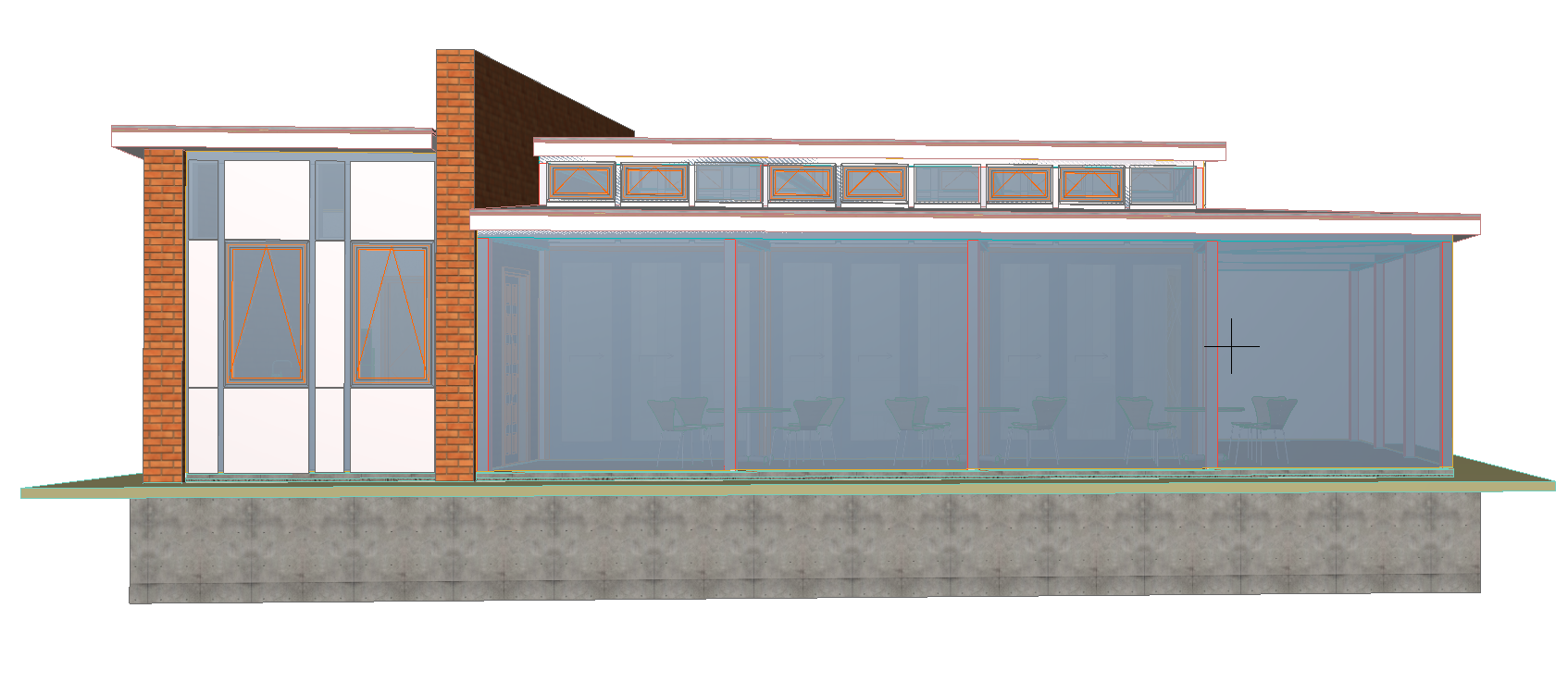
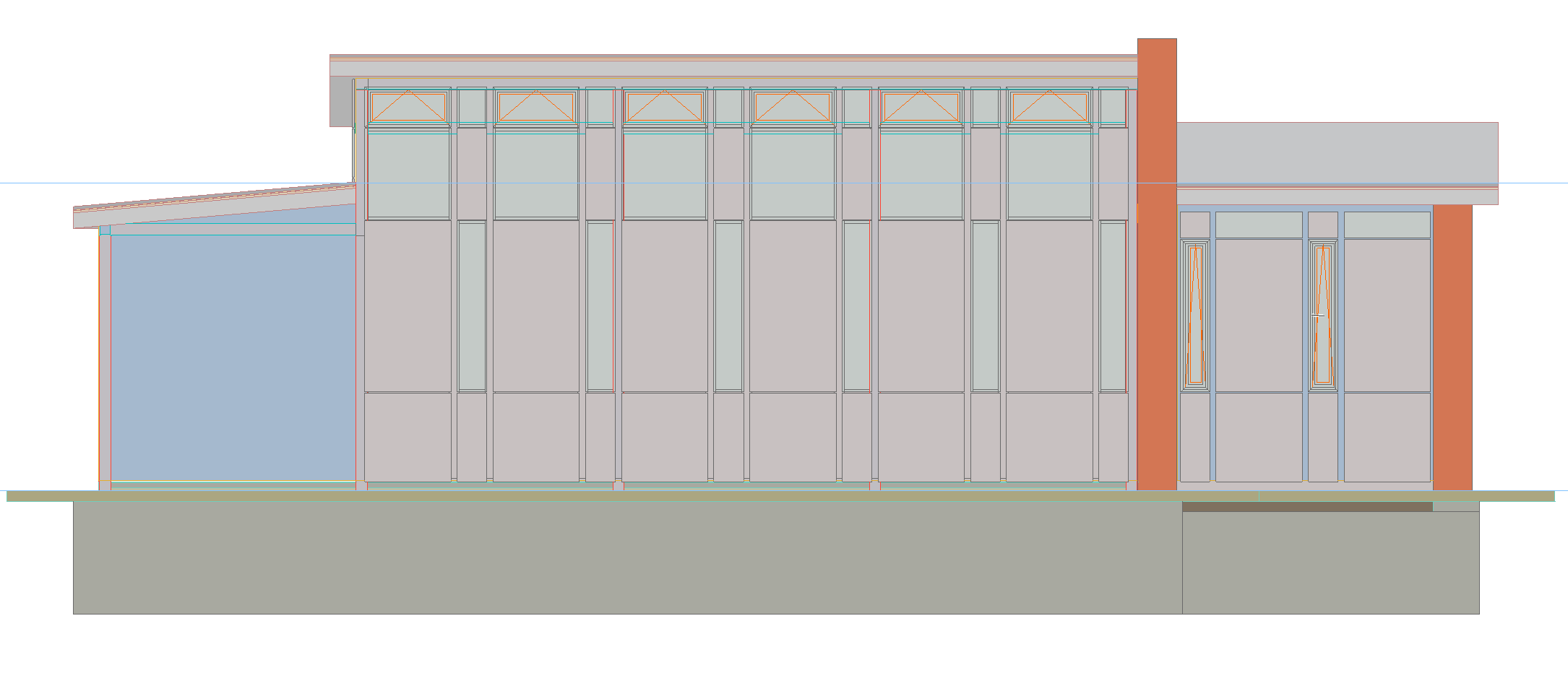
If you have an uncut Zone (e.g. in an Elevation or 3D view) , you can adjust its transparency using the surface transmittance parameter.
Any value over 0 makes the Zone transparent, but the transparency level varies depending on the transmittance value (a higher transmittance value makes the Zone increasingly transparent).