Tread and Riser Finishes
From Stair Settings, select Finish from the tree to open this page.
Check Finish to add Tread/Riser Finish components to the Stair.
Below, click the components you need:
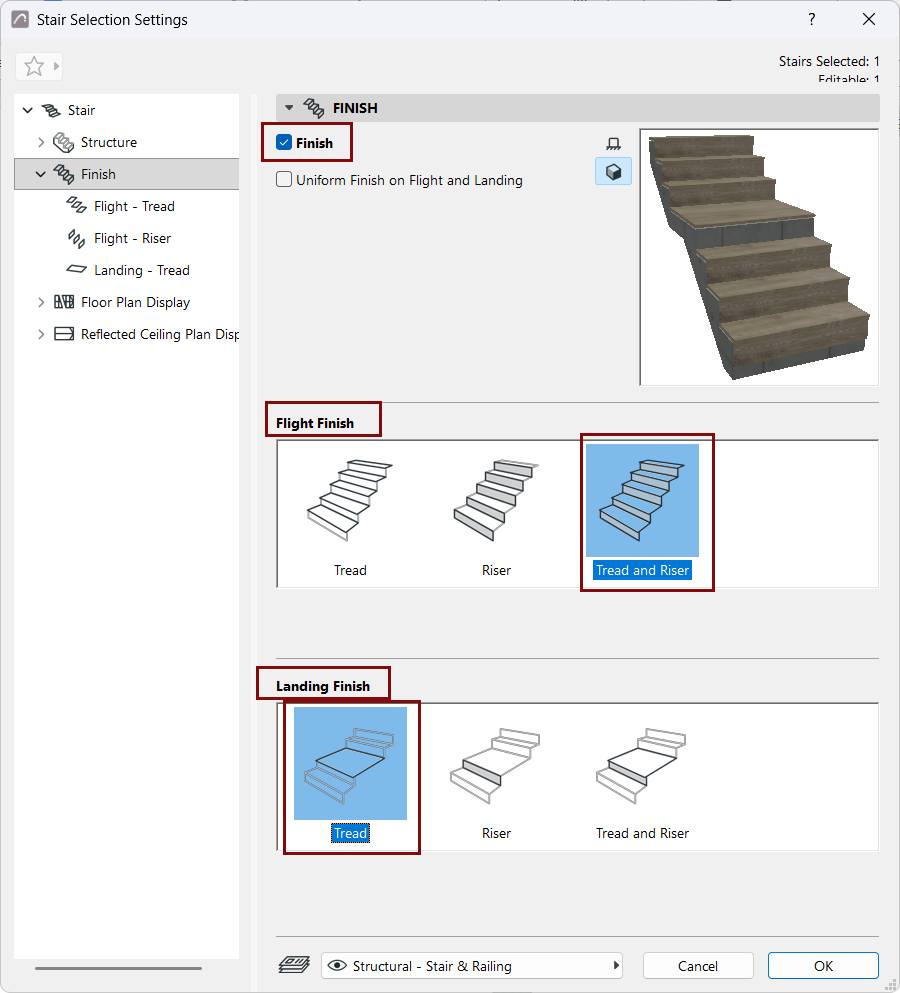
The components you choose appear in the tree structure: a separate settings page for each of the Tread/Riser/Landing/Flight finishes.
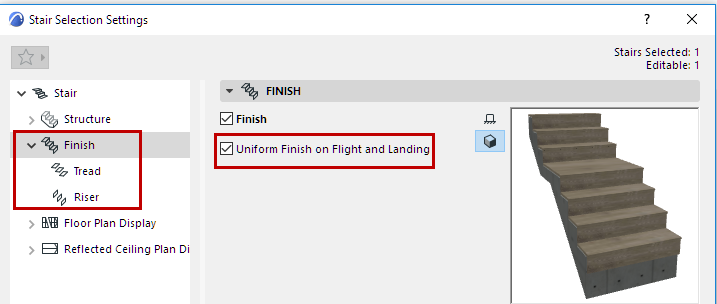
Uniform Finish on Flight and Landing
Check this option to use the same Finish settings for all the Stair’s Treads and Risers, on both Flights and Landings. The number of settings pages is thus reduced.
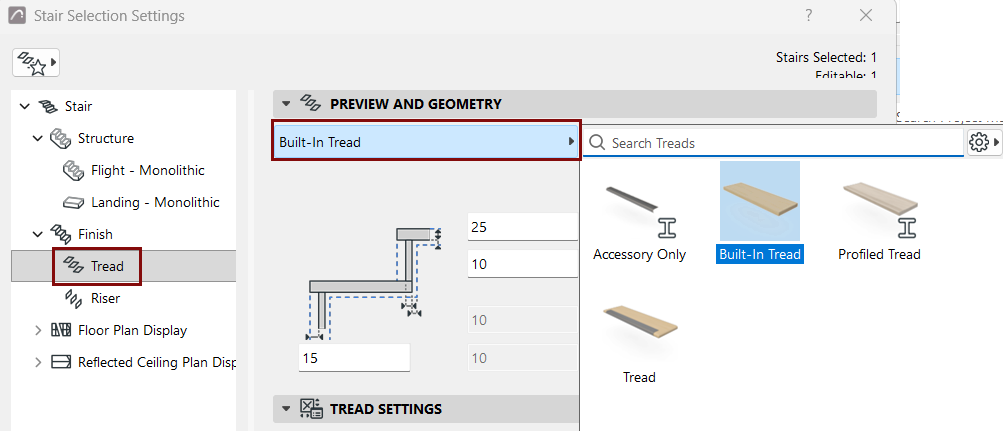
Tread and Riser Settings: Choose Component
On the Tread and Riser Settings pages, as applicable, choose a GDL component from the pop-up to serve as the Finish:
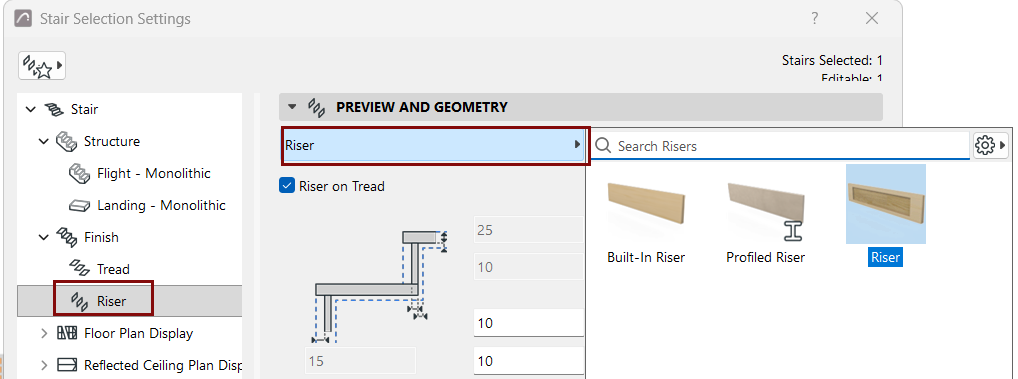
Riser on Tread: Check this to place the Riser on top of the Tread. (If this is unchecked, the Riser extends to the bottom plane of the Tread - see the diagram.)
Tread and Riser Settings
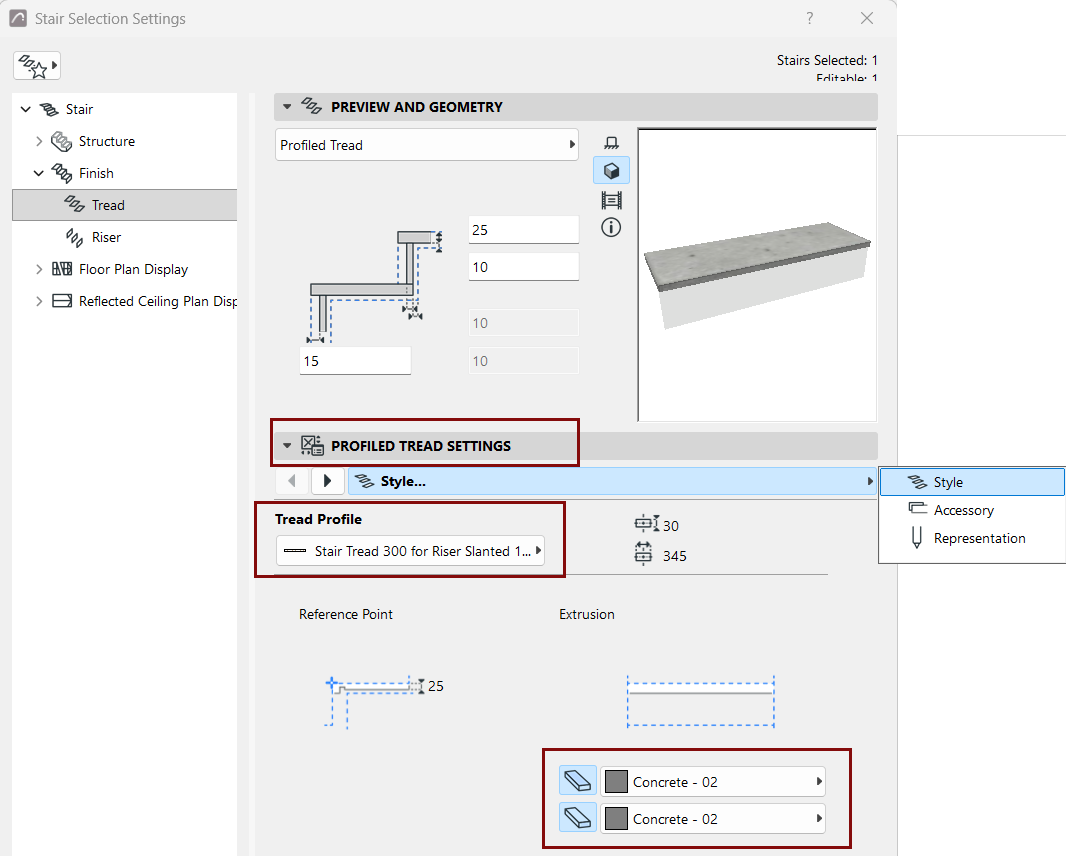
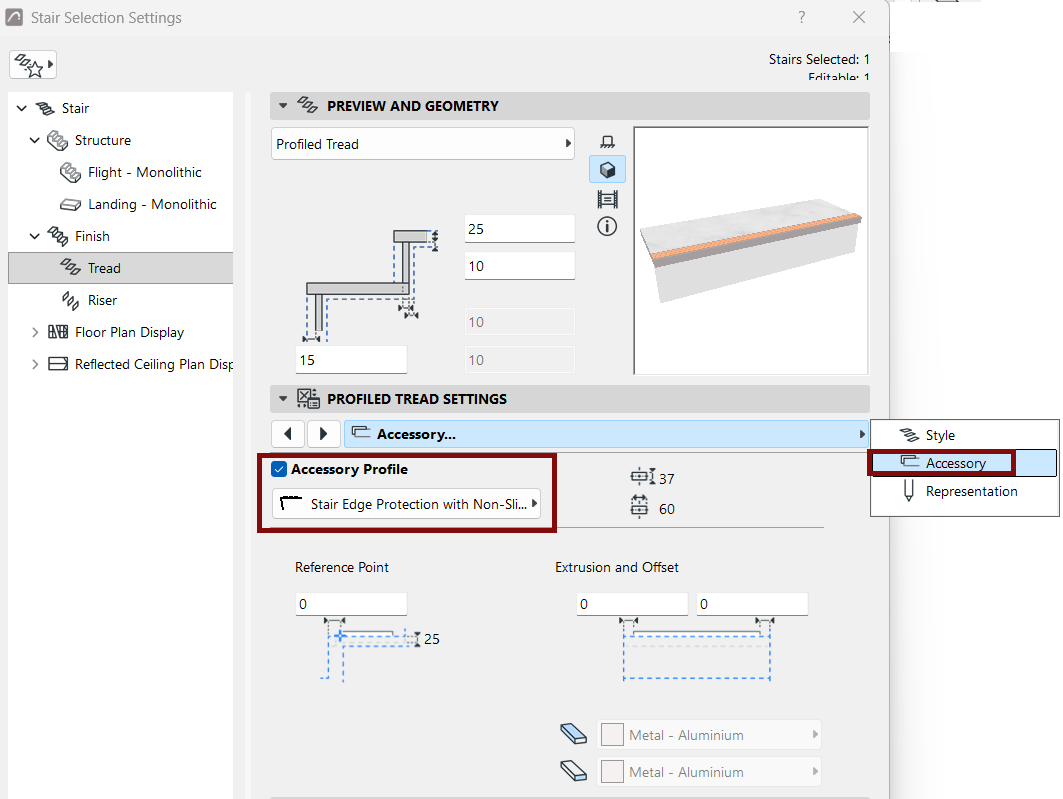
Use the Tread or Riser Settings panel to specify the shape and appearance of the chosen finish. The settings vary depending on the chosen component:
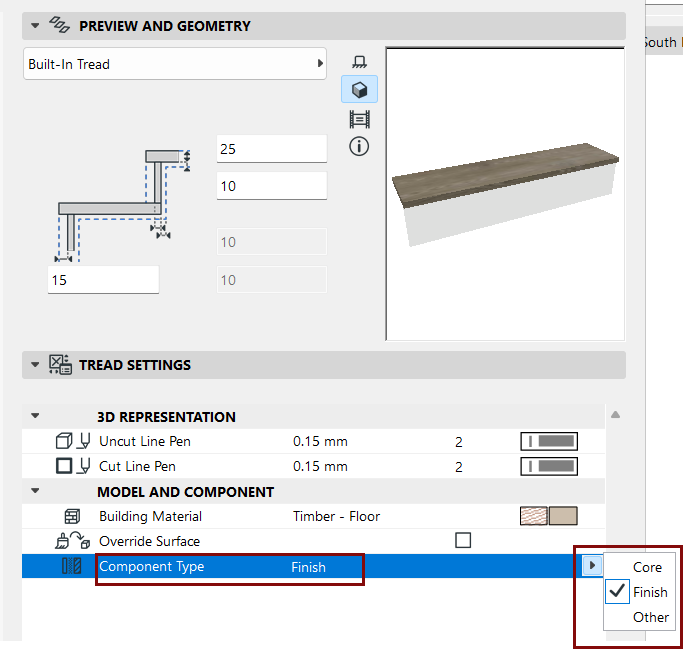
Define components as Core/Finish/Other
In the Representation section of the Settings dialog: set the components as Core/Finish/Other. (When editing Beam, Cantilever, and Stringer structures: uncheck the "Uniform Component Types" to set each component separately.)
Defining component types in this way allows you to control their display via Partial Structure Display. For example, to display structure-only coordination views, choose "Core only" as the view's Partial Structure Display setting. This will hide stair components that are defined as "Finish" or "Other".