Model View Options: Detail Level of Stair and Railing Symbols
This panel is at Document > Model View > Model View Options. Use these settings to define the display of Stair and Railing symbols in Floor Plans and Reflected Ceiling Plans.
By default, you see the "Simple Settings" setup. If you need to customize these Simple Settings, use the Advanced Settings page for more granular options.
Simple Settings for Stair/Railing Detail Level
Simple Settings mode shows the four main groups of Stair and Railing symbols: Grid, Structure, Walking Line, and Railing.
Use this page to define your preferred display setups.
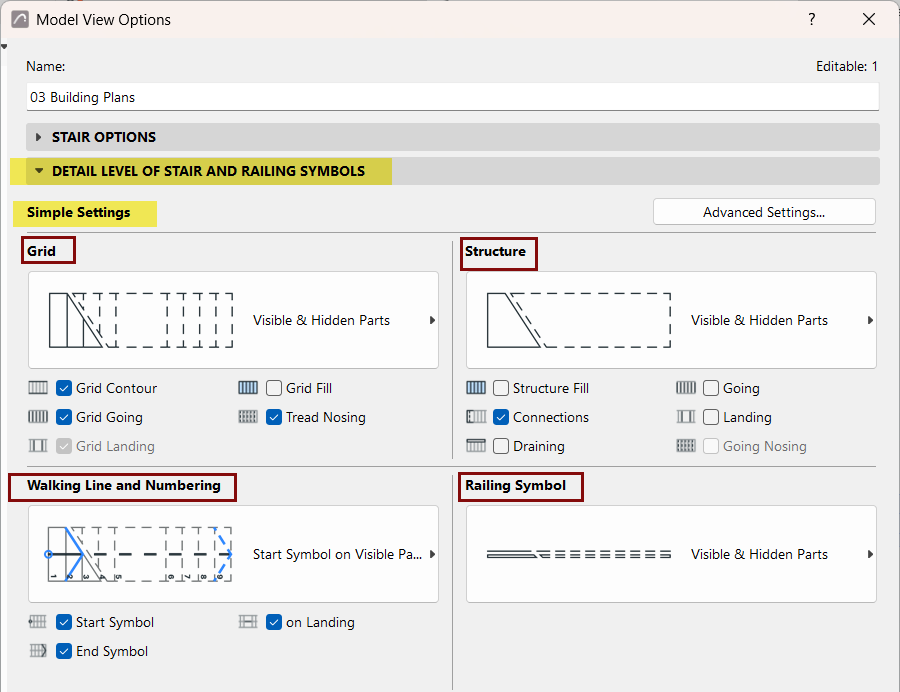
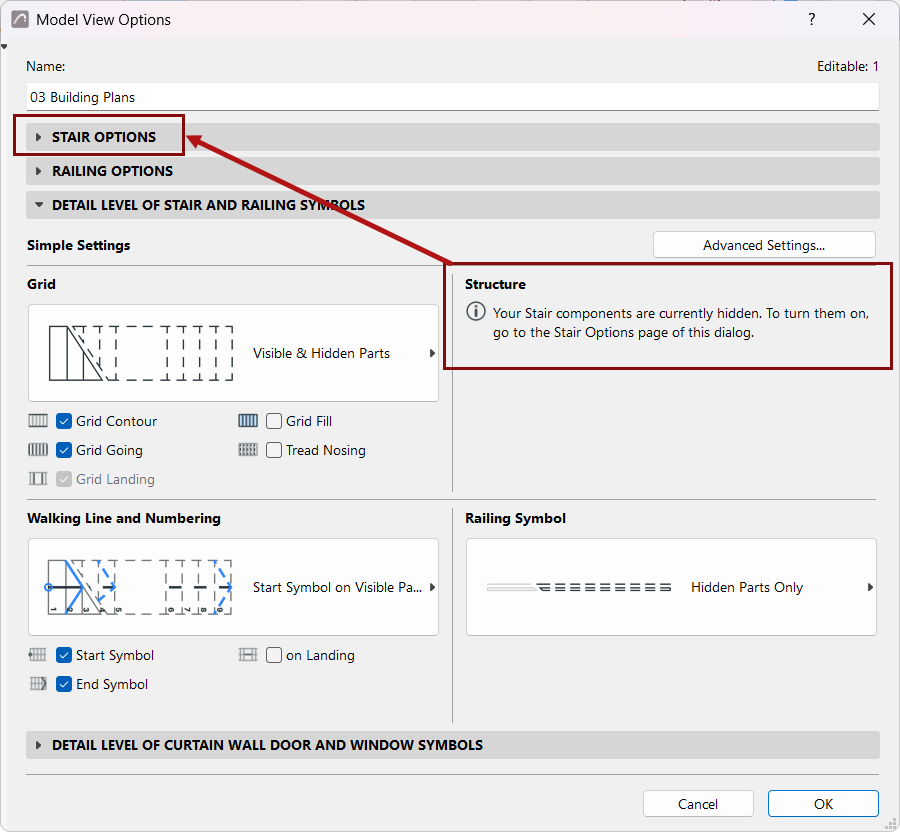
In each group, check the boxes of the items to be displayed. Then use the pop-up to set the Detail level you need.
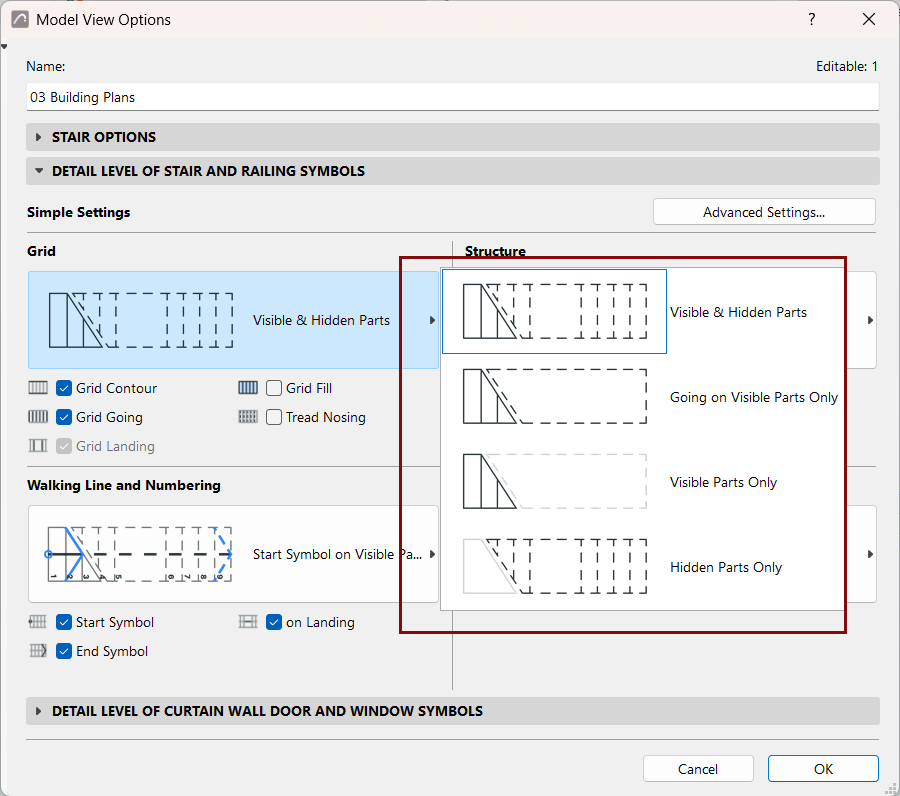
Visible Parts and Hidden Parts
A Stair’s “Visible Parts” represent the Stair’s primary appearance, and are displayed using the “Visible” line type defined in Stair Settings (usually a solid line).
A Stair’s “Hidden Parts” represent the Stair’s secondary appearance, and are displayed using the “Hidden” line type defined in Stair Settings (usually a dashed line).
See Set Attributes for Each Stair Symbol Component.
Visible parts are usually under the Break Mark; Hidden parts are usually above the Break mark.
Advanced Settings for Stair/Railing Detail Level
Use this mode for detailed customization Stair/Railing symbol display. To open, click the "Advanced Settings" button from the Simple Settings mode of Detail Level of Stair and Railing Symbols panel.
In Advanced Settings mode, all symbol components are shown in list form, in logical groups. Use the pop-up to set display preferences.
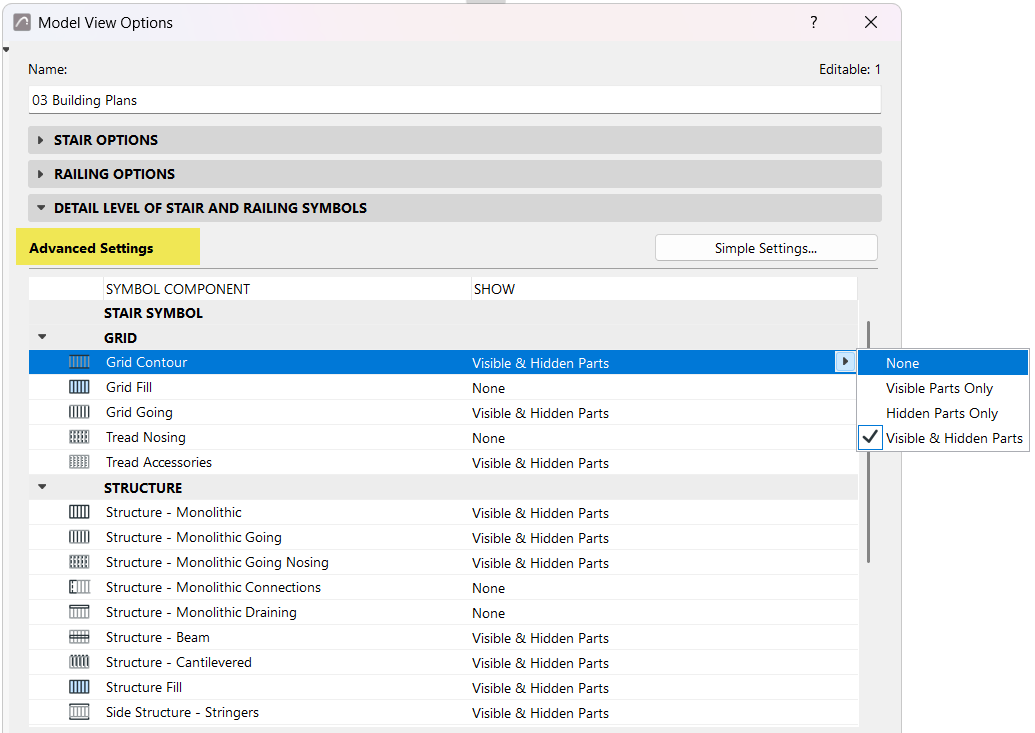
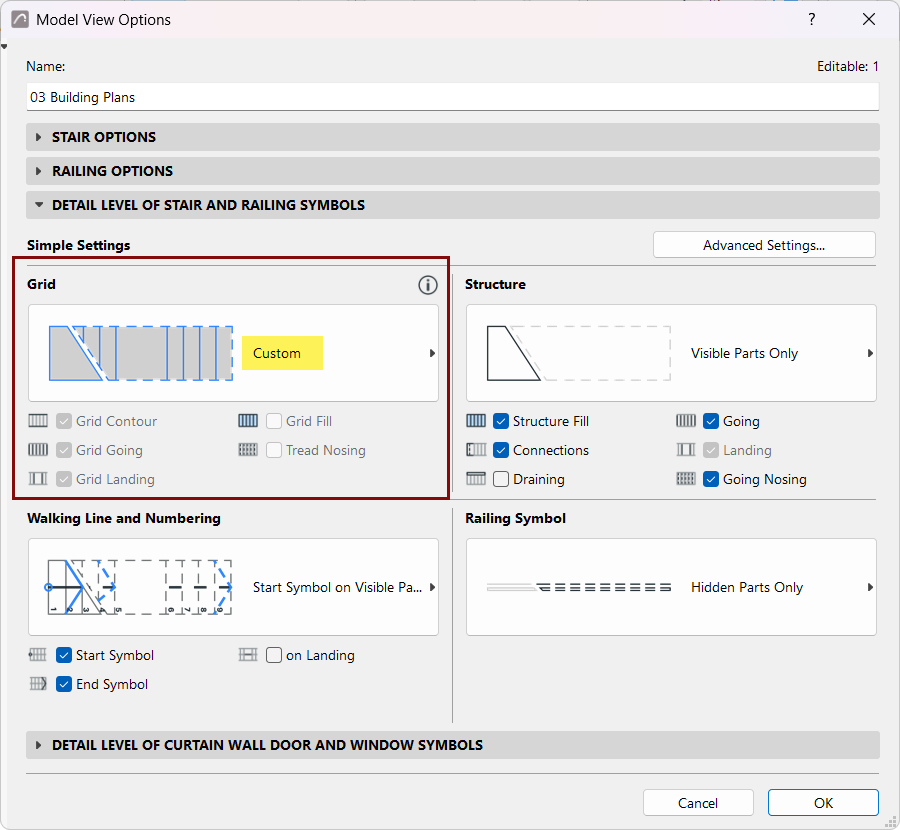
If you make changes in Advanced Settings (for example, hide the Grid), this will override the Simple Settings, where the relevant controls will be shown as "custom".