Morph Selection
Morphs consist of multiple sub-elements (faces and edges).
Select Entire Morph
A selected Morph has only a single hotspot, which represents the point of its elevation value; but all other nodes/corners are also editable.
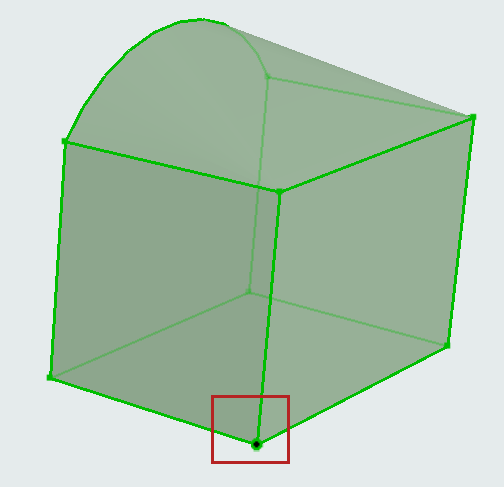
Area selection will select the entire Morph.
Select Morph Sub-Element
Use Ctrl+Shift to select just a sub-element (an edge or a face) of the Morph. (The cursor changes to a white arrow to indicate that you are selecting a sub-element.)
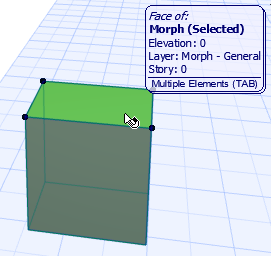
With Ctrl + Shift pressed:
- Pre-selection highlight shows you exactly what will be selected when you click
- Use the tab key to cycle among the pre-selected sub-elements
When a sub-element is selected, all the pet palette commands will work on that sub-element only.
For example, the Move command on a selected face will move the face in space (and the connected parts of the rest of the Morph along with it) - it does not move the whole Morph element.
Sub-element selection is also reflected in the Info Box and Morph Selection Settings.

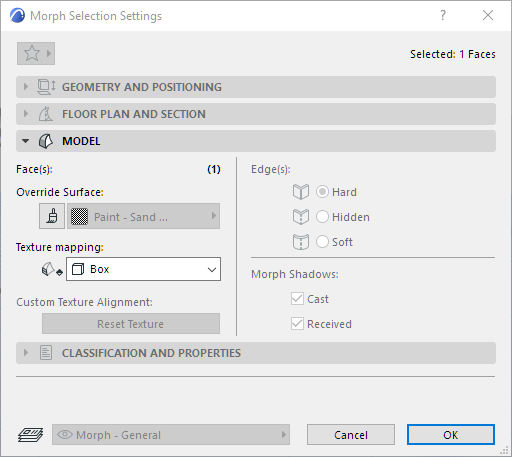
Sub-Element Selection by Default
If you are editing Morphs, you may wish to select only Morph sub-elements (faces and edges) by default, rather than the entire Morph. To do this, activate the Sub-Element selection method for the Arrow tool.
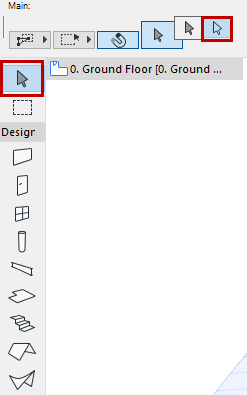
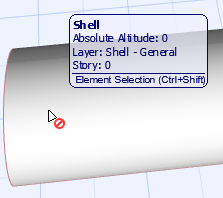
This only works for Morph selection. If Sub-Element selection is on, and you try to select other element types, you get a “Do Not Enter” cursor, and selection is not possible unless you use the modifier key (Ctrl + Shift).
If you have activated Sub-Element Arrow selection by default, then the usual selection logic is reversed: Sub-elements are selected by just plain clicking, while to select an entire Morph, you have to use the modifier key (Ctrl + Shift).
Change the Sub-Element Selection Modifier Key
Use the Work Environment’s Shortcut page to assign a different modifier key for the “Sub-Element Selection Modifier” command, which toggles between entire element/sub-element selection of Morphs.