Basic Morph Editing: Fillet/Chamfer a Morph
You can fillet or chamfer the corners and edges of Morphs, in 2D or 3D windows.
Note that a fillet or chamfer operation has the effect of created one or more new Morph faces. These new faces will always “inherit” the default surface of the original Morph.
Fillet/Chamfer a Morph Corner
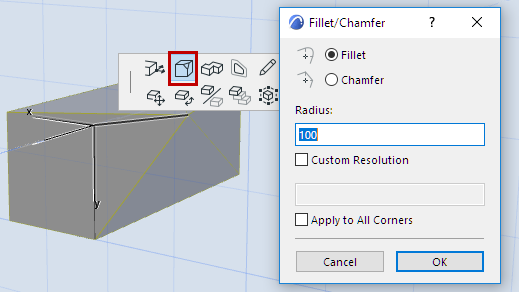
- Select a Morph and bring up the pet palette at one of its corners.
- Choose the Fillet/Chamfer Corner command and apply the desired options.
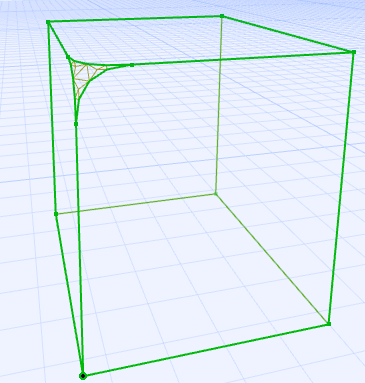
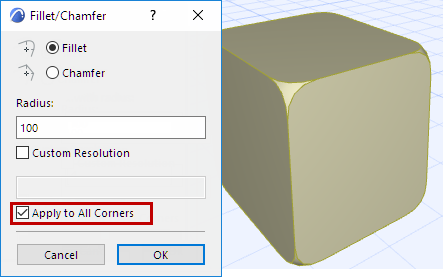
Check the box to apply to all corners of the Morph:
Fillet/Chamfer Morph Edges
- Bring up the pet palette on the edge of a selected Morph (or on one or more selected edges).
- Choose the Fillet/Chamfer Edge(s) command and apply the desired options.
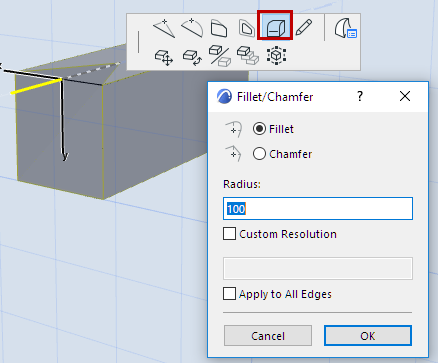
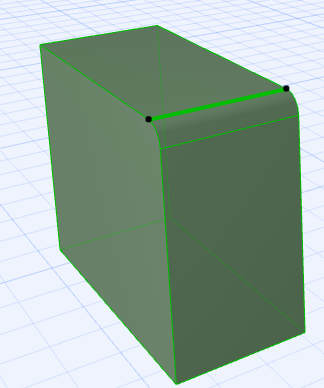
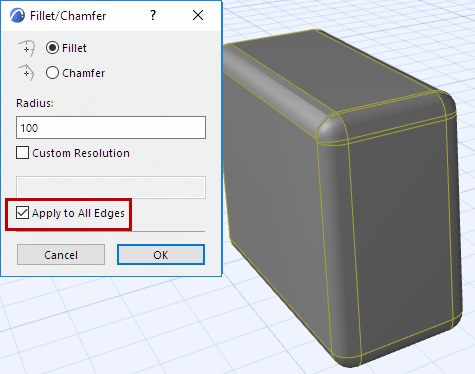
If you have selected an entire Morph, you can check the box to apply the fillet/chamfer to all edges:
Custom Resolution for Fillet
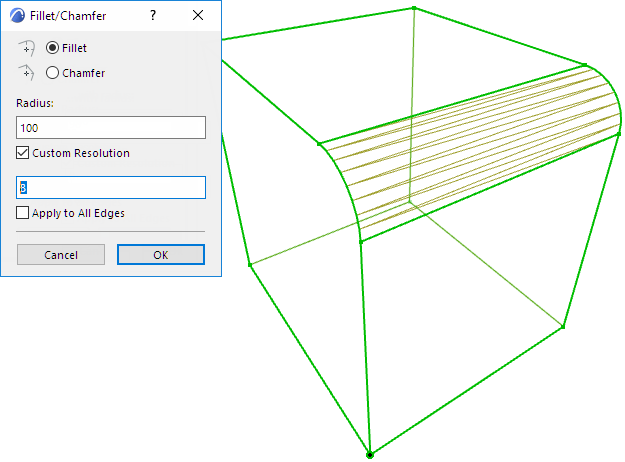
By default, the Fillet resolution is set to 4 (this is best displayed in wireframe):
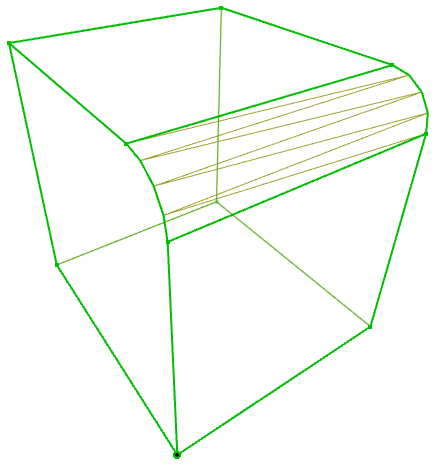
For different results, adjust the Fillet resolution up or down: