Manage Opening Connections
Manage an Opening and its cut elements using the commands of the Connections grip. (Each Opening is associated to a single element, but a single Opening can cut multiple elements at once).
Cut Additional Element (Command)
Cut Additional Element (Use Connection Grip)
See List of Elements Cut by the Opening
Redefine Opening’s Associated Element
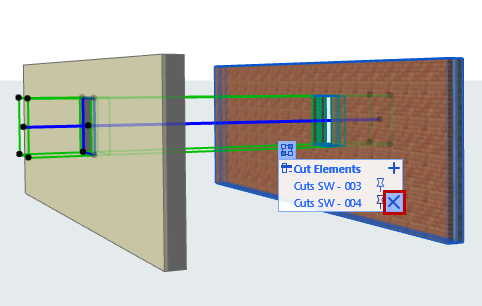
Delete Cut Element Relationship
Cut Additional Element (Command)
Cut Additional Element (Use Connection Grip)
- Select the Opening.
- Click the Connections grip.
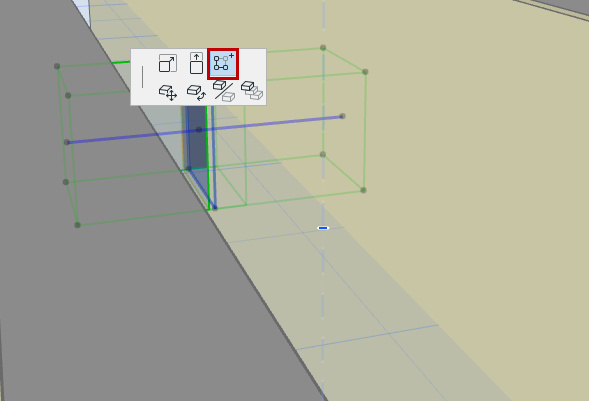
- Hover over the list header (Cut Elements) and click the Plus sign.
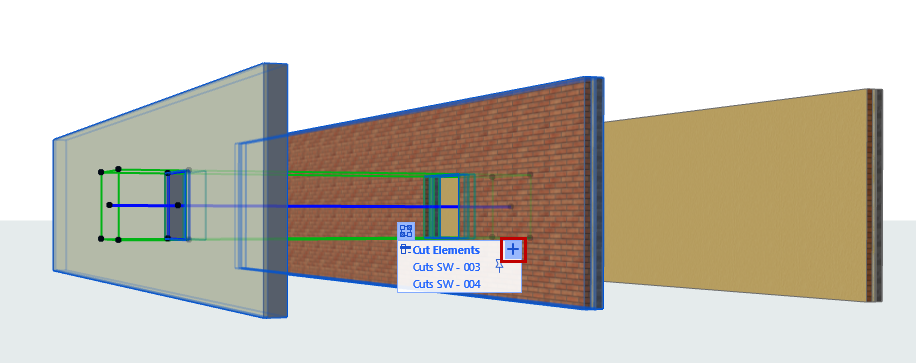
- Move your cursor to the next element you wish to cut. Eligible elements are shown with a pre-selection highlight.
- Click to cut the element. It is added to the Opening’s Cut Elements list.
See List of Elements Cut by the Opening
- Select a single Opening. The Connections grip appears.
- Click the Connections grip to display a list of the elements cut by the Opening.
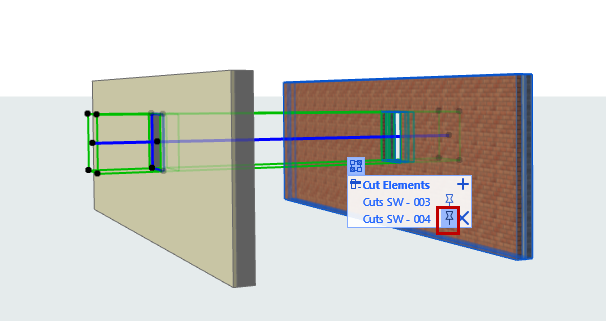
- Pinned Element: This is the Opening’s associated element. Opening geometry is measured relative to this associated element, and moves along with this element. Reassign the pin to any of the listed elements. (See
Redefine Opening’s Associated Element
.)
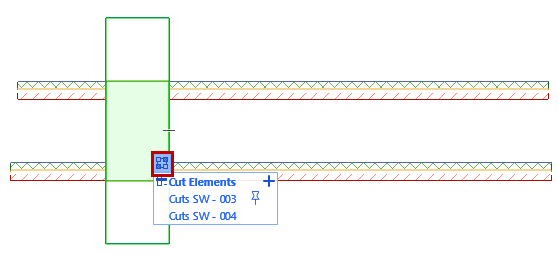
- Move your cursor through the list: As you hover over any listed item, the corresponding cut element is highlighted in the project
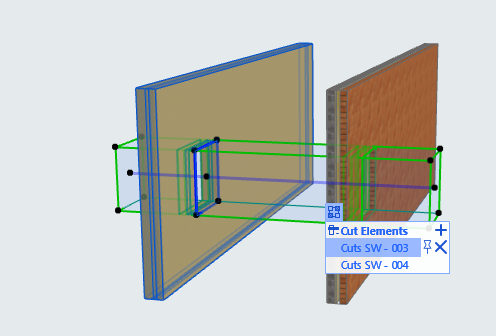
To highlight all of the project elements cut by the selected Opening, hover over the header (Cut Elements) in the connection list.
If the listed cut element is not visible in the current view (e.g. it is on a hidden layer, or on a different story), that item is listed in italic type.
Redefine Opening’s Associated Element
To redefine an Opening’s associated element: