Column Tool Settings: Preview and Positioning
The Column Settings dialog box is divided into five pages.
The Preview section remains visible on all pages, and reflects your settings modifications.
Navigate among the pages using the tree structure on the left:
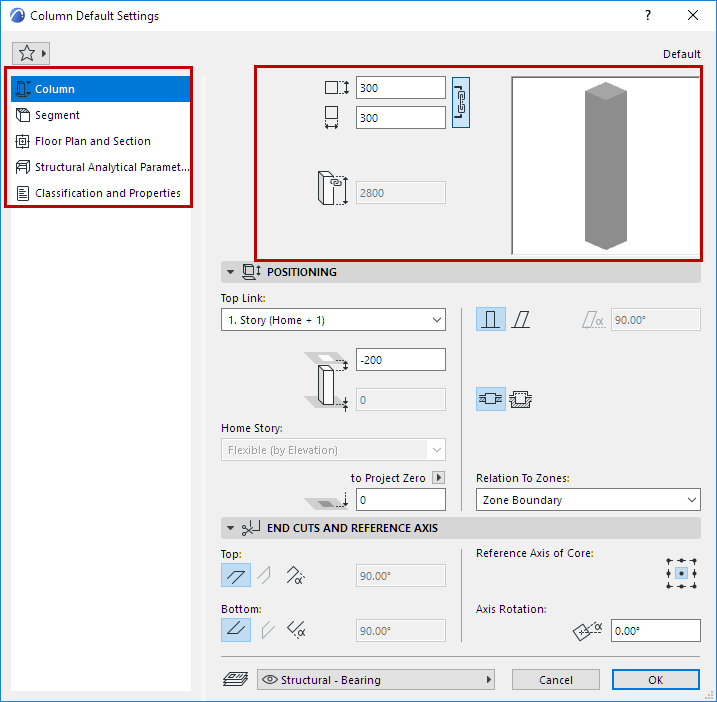
For a simple (single-segment) Column, enter the core’s horizontal and vertical dimensions.
For a circular column, enter a diameter.
Shows the Column’s total height.
- For an unlinked Column, set its height here.
- For a top linked Column: This field is not editable. Column height depends on the settings in the Positioning panel below.
Column Positioning Panel
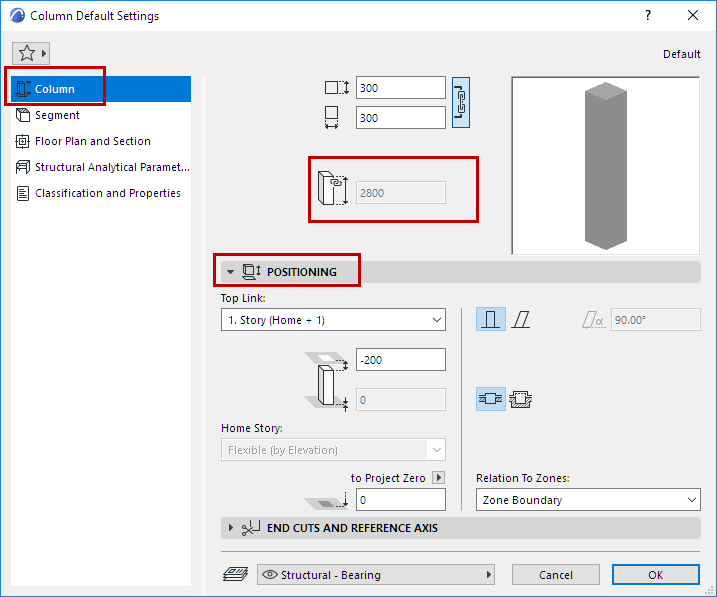
By default:
Top Link
Use this control to do one of the following:
If you later modify the positions and heights of stories in your projects, the heights of any linked Columns will follow automatically.
Offset from Top Linked Story
You can offset the Column top from its top linked story.
- The offset value can be positive, negative or zero.
- The offset field is not available if the Column has no top link.
You can also offset the Column bottom from the Home Story, in either direction.
- The Column height value (seen in the Preview section of Column settings) is affected by the top and bottom offsets, if any.
Home Story
See Home Story.
Bottom Elevation [to Reference level]
Calculates the current elevation of the Column’s reference line, as measured from the Reference level (by default, this Reference level is Project Zero).
Click the pop-up arrow to change the Reference level, if needed.
For general information on levels, see Reference Levels Preferences.
Column Slant Angle
Wrapping Method
See Columns and Composite Walls: Wrapped or Unwrapped.
Relation to Zones
See these topics: