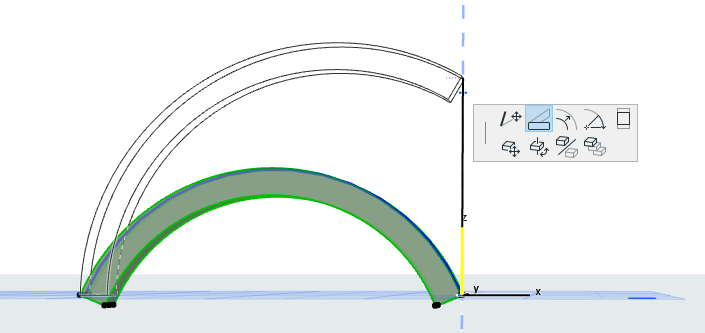
Use Beam Settings, or use Beam slant graphically in the 3D window.
Set Slant Angle in Beam Settings
- From Beam Settings (Beam page, Positioning panel) or the Info Box,
choose the Slanted icon.
- Enter a slant angle in degrees.
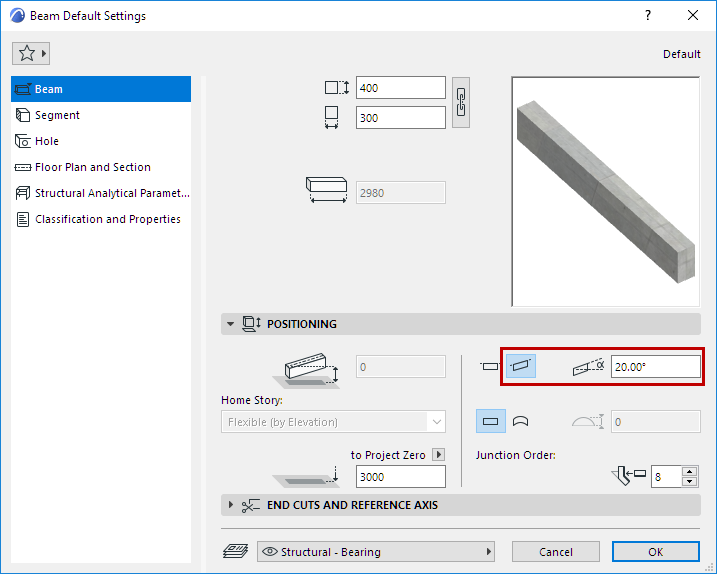
The value must be between -89° and +89°, and is measured from
the starting point of the Beam.
- Choose a Placement Method from the Info Box, then place the
column.
Two-Click Beam Input
- Choose the Single Beam method from the Info Box.
- Click twice to place each end of the Beam.
- In the 3D window:
- Snap the endpoints to existing elements
- Click Shift to constrain input to an editing plane.
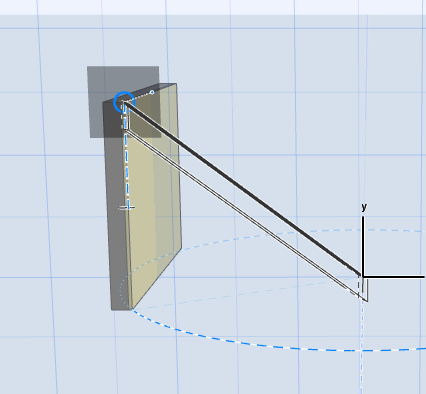
Note: If the Beam already has a defined slant
angle (in Settings or Info Box), the slant angle prevails, regardless of the
constraint.
An existing, vertically curved Beam can also be slanted.