Assign Custom Property Value
To assign custom property values to a selected element or material, open the Classification and Properties panel (Element Settings or Building Materials dialog box).
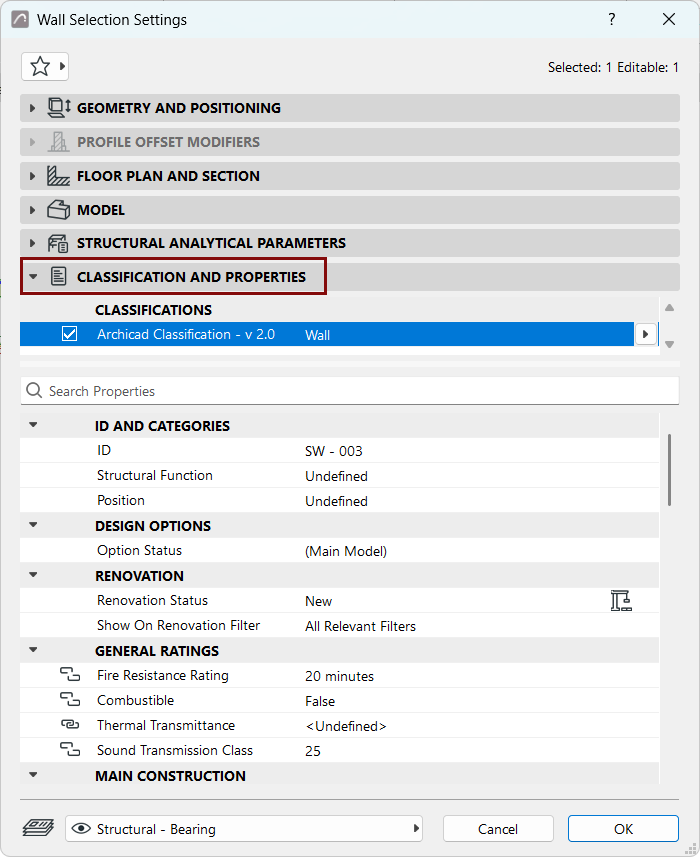
All available properties are listed here. Available properties depend on the Classification(s).
As needed, use the search bar: enter any text to search for any properties or groups currently displayed in the dialog.
For each property, the chain icon indicates that its value is linked to the default for this property. (Default value of each property is defined in Property Manager.)
Click on any property in the list to assign a custom property value for this item.
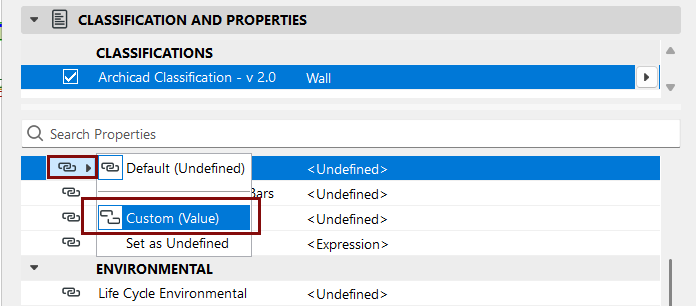
If the default value is <Undefined>: Click the chain pop-up. Then choose Custom Value to unlink the default value, and enter a custom property value instead.
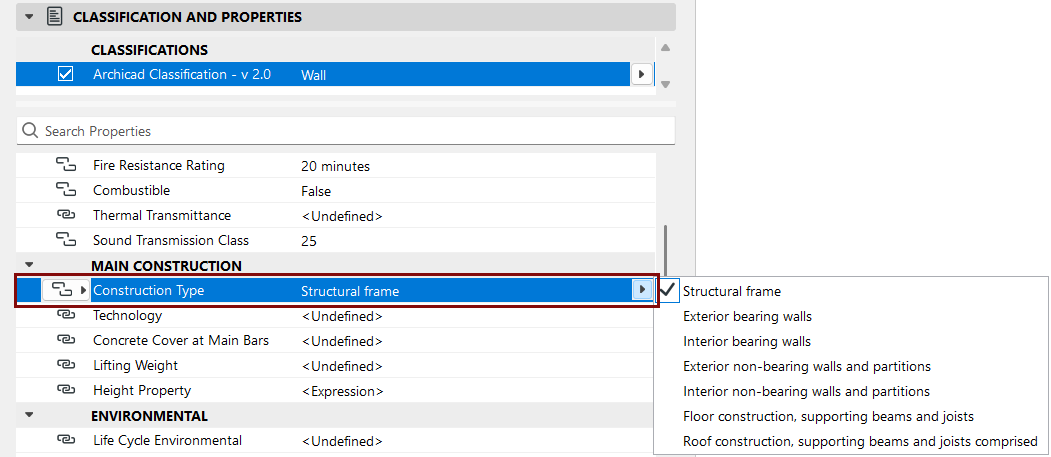
Depending on the property’s data format, you can choose from a list, enter text, or simply type in a value.
The custom value can also be set as “Undefined” for this item.
This undefined value is not linked to the default, and will not be updated in case you change the default value.