Change Details
Edit Change Scheme to Define Custom Data
Modify Details of Transmitted Change
New Change Details
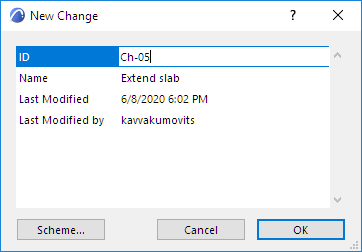
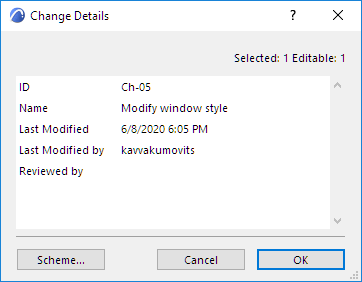
The following data are defined in the New Change dialog box.
Change ID: This value is mandatory and must be unique for each Change. With each new Change, the last number is automatically increased by one.
Name: This optional value will serve as the name of the Change. By default, the previous Change Name is shown here, but you can modify it as you like.
Last Modified: Time/date of last modification of the Change Details. Linking or unlinking elements or markers does not count as a Change modification. (Once a Change is transmitted, you can no longer edit this field.)
Last Modified by: User name who carried out the last modification (relevant for Teamwork projects). (Once a Change is transmitted, you can no longer edit this field.)
Edit Change Scheme to Define Custom Data
Use this Scheme to define any Custom data types for all Changes in this project.
Click Scheme from the New Change or the Change Details dialog box to open the Edit Change Scheme dialog box.
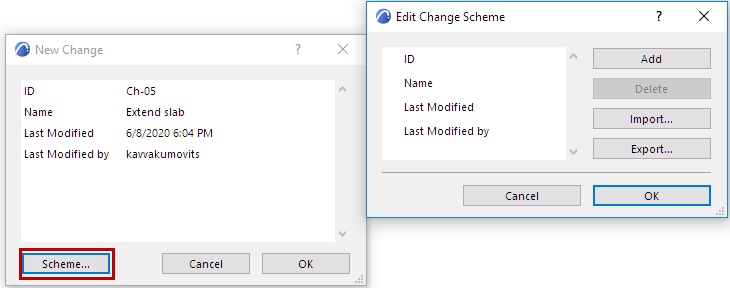
The Scheme contains the set of four fixed Change data items for the project; you cannot redefine these:
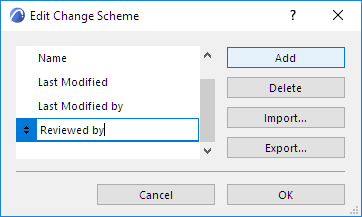
Below these fields, you can define any number of additional fields.
Import/Export Change Scheme
Click Export to save your Change Scheme as an xml file.
Then you can Import it for use in other project files.
See also Revision Management: Default Schemes in the Template.
Modify Change Details
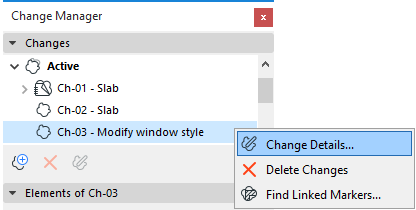
To modify these data, select one or more Changes in the Change Manager.
- Access Change Details: Right-click and select the Change Details command, or double-click on the Change, or click the Change Details button.
- Edit the fields as needed.
Note: In Teamwork, you must reserve the Change Manager before modifying Change Details. Without reserving, you can only modify the details of Changes which you created and which have not yet been sent to the server.
Modify Details of Transmitted Change
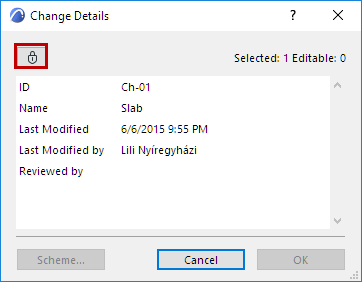
If the selected Change is transmitted (or Archived), the Change Details dialog box has a lock on it. It is not advisable to edit such changes. If you must modify a transmitted or an archived Change anyway, click the icon to unlock it.
You can edit the ID, Description, and any custom fields, but you cannot edit the Last Modified date or user name.
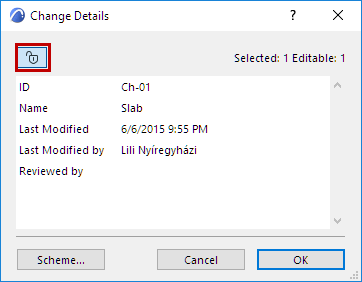
Once you leave the dialog, the Change is locked once more.