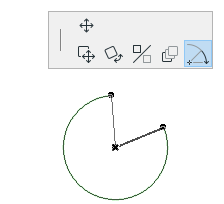
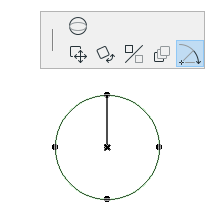
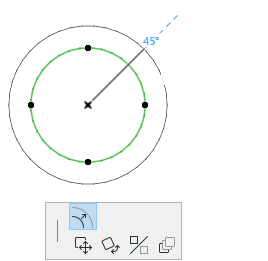
You can modify the circumference or radius of Curved Walls, Beams, Arcs and Circles with either the Stretch command or the pet palette icon.
Angular Stretch
Use the Angular Stretch icon to change the element’s arc length by dragging its endpoint (or reference line endpoint, in case of a curved wall) along the curve.
Alternatively, transform an Arc into a full Circle or the other way around.
Note: A curved Wall stretched into a full circle will be transformed into two half-circular elements.
Radial Stretch/Copy
Use the Radial Stretch icon to increase or decrease the element’s radius by dragging its edge or reference line.
Make a single copy of circles or ovals: Click Option (Mac) or Control (Windows) during radial stretch
Stretch Ellipse
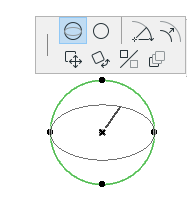
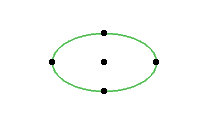
You can modify the shape of a closed ellipse or full circle by stretching it.
Select the ellipse or circle.
Click on a node to bring up the pet palette.
Choose the Stretch Ellipse icon.
Drag the cursor to stretch the ellipse along its axis or stretch the circle into an ellipse.