Place Drawing in Model View
Do one of the following:
Drag and Drop
Drag drawing files (one at a time) from your file system.
With Drawing tool
- Activate the Drawing tool.
- Click in the view.
- The Relink Drawing dialog appears. Choose the source of the Drawing: either local file system or BIMcloud.
If needed, log in to BIMcloud. See Log in to BIMcloud.
- Click Browse, then select the desired Drawing file.
Note:
With File menu commands
Use one of the following depending on the source of the Drawing:
- File > External Content > Place External Drawing
- File > External Content > Place External Drawing from BIMcloud
Choose the BIMcloud, then the project you need.
If needed, log in to BIMcloud. See Log in to BIMcloud.
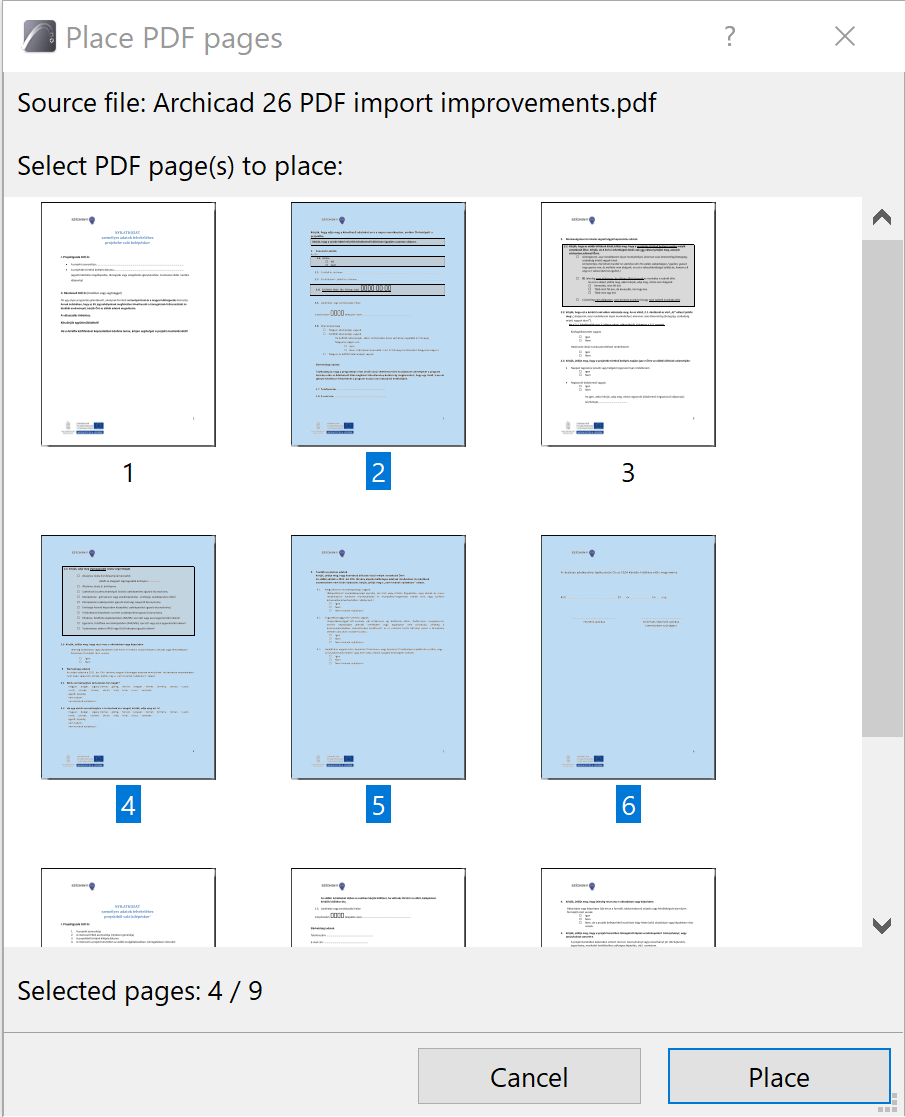
Place selected pages from a PDF
This works if the PDF is placed using drag-and-drop or a File menu command.
If the imported drawing is a multi-page PDF:
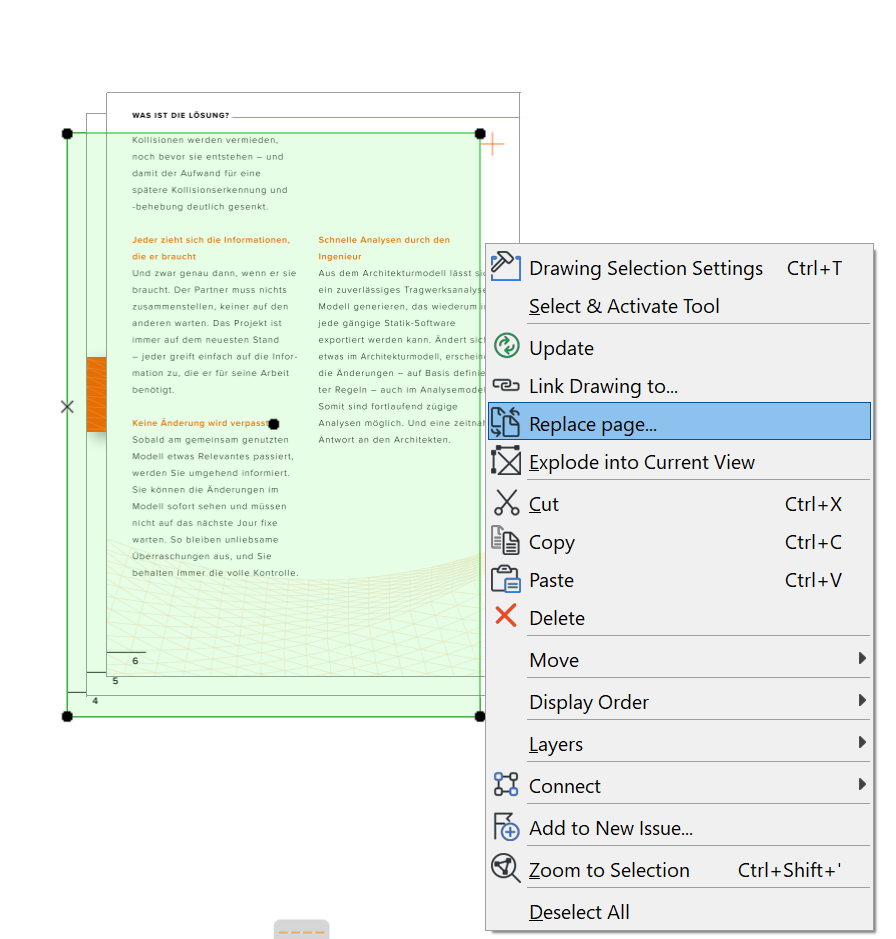
Replace a PDF page
After placing a PDF, use the “Replace page” context menu command (from selected Drawings or Drawing Manager) to relink to another page within the same PDF document.
To import only certain layers of DWG/DXF or DWF drawings:
See “Enable Partial Open” at Open Options (DXF/DWG Translation Setup).
To show/hide the source layers of imported DWG drawings placed in MEP Designer:
See Embedded Layers.