Place Drawing on Layout
The following can be placed as Drawings on a Layout
- view from current project
- view from external project
- external Drawing-type file, such as PDF or other drawing format
A view placed onto a Layout automatically becomes a Drawing.
Place view from current project (drag and drop)
Place view from current project (Drawing tool)
Place view from external project (menu command)
Place view from external project (Navigator Project Chooser)
Place external drawing file (multiple methods)
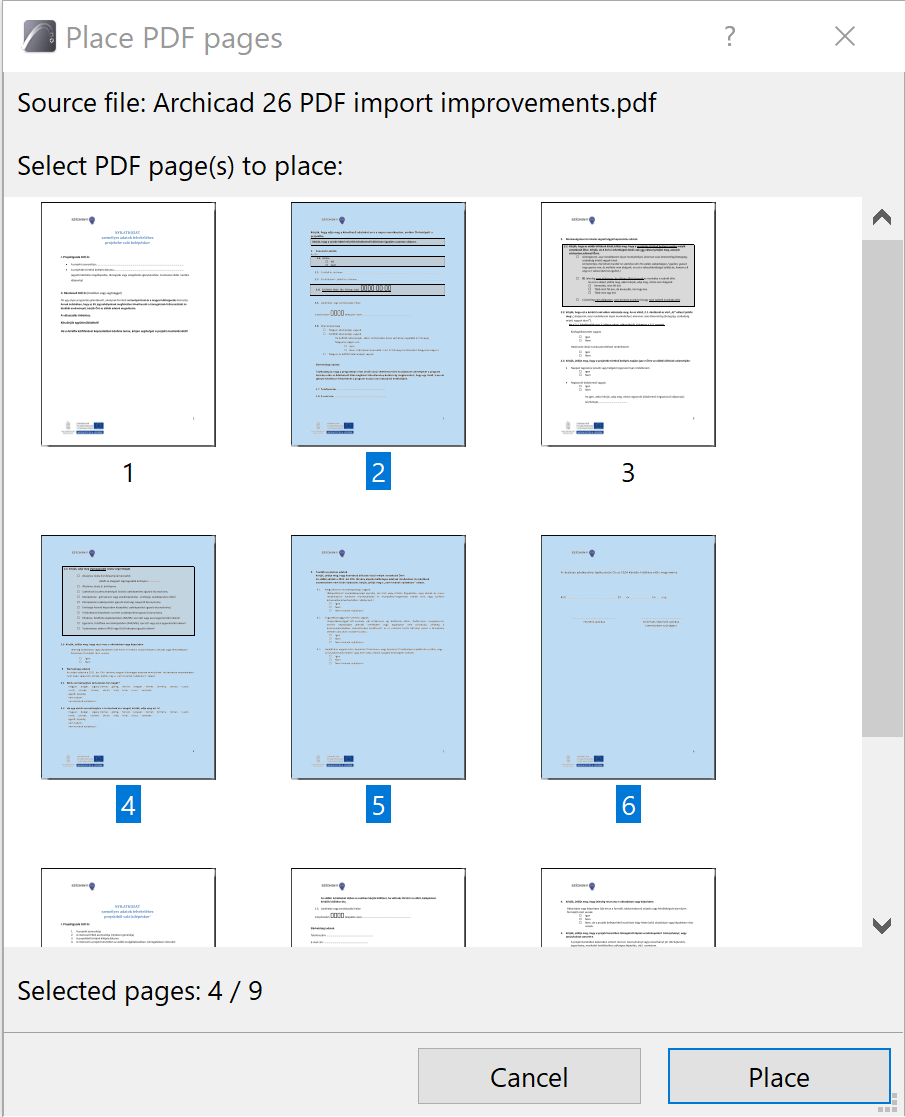
Place selected pages from a PDF
Save View and Place on Layout (command)
Place Drawing using Organizer (Layout Editor mode)
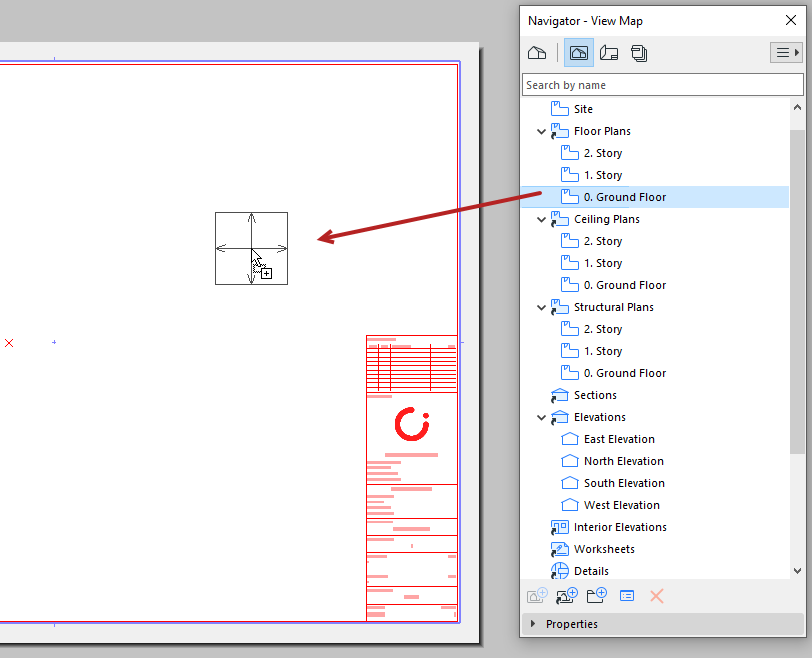
Place view from current project (drag and drop)
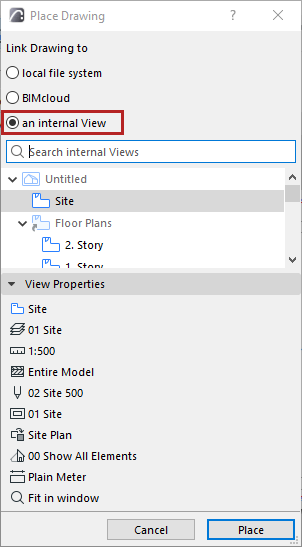
Place view from current project (Drawing tool)
Place view from external project (menu command)
Place view from external project (Navigator Project Chooser)
- Open the Navigator or Organizer of the active project.
- From the Project Chooser button: Click Browse Project or Browse Teamwork Project.
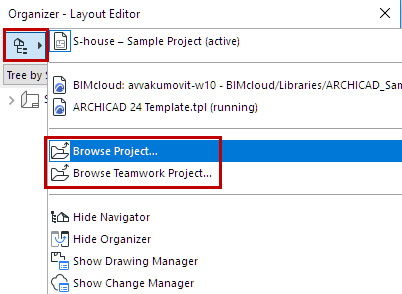
- Choose an external project file
If browsing a Teamwork project: Choose the BIMcloud, then the project you need. The source project and host project must be the same version.
If needed, log in to BIMcloud. See Log in to BIMcloud.
- Click Open.
The project tree structure is now shown in the Navigator.
- Drag and drop views to onto the Layout in the active window.
Place external drawing file (multiple methods)
Or browse the file system or BIMcloud using any of these methods:
- Activate the Drawing tool, then click on Layout.
Choose “local file system”, then browse.
- File > External Content > Place External Drawing
- File > External Content > Place External Drawing from BIMcloud
Choose the BIMcloud, then the project you need.
If needed, log in to BIMcloud. See Log in to BIMcloud.
Place selected pages from a PDF
This works if the PDF is placed using drag-and-drop or a File menu command.
If the imported drawing is a multi-page PDF:
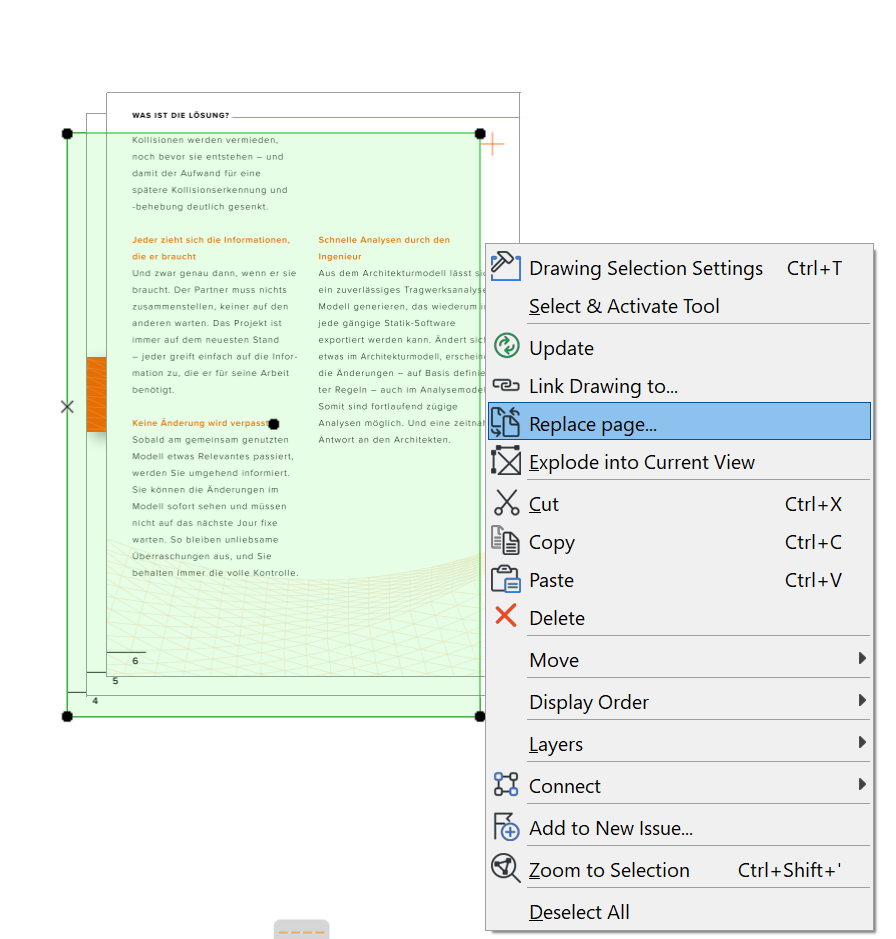
Replace a PDF page
After placing a PDF, use the “Replace page” context menu command (from selected Drawings or Drawing Manager) to relink to another page within the same PDF document.
Save View and Place on Layout (command)
This command is available:
- from the active window’s context menu
- from the view/viewpoint’s context menu in the Pop-up Navigator (in case of a view, the command is called simply Place on Layout)
- from the Document menu
This command opens the layout window (the most recently active Layout, or the first Layout in the Layout Book).
Click to place the drawing.
Place Drawing using Organizer (Layout Editor mode)
In the Organizer’s Layout Editor, drag and drop viewpoints, views and external files from the hierarchy list on the left into the Layout Book on the right. (Or use the Place Drawing command on the left side of the Organizer.)
See Organizer.
The placement of the drawings obeys the following rules: