Dimension Type Panel (Linear Dimensions)
Define the dimensioning method and the graphical appearance of Linear Dimensions: marker display, witness lines, witness line extensions, and line ends.
Dimensioning method
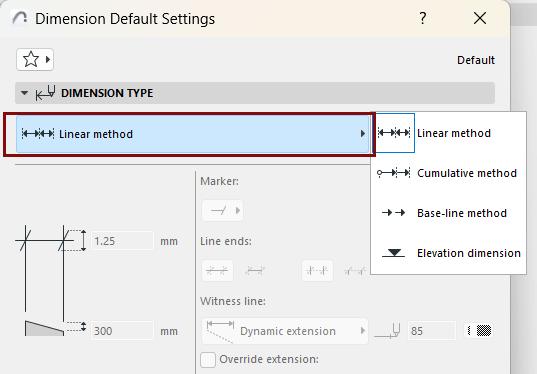
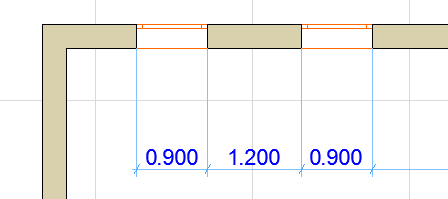
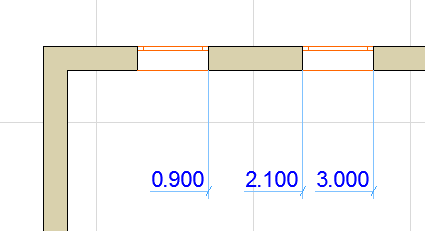
- With the Linear method, distances between two adjacent Reference Points are measured and displayed.
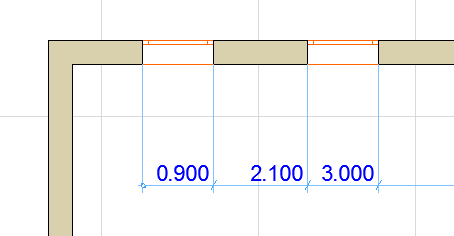
- With the Cumulative method, the first Reference Point is the zero point of the dimension chain. All dimension values of the chain will give you the distance between any Reference Point and the zero point.
- With the Base-line method, measurement is the same as Cumulative, but the zero point is not marked.
- With the fourth method, you create Elevation
Dimensions.




Elevation Marker Style: Choose Proportion, Direction, and Outline/Solid.
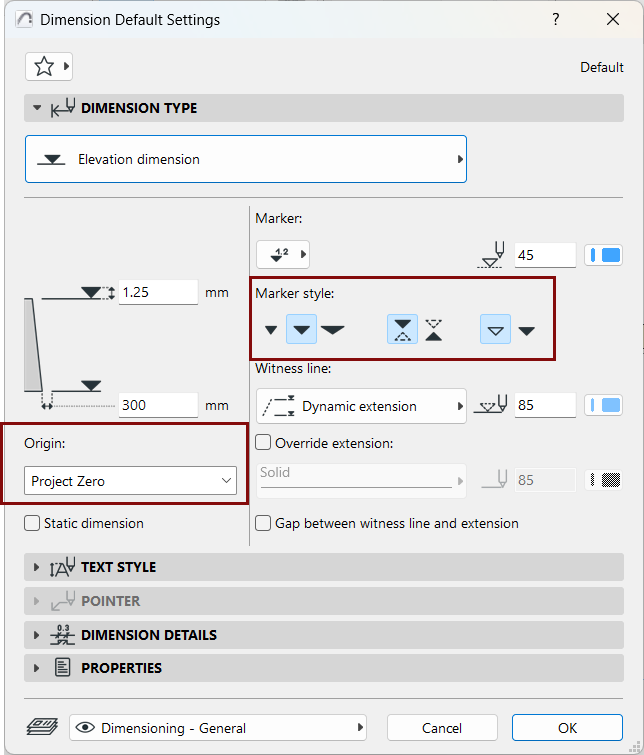
Static Dimension
Check this box to create static dimensions that are not associated with any of the elements in the Project.
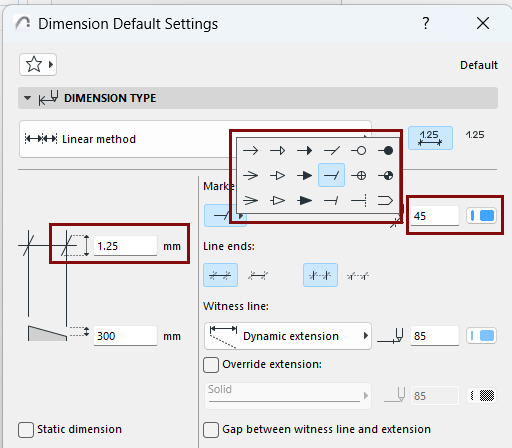
Marker
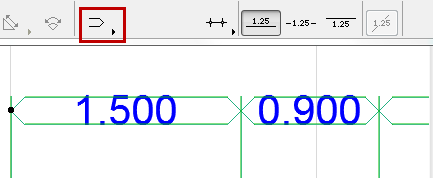
Choose a marker symbol to show at the dimension point.
Enter the marker size in the preview field to the left.
Set the marker pen color.

Line color
Set a pen color for the dimension line, witness line, and any end lines. Witness line extensions also get this color by default, but you can override it.
Show Dimension Text Only
Choose this option to display dimension text only, without dimension lines or witness lines.
For editing, you can display the reference line on-screen : Turn it on at View > On-Screen View Options > Dimension Reference Lines.
Line ends
Show or hide the line ends (the stroke at the ends of the marker symbol), separately for the Dimension line and for the Witness line.
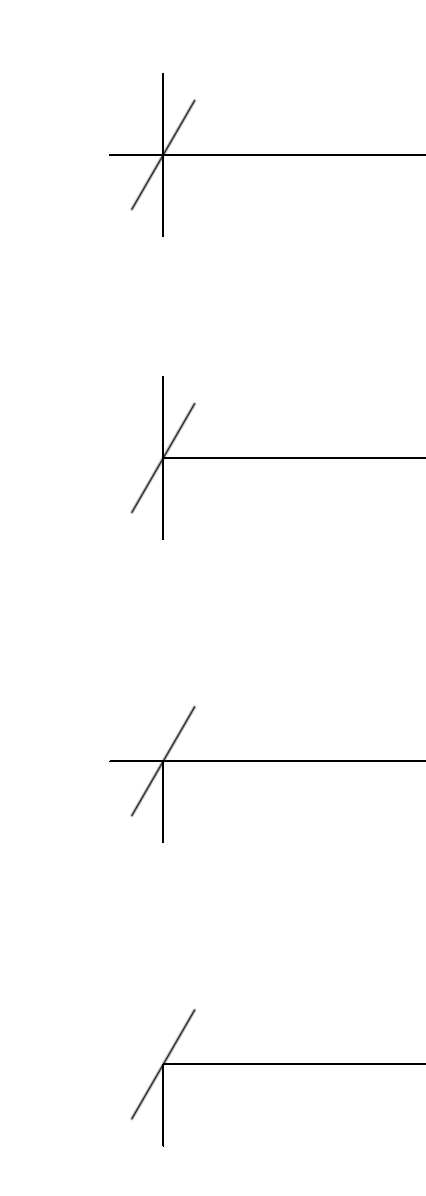
Witness line and extension
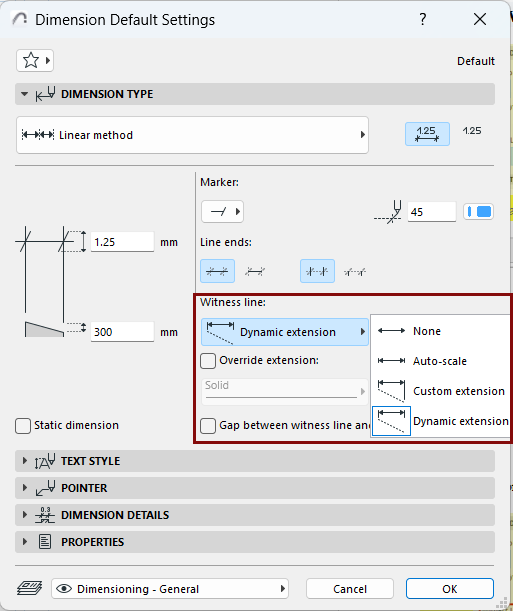
Use these controls to define the witness line and (where applicable) its extension.
You can apply these settings for each node separately as needed.
-
None: No witness line is displayed

-
Auto-scale: Displays a fixed-height witness line that scales with the marker size

-
Custom extension: Displays a witness line with a user-defined extension length
-
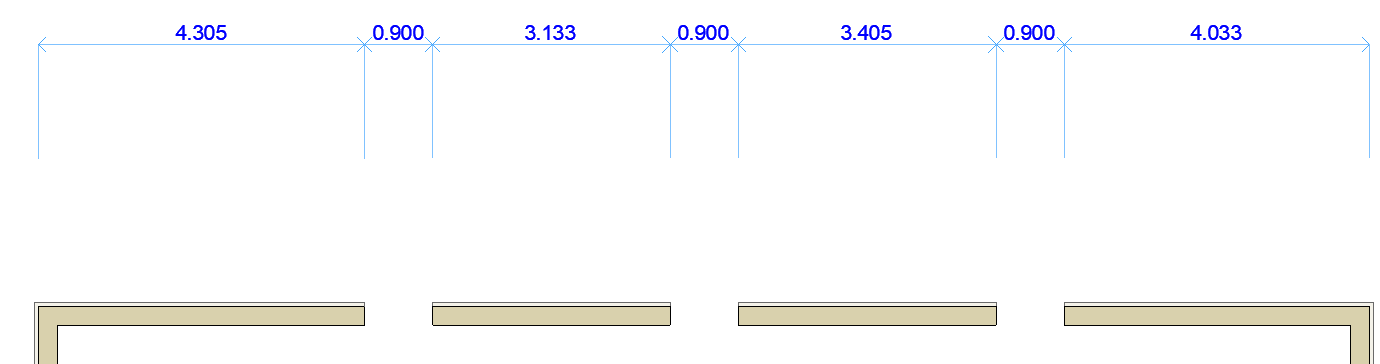
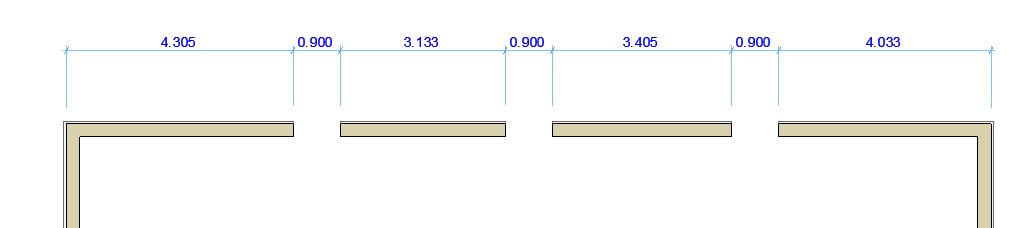
Dynamic extension: Displays a witness line whose length is associated to the dimensioned element.
Override extension: Check to format the witness line extension (for any node) separately from the main witness line.
For example, use a dashed line in a separate color to distinguish the witness line of center dimensions.
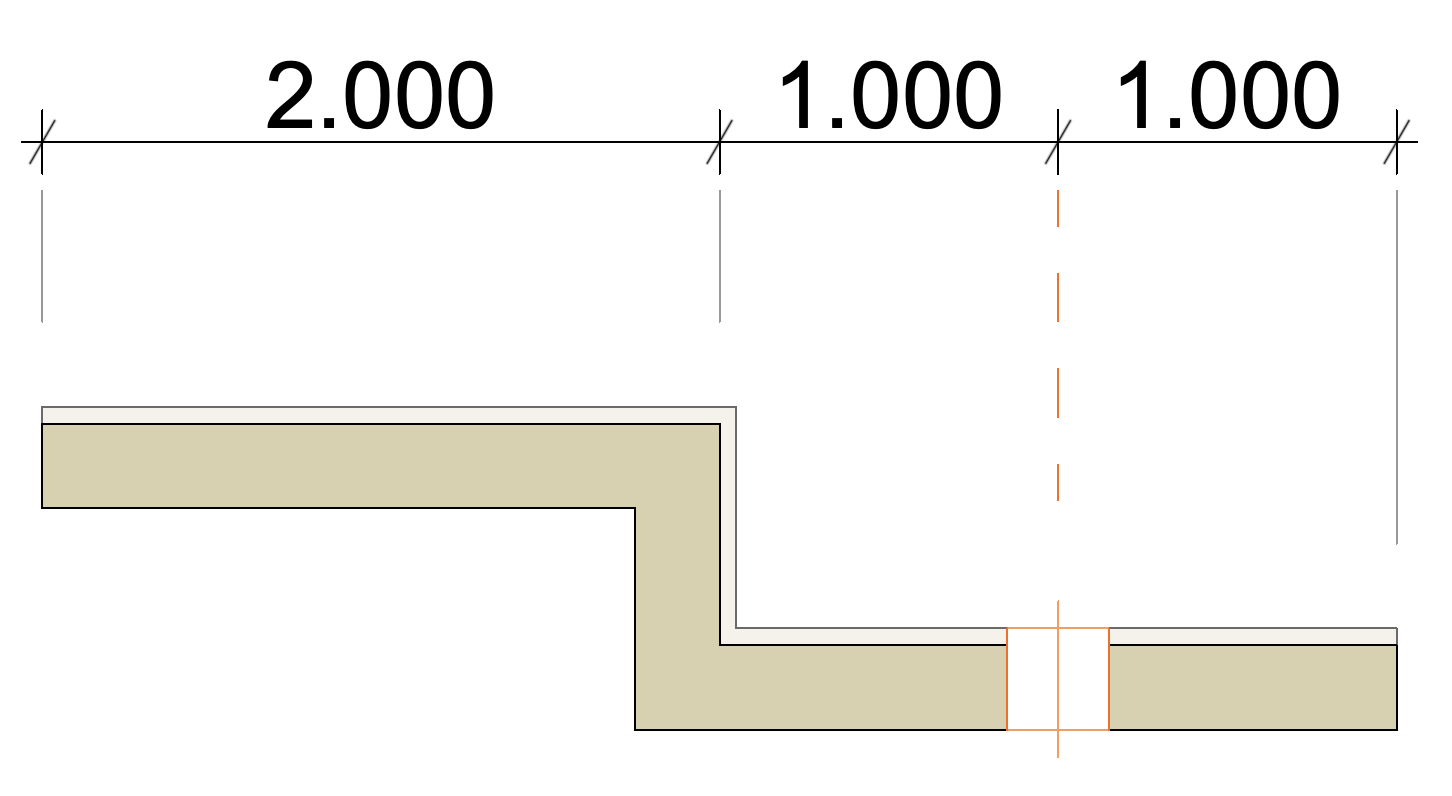
Gap between witness line and extension
Insert a gap between the witness line and its extension, for easier to read dimensions. Enter gap length in the preview field to the left.